TLDR
- First decide whether the problem affects one device, one room, or nearly the whole Zigbee network; each pattern points to a different fix.
- Check batteries and power first, then move the Zigbee coordinator—the USB radio or hub—away from USB 3.0 and Wi-Fi equipment, then add compatible always-powered Zigbee repeaters if coverage is weak.
- Do not pair every device again or change the Zigbee channel as your first experiment. Make one change and retest.
- Battery sensors sleep between reports, so their links can be missing from a network map without a fault; verify real button presses, sensor reports, and commands.
Start by finding the size of the failure
The safest way to fix an unreliable Zigbee network is to diagnose its shape before changing it. If one battery sensor fails, check that device's battery, placement, and pairing. If devices in one room fail together, inspect the always-powered Zigbee routers between that room and the coordinator. If nearly every device fails, start at the coordinator, the computer running it, its USB connection, power, and nearby radio interference. This order preserves a working network and usually avoids pairing dozens of devices again.
A Zigbee network has one coordinator, the radio that creates the network. Compatible plugged-in Zigbee devices can act as Zigbee routers, relaying messages around the home; this is a different job from the household Wi-Fi router. Most battery sensors are sleepy end devices: they wake briefly, report, and go back to sleep. A reliable mesh depends less on a large device count than on a stable coordinator and well-placed Zigbee routers that remain powered.
| What is failing? | Most useful first check | What to avoid |
|---|---|---|
| One battery sensor | Fresh battery, distance, recent reports, and whether its nearby Zigbee router still has power | Changing the coordinator or channel |
| One room or one branch | Powered Zigbee routers and obstacles between that area and the healthy part of the mesh | Adding a repeater inside the dead zone |
| Nearly every device | Coordinator, the computer running it, USB connection, power, logs, and recent network-wide changes | Factory-resetting devices one by one |
| Failures began after a restart or update | Whether the Zigbee software found the coordinator and finished starting, plus the exact change made | Assuming the radio mesh needs more routers |
| Slow or missed commands at busy times | Coordinator placement, 2.4-GHz Wi-Fi activity, repeated automations, and devices sending unusually frequent messages | Making several radio and automation changes together |
Confirm that the device is actually failing
Do not judge the network from one dashboard badge or map line. Try the device's normal job: open the door, press the button, change the physical switch, or send a light command. Check whether a fresh event reaches the system. A battery sensor may be silent for long periods because it is asleep, and the documentation for Home Assistant's built-in Zigbee integration, ZHA, warns that sleepy devices may be missing from parts of the mesh map even when they work.
Two common signal readings are RSSI, which describes received signal strength, and LQI, which describes link quality. They are snapshots, not pass-or-fail grades. Their scale and timing vary, and one poor-looking reading may come from an old route. Use them to compare the same device before and after one change, alongside actual response time and successful reports.
1. Check batteries, plugs, and power cuts
For one failing sensor, fit a known-good battery of the type its maker specifies, then trigger the sensor and watch for a fresh report. A displayed battery percentage can lag behind reality. Also check that the nearest powered Zigbee device has not been unplugged, moved, or switched off at the wall.
Many smart plugs, in-wall switches, and powered repeaters can route messages, but compatibility and behavior vary. A smart bulb is a poor foundation for the mesh if a conventional wall switch regularly removes its power. When a Zigbee router disappears, devices that used it may need time to find another path.
Keep physical control available. Do not perform network experiments while a lock, alarm, heating safeguard, water shutoff, medical device, or other safety-sensitive function depends on uninterrupted automation. Test at a quiet time and preserve the ordinary manual control.
2. Give the coordinator a clean radio position
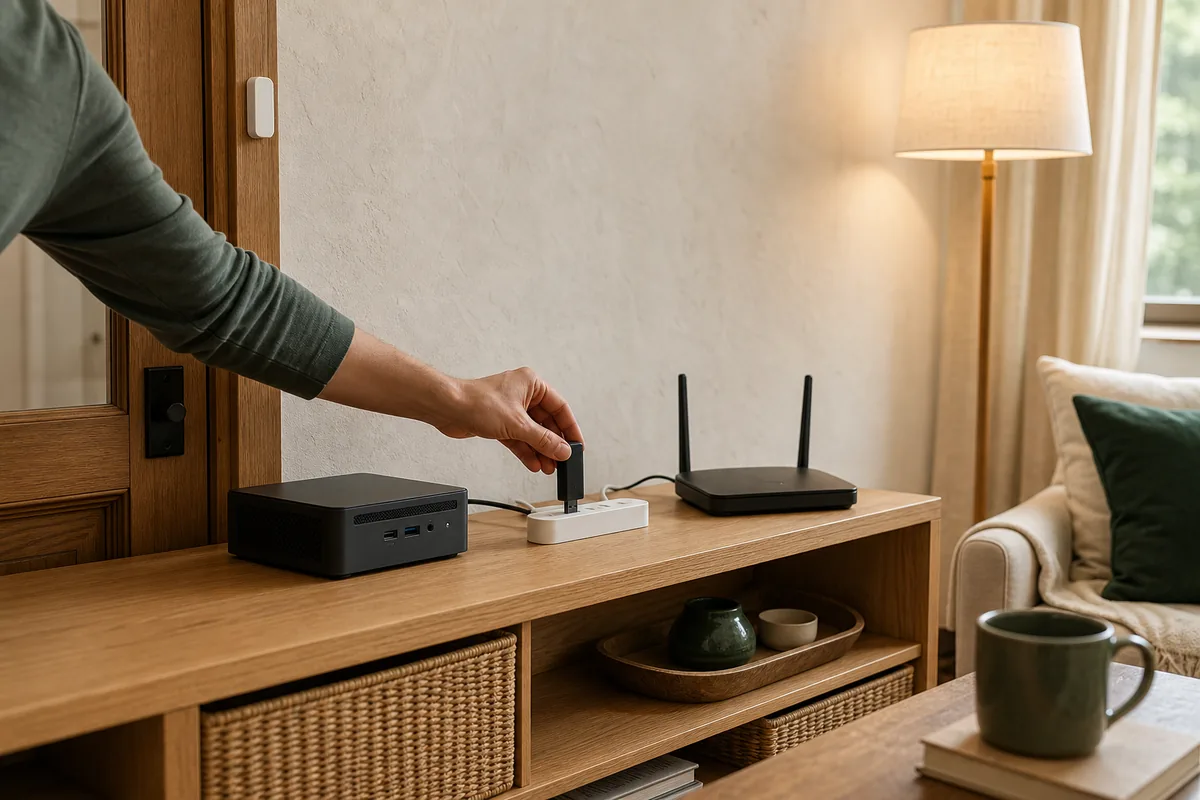
A coordinator radio can be working perfectly and still sit in a terrible place. Home Assistant recommends using a shielded USB extension cable, avoiding USB 3.0 ports and equipment when possible, and keeping the adapter away from Wi-Fi gear, computers, power supplies, storage drives, metal, and appliances. The aim is a central, open position with physical separation from electrical and 2.4-GHz radio noise.
ZHA is Home Assistant's built-in system for managing Zigbee devices. Zigbee2MQTT is a separate Zigbee management service that can connect to Home Assistant.
- Open the Zigbee management page. In Home Assistant, go to Settings > Devices & services and open ZHA; in Zigbee2MQTT, open its dashboard and logs. A healthy system opens normally and receives recent device events. A setup retry, adapter error, or serial-connection error points back to the coordinator or its connection.
- Check the coordinator's power and USB connection. If the computer cannot power the adapter reliably on its own, use a stable powered USB hub recommended for the hardware rather than an overloaded unpowered USB hub.
- Put the radio on a suitable USB extension cable and move it into the open.
- Separate it from the Wi-Fi router, USB 3.0 devices, compact computer, power supply, and solid metal surfaces.
- Retest the same nearby and distant devices before changing anything else.
If the coordinator connects through another network box instead of directly by USB, use only an arrangement that system supports and give it a stable wired connection. ZHA warns that an unreliable Wi-Fi or remote network link can make every Zigbee device look broken at once.
3. Build an always-on path into weak areas
A Zigbee router helps only where it can hear both a healthy part of the mesh and the devices beyond it. Put a compatible always-powered Zigbee router at the edge of good coverage—not deep inside the room where nothing can already connect. In a long or multi-story home, build a chain through the hallway or stair landing rather than clustering several Zigbee routers beside the coordinator.
Add or restore Zigbee routers first, leave them powered, and then test devices where they live. Zigbee chooses routes for itself; there is rarely a useful “connect through this exact repeater” button. When a device is stubborn, turning it off and back on or pairing it again may prompt a new path, but the surrounding mesh must be healthy first.
Do not assume every plugged-in device is a good Zigbee router for every brand. Check current ZHA or Zigbee2MQTT compatibility notes for the exact device, and use purpose-built repeaters or known-compatible powered devices where a path matters.
4. Reduce Wi-Fi interference before changing Zigbee channels
Zigbee and 2.4-GHz Wi-Fi share radio space, so a Wi-Fi access point beside the coordinator can overwhelm a much quieter Zigbee signal. Physical separation is the safest first change. Then check whether the 2.4-GHz Wi-Fi channel is fixed and sensible rather than jumping automatically.
Do not change the Zigbee channel casually. Home Assistant's current ZHA guidance recommends trying a static Wi-Fi channel first when the two networks overlap. A ZHA channel change can take devices up to an hour to rejoin, and some devices may need help afterward. Tara's Zigbee and Wi-Fi channel guide shows how to compare the two bands without turning this repair into guesswork.
5. Treat updates and settings as controlled tests
Before changing firmware—the software stored on the coordinator or a device—or making a major Zigbee software change, make the backup recommended by your platform and record the current channel, coordinator details, and non-default settings. Read the release notes for your exact coordinator model and device. Update a small group, confirm normal reports and commands, and only then continue.
Avoid combining a firmware update, channel change, coordinator move, and mass re-pairing. If reliability improves or worsens, you will not know which change mattered. One change followed by the same room-by-room test gives you evidence.
6. Re-pair only after the network around the device is sound
If every other device is healthy and one device still misses real commands after a fresh battery, power check, closer Zigbee router, and normal restart, remove and re-pair that one device according to its maker's instructions. Test it in its final location. Do not factory-reset the coordinator or rebuild the entire network to solve one bad device.
If many devices fail, pairing them again hides the real coordinator, computer, power, or interference fault. For a coordinator replacement, use Tara's Zigbee coordinator migration guide and the current backup-and-migration instructions for your Zigbee system instead of starting over by default.
ZHA and Zigbee2MQTT use the same radio fundamentals
ZHA and Zigbee2MQTT present different screens, logs, availability settings, and device support, but neither can overcome a coordinator buried beside noisy USB hardware or routers that lose power. Use the platform you can maintain, then follow its current documentation for maps, backups, firmware, and channel changes.
Switching platforms is a migration project, not an early reliability test. If you are deciding between them for broader reasons, the ZHA versus Zigbee2MQTT comparison separates setup and maintenance tradeoffs from the health of the underlying mesh.
Use one repeatable room-by-room test
- Choose a real action. Use one sensor report or command in each important room rather than relying only on a map.
- Record the baseline. Note which rooms, devices, and times fail and whether the failure affects one branch or everything.
- Make one low-risk change. Restore power, replace one battery, move the coordinator, or reposition one Zigbee router.
- Give routes time to settle. Retest immediately, then again later without making another change in between.
- Check recovery. Power-cycle one non-critical Zigbee repeater or an empty smart plug known to route Zigbee messages, then confirm that ordinary devices return without manual rebuilding. Do not restart the household Wi-Fi router for this test.
- Keep the result. Record coordinator placement, important Zigbee routers, channel choices, and any device that needed special handling.
If the radio works but Home Assistant alone still shows devices as unavailable after a server restart, use the post-restart device checklist. That is an integration or startup problem until the evidence points back to the Zigbee mesh.
Tara's practical approach
A dependable Zigbee installation starts with a clean coordinator position, compatible always-on Zigbee routers placed through the house, and ordinary wall controls that still work. The repair record should be simple enough that another person can see what changed and undo it.
A configured Home Assistant smart-home system should include the radio plan, powered-router locations, local controls, backups, and a recovery test—not leave reliability to the number of devices in a shopping cart.
Frequently asked questions
Why do Zigbee devices keep dropping offline?
The likely cause depends on the pattern. One failing battery device points to that device, one weak room points to routing or obstructions, and most devices failing together points to the coordinator, the computer running it, power, USB interference, or a network-wide change.
Do battery-powered Zigbee devices strengthen the mesh?
Usually no. Most battery-powered Zigbee sensors are sleepy end devices. They conserve power and do not relay messages for other devices. Reliable coverage normally comes from compatible, always-powered Zigbee router devices.
Will adding a Zigbee repeater fix an unreliable network?
It can help a weak area when the repeater is compatible, always powered, and placed where it can reach both the coordinator side and the weak devices. It will not repair a bad coordinator connection, failing power supply, or heavy radio interference.
How long should a Zigbee network take to settle after a change?
Test immediate basics first, then allow the network time to rebuild routes after moving or restoring routers. Home Assistant notes that devices may take up to an hour to reconnect after a ZHA channel change. Avoid making several changes while you wait.
Should I re-pair every Zigbee device when the network is unreliable?
No. Re-pair only an individual device after its power, battery, location, and nearby routing have been checked and the rest of the network is healthy. Rebuilding the whole network removes useful evidence and creates unnecessary work.