Use it to watch one cold spot
The Home Assistant Mold Indicator is useful when you want to understand why a cold window or wall may be damp even though the room’s humidity seems ordinary. Set it up for one room and one measured cold spot, then compare its estimate with that spot’s actual condition. It needs no separate mold-detection device.
A helper is a value stored or calculated inside Home Assistant. This helper estimates the temperature of a surface from indoor temperature, outdoor temperature and your calibration factor. It then estimates relative humidity there. Relative humidity describes how close air is to saturation at its current temperature; colder air near a surface can have a higher percentage than the warmer room air.
For a first setup, choose a heated room with a cold outside-facing window or wall. The worked example below stays within that situation. Do not assume the same calibration describes a chilled pipe, a summer air-conditioned surface or every corner of the house. See the Mold Indicator documentation for the underlying model.
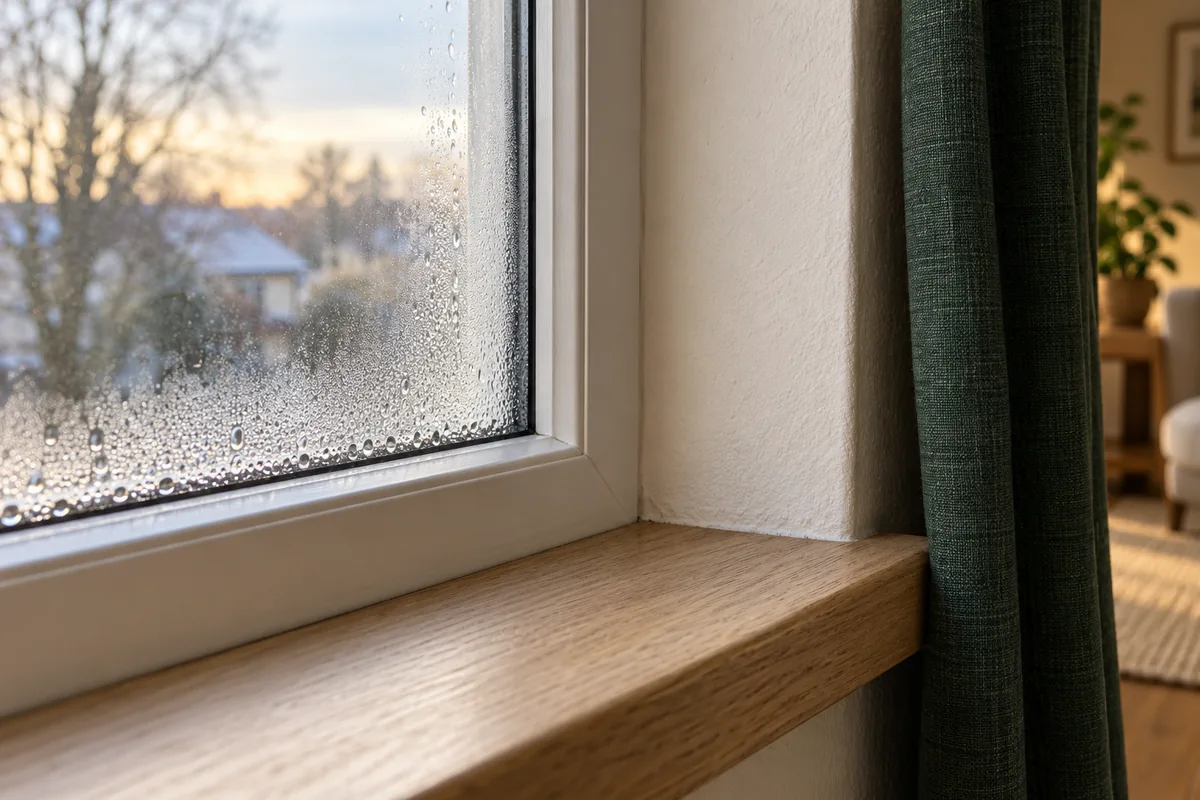
Research method: researched from current Home Assistant documentation, Core 2026.10.1 source code and EPA moisture guidance on October 13, 2026. The numerical examples are calculations, not measurements from a Tara installation. We have not tested sensors or a building with this setup. The cover is an AI-generated household illustration.
1. Check the three live readings
You need an existing Home Assistant installation, access to create helpers, and these readings already working. An entity is Home Assistant’s named reading or control, such as sensor.bedroom_temperature.
- Indoor temperature: the measured air temperature in the room you are checking, rather than a thermostat’s target temperature.
- Indoor humidity: relative humidity from that same room, expressed as a percentage.
- Outdoor temperature: an appropriate outside-air reading. Check what the source actually measures; a device’s internal temperature is not outside air temperature.
The current helper selection form requires sensor. entities classified as temperature or humidity. A weather. entity whose main state is “cloudy” will not appear as a temperature sensor. Use a suitable temperature sensor supplied by that integration, or create a correctly classified Template sensor from its temperature attribute. Preserve the actual unit and make missing data unavailable; do not turn a missing temperature into zero.
Use one room’s readings. A whole-home temperature average answers a different question and can hide the cold bedroom you meant to check. The calculation happens inside Home Assistant, but weather-service inputs may still depend on internet access.
2. Measure the calibration factor
In addition to those live readings, you need a way to measure the surface temperature of the cold spot during calibration. A room-air sensor sitting nearby does not establish the wall’s surface temperature. Use a surface-contact thermometer or probe suitable for the material, following its instructions and allowing the reading to settle. If you use a non-contact infrared thermometer, follow its surface and distance guidance: shiny materials can give misleading readings. Fluke’s measurement guidance explains these limitations. You do not need to buy a permanent sensor for the surface just to calculate the factor.
- Choose the particular window-frame area or wall corner you want the helper to represent. Record the location so you can check the same spot again.
- Measure when there is a meaningful difference between indoors and outdoors. At the same time, note the surface temperature and the two temperature readings you will actually use in Home Assistant.
- Use the same scale for all three numbers: all Celsius or all Fahrenheit. Calculate the factor below.
Calibration factor = (indoor − outdoor) ÷ (surface − outdoor)
Example: room 20°C, outdoors 0°C, measured window-frame surface 12.5°C.
(20 − 0) ÷ (12.5 − 0) = 1.6
The same temperatures in Fahrenheit give (68 − 32) ÷ (54.5 − 32) = 1.6. The factor itself has no temperature unit.
These are hypothetical measurements for learning the calculation. Use your own measurements when configuring a real room. If the surface and outdoors have the same temperature, the denominator is zero and this calculation cannot give a usable factor. If all three temperatures are very close, small measurement errors can dominate the result; measure again under more suitable conditions.
For this heated-room example, the surface sits between the outdoor and indoor temperatures, giving a factor above 1. A result outside that pattern is a reason to recheck the measurements and whether this example fits your situation, rather than forcing a convenient number. The official calibration instructions specify simultaneous measurements and a significant temperature difference.
3. Create the helper
- Open Settings → Devices & services → Helpers → Create helper. Select Mold Indicator.
- Name it for the location, for example Bedroom window surface humidity. Select the room temperature, room humidity and outdoor temperature entities you checked.
- Enter your measured factor as a number. For the worked example it is 1.6; it is not the name of another sensor or a formula to paste into the field.
- Save it, then add the result and all three inputs to an Entities card on an editable dashboard.
These steps follow the current documentation and Core 2026.10.1 form. Older releases can arrange the options differently. The current options form lets you revisit the selected inputs and factor, and rejects a zero factor. You do not need HACS or an extra app for this built-in helper.
What an unmeasured factor changes
Keep the imaginary room at 20°C and outdoors at 0°C. The measured surface is 12.5°C, so the calibrated factor is 1.6. Now compare the outcomes below. The percentages were calculated using the Core 2026.10.1 implementation, which displays whole percentages and caps its result at 100.
Calculated examples, not a sensor test. On a narrow screen, scroll the table sideways.
| Factor | Room humidity | Estimated surface temperature | Helper reading |
|---|---|---|---|
| 1, copied without measuring | 50% | 20°C | 50% |
| 1.6, calculated for this example | 50% | 12.5°C | 80% |
| 1.6 | 40% | 12.5°C | 64% |
| 1.6 | 60% | 12.5°C | 96% |
| 1.6 | 65% | 12.5°C | 100%, capped |
With factor 1, the formula treats the surface as being at room temperature. In this example, that hides the cold spot entirely. Factor 1 is a mathematical choice, not a universal default for an unknown room.
The other rows keep the temperatures fixed and change only room humidity. They show why the same window may look fine one day and be at risk of condensation another day. They do not establish how much drying your own room needs, or how quickly mold will grow.
80% means estimated relative humidity near the surface. It does not mean 80% of the wall has mold or an 80% probability of growth. A capped 100% indicates the calculation has reached saturation; it is still an estimate, not an observation of water on the wall.
4. Verify it without changing the room
Start with the dashboard display. Leave heaters, fans, humidifiers and window controls out of this first check.
- Read the two current temperatures and your saved factor. Calculate outdoor + (indoor − outdoor) ÷ factor.
- Open Settings → Tools → States and select the new sensor. Older layouts call this Developer tools → States. Inspect its
estimated_critical_tempattribute—the extra value attached to the sensor—without using Set state. - Compare the attribute with your calculation, using the same temperature scale. With the example’s 20°C, 0°C and factor 1.6, the expected estimate is 12.5°C, or 54.5°F. The attribute follows the installation’s temperature system; it is not always Celsius.
- Later, repeat the real surface measurement while noting the live inputs. Compare the estimated temperature with the measured surface temperature. If they differ substantially, investigate location, measurement method and calibration before adding a routine.
The arithmetic check confirms the selected inputs and factor lead to the expected calculation. It cannot prove that the estimate matches your building. The Tools documentation explains state inspection; overwriting a real sensor’s state is unnecessary here.
If the reading looks wrong
Use this order before changing your household routines.
| What you see | Check first | Next step |
|---|---|---|
| A source is missing from the selector | Is it a temperature/humidity sensor, or a weather entity, thermostat target or unclassified value? | Choose the correct measured sensor. For an attribute-derived template, set the proper device class, real unit and availability behavior. |
| The result is unavailable | Are all three inputs numeric and available, with temperature units and humidity in %? | Restore or correct the input. Do not substitute zero merely to make the helper display a number. |
| The result tracks room humidity almost exactly | Is the factor 1, or are the indoor/outdoor selections wrong? | Recheck the measured surface and factor. Similar readings can be legitimate; equality alone is not a defect. |
| The number stays plausible after a source stops reporting | Is an old numeric value still present? | Check the source’s update behavior. A numeric value does not prove fresh data. |
| There is condensation despite a low result | Is this the same surface and room you calibrated? | Address the visible moisture and investigate the mismatch. Do not lower the factor to make the display look better. |
In the current implementation, invalid or unavailable inputs prevent a valid result; a stale numeric input can still be used. For the distinction between a lost device and an unchanged reading, see the unavailable-device notification guide.
Decide what to do with the estimate
Tara’s recommendation is to observe one calibrated spot before automating equipment. Name the display “surface humidity estimate” and keep room humidity next to it so nobody mistakes it for a mold test.
The EPA’s moisture guidance recommends keeping room relative humidity below 60%, ideally 30–50% where possible. That is room-air guidance, not an alarm setting for the helper’s estimated surface humidity. Condensation, leaks or visible mold need attention regardless of a low software reading; fix the moisture problem and seek appropriate help when the cause or cleanup is unclear.
If the next step is controlling an existing appliance, the dehumidifier automation guide explains native humidity controls, quiet hours and power-switching limitations. Do not connect this percentage directly to a plug and assume it supplies appliance protection.
Common questions
Does 100% prove there is mold?
No. It means the model has reached its saturation limit near the estimated surface. The helper measures neither spores nor existing growth. Inspect the actual location and address moisture rather than treating the number as a diagnosis.
Can I use one factor for every room?
Do not assume so. A factor describes the particular surface and temperature relationship you measured. Different windows, wall corners and rooms may need separate calibration. Recheck after changes that affect that relationship, rather than copying the same number throughout the house.
For planning room sensors and their everyday uses together, Tara’s configured Home Assistant setup guide explains the broader setup path.