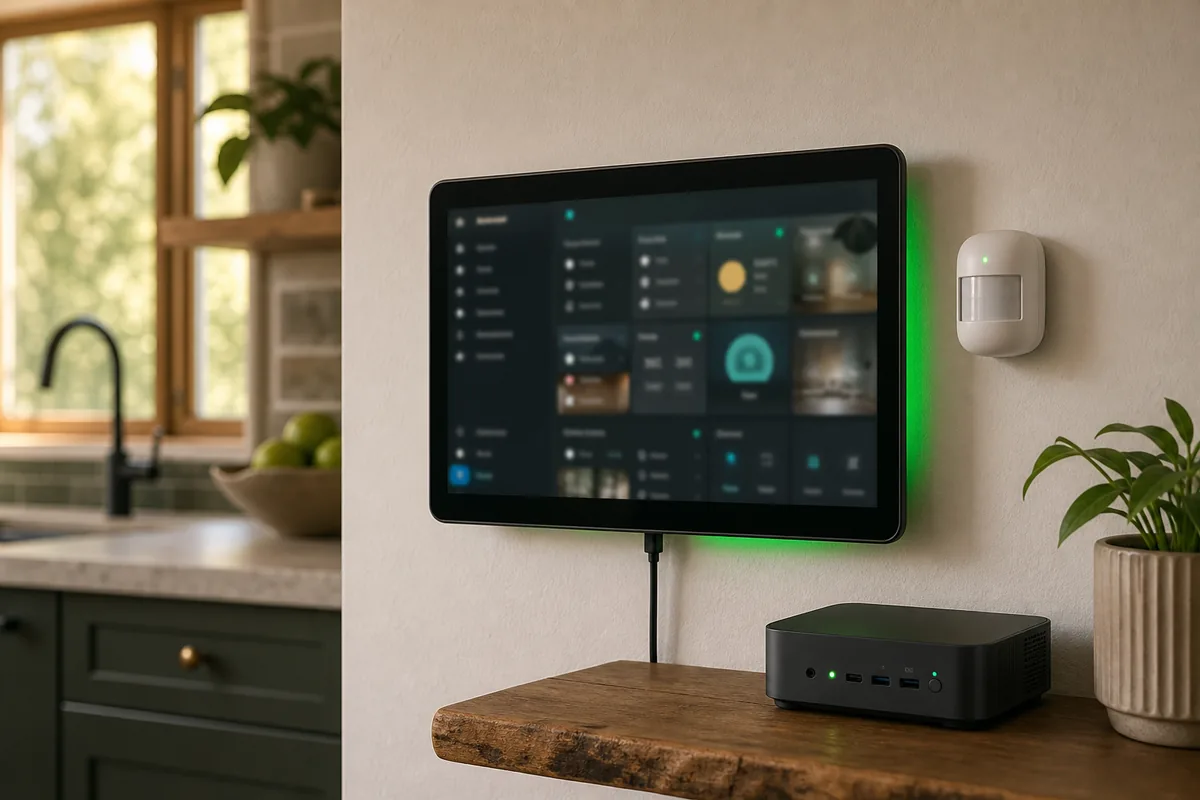
Short Answer: Use a Kiosk Path, Not a Normal Browser
Start with a simple dashboard, a dedicated non-admin login, and a supported keep-screen-on option. Check the Companion app on your existing tablet before buying another app or device. Android supports Home App Launcher integration; on iPad, check the installed Companion app's Kiosk mode options and requirements. Kiosk display mode does not itself prevent someone leaving the app; iPad app confinement is a separate Guided Access setting.
If the wall tablet needs stronger display control, use Fully Kiosk Browser on Android. Home Assistant has an official Fully Kiosk integration that talks to Fully's local Remote Admin API, so Home Assistant can see tablet sensors and control display behavior over your LAN. That does not mean every tablet is good hardware. It means you get a better control path than a normal browser tab.
Matter, Thread, Zigbee, Z-Wave, and HomeKit are not the control path here. The tablet is a dashboard client. It talks to Home Assistant over Wi-Fi, and Home Assistant talks to the devices.
Researched from Home Assistant, Companion app, and vendor documentation, checked September 15, 2026. The checklist below is a proposed household acceptance test, not a claim that Tara measured wake speed, battery behavior, or security on these tablets.
Why Wall Tablets Fail in Real Homes
Recent r/homeassistant and Home Assistant Community threads keep circling the same pain: wall dashboards get slow, cheap tablets sleep at the wrong time, Fully Kiosk behaves differently after updates, and households want one screen that guests can use without seeing the whole system. The problem is rarely one magic setting. It is usually the combination of an underpowered tablet, a heavy dashboard, OS battery rules, and a login that was never designed for a shared wall display.
Use plain language for the job. A dashboard is the Home Assistant page with lights, climate, locks, cameras, and room controls. Kiosk mode means the tablet hides normal browser or app chrome so the wall screen feels like a fixed control panel. Local control means the tablet is talking to Home Assistant inside the house instead of depending on a vendor cloud. A dedicated user is a separate Home Assistant login just for the tablet.
A wall dashboard is a shared, signed-in device. Decide who can touch it and what that account can access before mounting it. Removing sensitive buttons from the room view reduces accidental taps; it does not prove those devices are inaccessible elsewhere.
Choose the Right Wall Tablet Path
| Path | Official support | Local/cloud behavior | When to choose it | Main caveat |
|---|---|---|---|---|
| Home Assistant Companion app on Android | Official Companion app docs include an Android Home App Launcher integration and Android WebView settings. | Use your local Home Assistant URL on the home network. Remote access is separate. | You want the official app, sensors, notifications, and a simpler setup than Fully Kiosk. | Android vendor battery rules and WebView behavior vary by tablet. |
| Home Assistant Companion app on iPad or iPhone | Official Companion docs describe iOS kiosk mode in Labs, with 2026-era app and frontend requirements. | Dashboard traffic can stay local when the tablet uses the local URL. Remote controls from outside the house need remote access. | You already have an iPad and want the official app experience. | iOS is stricter than Android. Read the current kiosk-mode requirements before mounting the tablet. |
| Fully Kiosk Browser on Android | Home Assistant has an official Fully Kiosk Browser integration; Fully provides the Android kiosk app and Remote Admin features. | Home Assistant talks to Fully Kiosk's local Remote Admin API on your LAN. Do not expose it to the internet. | You need motion wake, screensaver behavior, display control, and Home Assistant automations that manage the tablet. | Remote Admin requires paid Fully PLUS (or its trial). Tablet firmware can still affect wake reliability. |
| Plain browser tab | Home Assistant dashboards work in browsers, but a plain browser is not a wall-display control system. | Local URL works on the LAN; cloud is not required for the dashboard itself. | Temporary testing, desk screens, or a tablet you do not plan to mount. | The browser may sleep, show address bars, reload poorly, or expose normal device controls. |
Build a Tablet Dashboard, Not an Admin Dashboard
Home Assistant dashboards are flexible enough to become too heavy. A dashboard that feels fine on a laptop can be miserable on a wall tablet because the tablet has less memory, a smaller processor, a smaller screen, and a browser engine that may stay open for weeks.
For a shared wall screen, make a separate dashboard with only the controls that make sense in that room:
- Kitchen: main lights, nearby climate, music, timers, presence status, front door glance, and one or two camera snapshots.
- Entry: locks, garage, exterior lights, alarm state if appropriate, weather, and arrival scenes.
- Bedroom: lights, shades, climate, sleep scene, white noise, and a simple morning view.
- Utility room: leak sensors, washer/dryer, energy, water shutoff status, and maintenance alerts.
Avoid the tempting version with every room, every camera, every history graph, and every custom card. Live camera streams, large graphs, animated cards, maps, browser popups, and complex custom cards are the first things to remove when a tablet becomes slow. A useful wall dashboard is usually dense but calm: a few big controls, clear status, and a path to more detail only when needed.
Create a Dedicated Dashboard User
Create a separate Home Assistant user without administrator access, sign the tablet into it, and set a simple room dashboard as its default. Keep your maintenance account off the shared display. This reduces administrative privileges; it does not make the account room-only.
Home Assistant's view documentation says hiding a view tab does not stop its URL being accessed. Kiosk settings and hidden cards change the interface, not the account's underlying permissions. A status-only lock card is not the same as a read-only account.
The permission system checks administrative and entity operations separately. Do not promise that a non-admin login cannot view cameras or control locks just because they are absent from its default dashboard. If an untrusted guest or tenant must only control certain devices, use an interface with verified server-enforced restrictions for that requirement, not a full Home Assistant session with hidden tabs.
- Sign into a separate browser with the tablet account. Confirm it is not an administrator.
- Try the direct URL of another dashboard you own. If it opens despite a hidden tab, that demonstrates why visibility is not access control.
- Review sensitive device permissions and the signed-in account's access before enabling the display. Do not test by actually unlocking doors or disarming alarms.
- Keep sensitive controls off the wall for everyday use, but treat that as accident prevention, not proof of restricted access.
Keep the Screen Awake Without Fighting the Operating System
The most common mistake is treating "screen off" as the same thing as "wall tablet is ready." On many tablets, true sleep can pause background activity, kill the browser, drop the WebSocket connection, or delay wake. The result is a black screen that looks energy-efficient but takes too long to become useful.
A more reliable pattern is:
- Keep the wall app in the foreground. Use Android launcher mode, iOS kiosk mode, or Fully Kiosk so the tablet returns to the dashboard.
- Use a dim or black screensaver overnight. That gives you a dark wall without depending on deep sleep.
- Wake by motion or presence only if the device can do it reliably. Fully Kiosk is the stronger Android path for this.
- Keep the local URL simple. The tablet should load the internal Home Assistant address while at home.
- Disable aggressive battery optimization where the OS allows it. This is device-specific, especially on budget Android tablets.
Fully Kiosk's local controls are useful because Home Assistant can automate around real household context: dim at night, brighten in the morning, turn the screen on when the hallway is occupied, and keep it off during sleep hours. The official Fully Kiosk integration depends on the Remote Admin feature, so use a strong admin password and keep that endpoint on the local network only.
Connect Fully Kiosk, Then Test One Display Control
- On Android, open your local Home Assistant dashboard in Fully Kiosk Browser and confirm the page works before adding motion or screen automations.
- Enable Remote Admin and set a strong password. The official integration documentation requires Fully PLUS for this feature; the trial can show a watermark.
- In Home Assistant, open Settings > Devices & services > Add integration > Fully Kiosk Browser. Supply the tablet's address and Remote Admin password. Keep this service on the LAN; do not port-forward it.
- Open the new device and test its screen or screensaver control. Use the entity actually created on your installation, not an example name copied from someone else's tablet.
Check These Cases Before Mounting the Tablet
- After idle: leave it alone, then approach or tap it. The display should respond and show current device state, not a stale page.
- After a tablet restart: confirm the chosen launcher or app returns to the intended dashboard; do not assume it will bypass the device's lock screen.
- After Wi-Fi reconnects: briefly disconnect only the tablet, reconnect it, and check that controls work again. Do not interrupt the whole home's network for this test.
- Overnight: check brightness, unwanted motion wakes, and charging temperature. Adjust the screensaver and manufacturer-supported charging settings before permanent mounting.
Power and Mounting Safety
A wall tablet is a permanently powered device with a lithium-ion battery. Treat it like installed electronics, not a framed picture. Use a quality charger and cable, keep the device ventilated, and leave a way to inspect or remove it. Do not bury a consumer tablet, charger, or swelling battery in a sealed wall cavity.
NFPA lithium-ion battery safety guidance says not to charge a battery when the charger or battery is damaged and not to store batteries in extreme hot or cold conditions. For a wall tablet, this means you should be able to see the device, feel if it is getting hot, and remove it without demolition. If a tablet battery swells, leaks, smells unusual, or overheats, stop using it and handle it as a safety problem, not a software problem.
If the mount requires in-wall power, low-voltage routing, or a recessed outlet, use hardware that is meant for that installation and bring in an electrician where your local code or comfort level calls for it. A clean Home Assistant dashboard is not worth unsafe power.
If the Dashboard Is Slow or Unreliable
Try the boring fixes in order before buying another screen.
- Make a lighter dashboard. Remove live cameras, history graphs, maps, popups, animations, and custom cards from the wall-tablet view.
- Test on the local URL. If the tablet is at home, it should not hairpin through remote access just to reach Home Assistant.
- Update the tablet browser engine or app. Android WebView, the Companion app, Fully Kiosk, and Home Assistant frontend updates can all change behavior.
- Check memory by rebooting once. If a reboot makes the tablet fast for a day and then slow again, reduce dashboard complexity and consider a scheduled maintenance reboot.
- Check Wi-Fi at the wall. A tablet mounted in a weak spot may look like a dashboard problem when it is really a network problem.
- Replace truly underpowered hardware last. If the tablet cannot keep a simple dashboard smooth, it is the wrong wall tablet.
Community reports around Home Assistant 2026.4 and 2026.5 show why this needs to be practical, not dogmatic: some users saw Fully Kiosk pages become slow after updates, while others found specific dashboard or app combinations that worked. Keep the wall dashboard simple enough that an update does not turn it into a science project.
Privacy and Local Control Boundaries
A wall tablet can be local-first, but it is still a screen on the wall. Keep the tablet on your home network, use the local Home Assistant URL, and do not expose Fully Kiosk Remote Admin or Home Assistant directly to the public internet. If you need remote access, use a supported path such as Home Assistant Cloud, a properly configured VPN, or a hardened tunnel. Tara has a separate guide on remote access without port forwarding.
If the tablet includes a camera or microphone, decide whether you actually need it. Motion wake by camera can be convenient, but it also means a device pointed into the room is watching for motion. Many homes can use a separate presence sensor instead, which keeps the dashboard responsive without adding a camera to the kitchen or bedroom.
Tara's Take
A useful wall dashboard has simple controls, a clear recovery path after updates, and a mounting plan that can be serviced. Tara's starting point is a dedicated non-admin user, a room-specific interface, and local access. Actual security restrictions need separate verification; the dashboard layout does not provide them.
For installed homes, the handoff matters as much as the screen. A homeowner should know what the wall tablet can control, what it cannot control, how to restart it, and what to do if the screen goes blank. That is the difference between a smart-home feature and another device someone has to babysit.
Related Tara Reading
Wall tablets sit between dashboard design, remote access, privacy, presence, and Home Assistant maintenance. These Tara guides are useful next.
- Home Assistant Person Stuck Home or Away? Fix It
- How to Access Home Assistant Remotely Without Port Forwarding
- Should Home Assistant Be on an IoT VLAN?
- How to Update Home Assistant Safely Without Breaking Your House
FAQ
What is the best app for a Home Assistant wall tablet?
Start with the official Home Assistant Companion app if Android launcher mode or iOS kiosk mode covers your needs. Use Fully Kiosk Browser on Android when you need stronger wall-display controls such as local screen control, motion wake, and Remote Admin integration with Home Assistant.
Can a Home Assistant wall tablet work without the cloud?
Yes. Use the local Home Assistant URL while the tablet is on your home network. The dashboard itself does not need a vendor cloud. Remote access from outside the house is a separate design choice.
Should I use Matter, Thread, or HomeKit for the tablet?
No. Those are device-control ecosystems and protocols, not the wall-tablet path. The tablet is a Wi-Fi dashboard client. Home Assistant is the system that talks to Matter, Thread, Zigbee, Z-Wave, HomeKit, and vendor integrations.
Should the wall tablet use my admin account?
No. A dedicated non-admin user reduces administrative access, but a room dashboard or hidden tab does not enforce room-only device permissions. Kiosk mode is a display setting, not an authorization boundary. Do not assume hiding a lock or camera removes the account's access to it.
Why does my wall dashboard get slow?
The common causes are old tablet hardware, too many live camera feeds, large charts, heavy custom cards, popups, memory growth, weak Wi-Fi, or a browser engine that needs an update. Make a lighter tablet-only dashboard first.
Is it safe to keep a tablet plugged in all the time?
It can be practical, but use a quality charger, keep the device ventilated, inspect it, and remove it if it gets hot or the battery swells. Do not bury a consumer tablet or charger in a sealed wall cavity.