Bind the everyday button action; automate the extras
Home Assistant Zigbee binding lets a compatible remote or switch control a light directly. Choose it for straightforward on/off or dimming. Keep a Home Assistant automation for decisions such as “only after sunset” or “double-press to start a different routine.” Binding support, including which buttons work, depends on the device.
Start with a spare lamp and a remote already joined to the same Zigbee network. Check compatibility, create the binding in the software that manages that network, then test the physical lamp separately from its dashboard icon. Both ZHA, Home Assistant’s built-in Zigbee integration, and the separate Zigbee2MQTT software support binding.
There is no reason to migrate an otherwise working network just to follow this guide. If you have not chosen your Zigbee software yet, use the ZHA versus Zigbee2MQTT comparison first.
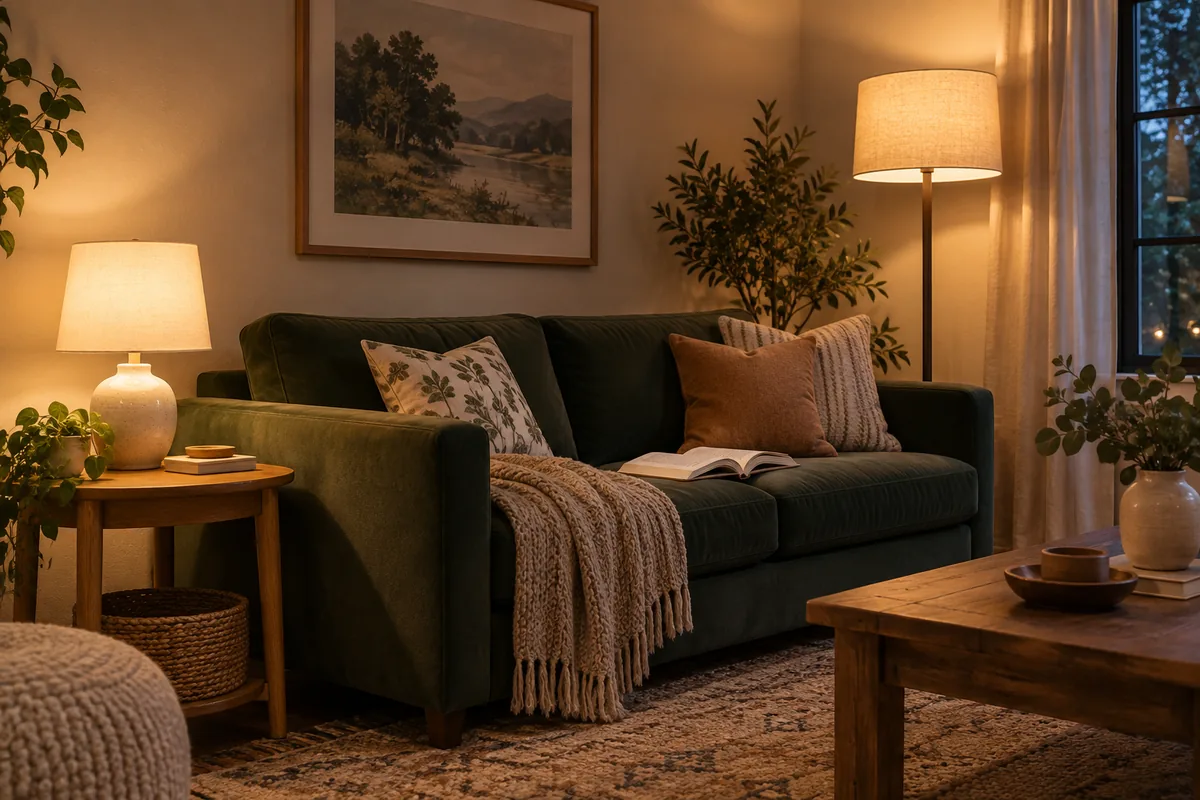
Research method: researched from current Home Assistant, Zigbee2MQTT and manufacturer documentation on September 21, 2026. The room example is an illustrative configuration, not a Tara hardware test. Device compatibility and outage behavior still need checking in your home. The cover is an AI-generated room illustration.
1. Check the control you actually want
You need an existing Zigbee network, a supported source remote or switch, and compatible target lights. The source sends the command; the target receives it. Devices merely appearing together in Home Assistant does not mean they share a Zigbee network. For example, bulbs on a Hue Bridge and a remote on ZHA cannot use this shared-network binding procedure.
Look up the exact model and installed firmware (the device’s own software) in its manufacturer instructions or Zigbee2MQTT device page. Check device binding versus group binding, on/off versus dimming, and any required operating mode. A button that only reports proprietary click events may need an automation instead.
Before changing anything, record the current bindings, device modes and lamp automations. Keep these notes for rollback.
A cluster is a set of commands for a function, such as on/off or brightness. An endpoint identifies a function within a device, such as one channel of a multi-channel switch. The source must send commands the target understands; an on/off dashboard control alone does not establish that. See the Zigbee network and cluster explanation.
Keep smart bulbs supplied with power. If a wired switch cuts their electricity, a radio command cannot wake them. Some switches offer a documented smart-bulb mode for this arrangement; Inovelli’s binding instructions show one manufacturer-specific example. Do not copy another model’s parameter or endpoint numbers. This walkthrough uses existing lamps and a remote and requires no wiring work.
2. Work through a two-lamp room plan
Suppose a sofa-side remote should turn a table lamp and floor lamp on together, while a bedtime automation can still turn them off. Give the Zigbee devices clear names: sofa_remote, table_lamp and floor_lamp. These are example names to replace with yours.
Create a native Zigbee group named reading_corner, containing the two lights. Bind the remote to that group. The remote is the command source, not another light member. A Home Assistant group helper combines controls in software; the native group is stored on the Zigbee devices.
On a phone, swipe the table sideways. With a keyboard, focus it and use the arrow keys.
| Household action | Planned control path | What to verify |
|---|---|---|
| Press the remote’s on/off buttons | Remote → reading_corner Zigbee group | Both lamps respond with the old button automation paused. |
| Hold a dimming button | Supported brightness binding to the same group | Both brighten or dim, then stop changing when released. |
| Turn lights off at bedtime | Home Assistant automation → group light control | Both go off; the next physical on command works. |
| Use a special double-press routine | Home Assistant automation, if that event remains available | The event still arrives after binding; ordinary presses do not run duplicate actions. |
This plan deliberately separates the everyday button from the timed routine. If bedtime should respect someone still reading, add a manual override to that automation. A binding does not automatically pause other routines or apply their conditions.
3. Configure it in your existing Zigbee software
If you use ZHA
- Open Settings > Connectivity > Zigbee. Under Groups, create
reading_cornerwith the two lamps. - Under Devices, open the remote. Beside Reconfigure, open the three-dot menu, then Manage Zigbee device > Bindings.
- Choose the group under Bindable groups. For one target, use Bindable devices instead. Select supported functions/endpoints if offered, following the exact device instructions.
- Wake a battery remote just before selecting Bind group or Bind. Confirm completion.
These are the current ZHA binding controls. Home Assistant 2026.9 introduced Connectivity settings; older versions reach ZHA through Devices & services. Do not upgrade solely to match a menu label.
ZHA normally binds remotes to its coordinator, the radio that forms the network. Some remotes allow only one target. Do not unbind the coordinator speculatively: record the existing relationship and confirm the device requires that change. Removing it can remove click events used by other routines.
If you use Zigbee2MQTT
- Open your existing Zigbee2MQTT web interface. In Groups, create
reading_cornerand add the two lamp endpoints. Confirm the group control operates both. - Open
sofa_remote, then its Bind tab. Select the target group and the documented source endpoint. - Select supported commands: typically
genOnOfffor on/off andgenLevelCtrlfor brightness. Wake the remote, bind, and inspect the reported result for failed commands.
The binding reference explains these controls. Using its MQTT command interface instead? The group target is its friendly name, not its numeric group ID. You do not need to write a Home Assistant YAML automation to create this relationship.
4. Verify the lamps before testing an outage
Start in daylight with non-essential lamps and another working light available. Leave the server, coordinator and household safety routines running.
- Check the completed setup against your notes. Confirm the group members, source/target and selected functions. Keep the original lamp automation available for rollback.
- Pause only the routine duplicating this remote’s ordinary presses. Include an equivalent rule in Node-RED or other software if you use one. Do not disable unrelated automations.
- Press on, off, then on again. Both lamps should follow. Test dimming separately if supported.
- Change the lamps from the dashboard, then use the remote. Confirm the next press behaves as intended. Check each lamp’s reported state separately from the physical light.
- Restore the non-conflicting routines. Leave a duplicate ordinary-press action disabled once binding handles that job. If abandoning the change, unbind only the relationship you added and restore recorded settings and the original automation.
This is a practical check that the chosen button routine is unnecessary, not proof of every possible outage. Home Assistant’s Traces can show whether another automation sent a command during the test. Running actions from the editor cannot prove a physical binding works.
If the result is wrong, change one thing at a time
| What you observe | Next check | Useful result |
|---|---|---|
| Binding fails or times out | Wake the remote immediately before retrying; confirm the documented endpoint and supported target type. | A completed binding result, followed by an actual lamp response. |
| Only one lamp follows | Check both lights are members of the native Zigbee group. Operate that group from its software interface. | Both respond to the group before retesting the remote. |
| On/off works; dimming does not | Check brightness command support and the source’s required dimmer mode. | Dimming works independently; on/off success alone proves less. |
| A press appears to do nothing or reverses itself | Watch the lamps and inspect automation traces. Check for another toggle or scene triggered by the same press. | If pausing that rule fixes it, remove the duplicate action. Otherwise consult the exact device’s command behavior. |
| The lamp changes; its dashboard icon does not | Check state-reporting support and configuration for that lamp. | Treat this as a reporting problem separately from the working physical command. |
Zigbee2MQTT configures reporting when binding, but the light must support it. Its state-change notes describe device differences and group-based polling limits. Unbinding can remove reporting settings too, so recheck dashboard updates after rollback and restore reporting if needed. A group’s displayed state can also reflect assumptions about its members; see group state behavior. Do not factory-reset working lamps just because an icon looks stale.
What happens when Home Assistant stops?
The bound command bypasses the automation software. It still needs powered devices and a working Zigbee radio path. Battery end devices communicate through a parent router or coordinator; removing that parent is different from stopping Home Assistant. The documented network roles explain that distinction.
Test software downtime only during planned maintenance, after identifying what else depends on that server and how you will restart it. Record exactly what stopped. A successful software-restart test does not establish behavior after a USB radio is unplugged or household electricity fails. Keep essential lighting usable independently; the Home Assistant outage guide covers that wider plan.
Frequently asked questions
Can I keep Home Assistant automations after binding?
Yes. Keep routines with a separate purpose, such as bedtime shutoff. Remove duplicate commands for the same ordinary button press, and verify any special click events still reach Home Assistant.
Can a remote bind to a Wi-Fi bulb?
Not through this Zigbee binding procedure. Use a compatible shared Zigbee network for direct binding, or a Home Assistant automation to connect different device types.
Should I choose a device or a group target?
Use the target type your remote supports. A native Zigbee group is convenient for the two-lamp example; a supported single-device binding can suit one lamp.
For a broader room plan, Tara’s home automation kit overview explains coordinated local routines and household controls.