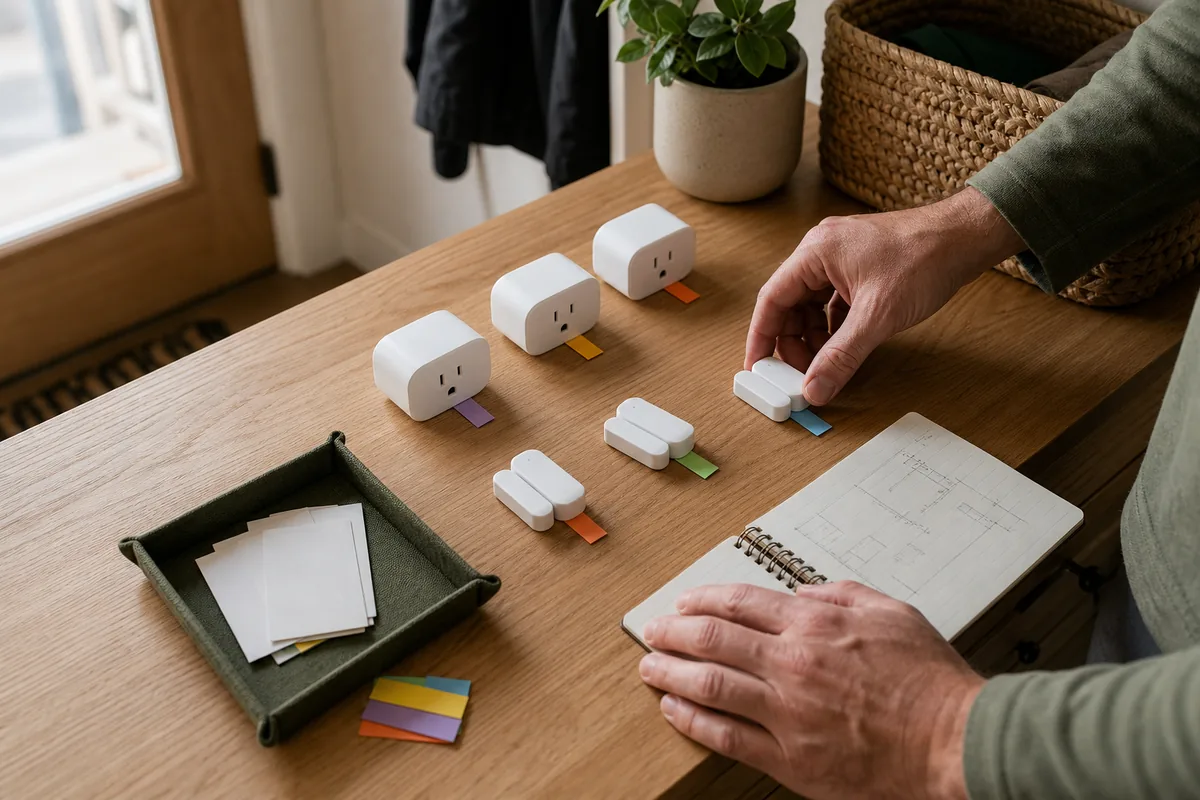
The Short Answer: The Devices Are Usually Fine
Home Assistant normally gives a new Matter device the best name the device provides. In Home Assistant 2026.7.2, it checks the Matter Node Label first, then the product label, product name, and finally the device type. Many new devices have no user-written Node Label, so six matching sensors can arrive as six copies of the same product name.
That is an identification problem, not a broken Matter network. Rename each whole device on its Home Assistant device page with the pencil, assign it to a Home Assistant area, and test it before moving to the next one. If those same devices also appear in Apple Home, Google Home, Alexa, or SmartThings, give them matching friendly names and rooms in those apps too.
Matter's multi-admin feature lets the same device join more than one controller, such as Home Assistant and Apple Home. It shares secure access to the accessory and its functional state. It does not currently give those apps one guaranteed shared room list, display-name list, scene library, or automation library. Matter has a device-side field called Node Label, but an app may read it, override it, or ignore it in favor of its own name.
Five Different Names People Commonly Mix Up
“The device name” can mean several different things. Knowing which layer you are editing prevents a harmless cleanup from breaking an automation.
| Name or location layer | What it means | Where to change it | Does it sync everywhere? |
|---|---|---|---|
| Product name or product label | Manufacturer-supplied model information, such as the same plug or sensor model repeated around the house. | Usually fixed by the product firmware. | No. It can be visible to controllers, but it is rarely unique. |
| Matter Node Label | A user-writable name stored on the Matter node. The current data model allows 32 UTF-8 bytes and keeps it through ordinary restarts. Plain-English labels usually fit in 32 characters; some other characters use more space. | Optionally in the Matter Server 9 web dashboard while the node is online. | It is device-side data, but apps are not required to replace their own display name or room with it. |
| Home Assistant device name | The friendly name for the whole physical item and all of its controls or sensors. | Open the device page and select the pencil. | No universal cross-platform sync. This is the first name most homeowners should fix. |
| Entity name and entity ID | An entity is one function, such as a plug switch, contact state, battery level, or temperature. Its ID is the technical address used in Home Assistant. | Open the individual entity settings. | Home Assistant only. An old ID can still be referenced by YAML, templates, dashboards, scripts, or external tools. |
| Area or room | The place where a controller organizes the device, such as Kitchen or Upstairs Hall. | Home Assistant area, Apple Home room, Google Home room, Alexa group, or SmartThings room. | Not reliably through Matter. Set it in each controller you actually use. |
Matter's Basic Information “Location” field is not your room. It is a country code such as US. Do not try to use it for Kitchen, Bedroom, or Garage.
The Safest One-Device-at-a-Time Workflow
- Make a Home Assistant backup. Also store each permanent Matter QR code or setup number privately with a photo or note showing which physical device it belongs to. Do not put real codes in public screenshots.
- Power or pair only one matching device. Leave the other new plugs unplugged or the other sensors without batteries until the first one has a useful name.
- Add it to Home Assistant. Use Settings > Matter > Add device in the Companion app and finish pairing—which Matter calls commissioning—before moving the device away.
- Prove which physical device it is. Open and close one contact sensor, press one harmless button, or briefly switch an unused lamp or empty plug. Watch the corresponding Home Assistant entity change.
- Attach a small inventory tag. Use a stable code such as
S-07on the device and beside its saved setup code. The code survives a room move even when the friendly name changes. - Rename the whole Home Assistant device. Use a clear friendly name such as Kitchen sink window, then assign the Home Assistant area. Review its entities, but do not change every technical ID by reflex.
- Test one real action. Confirm the sensor, button, light, or plug behaves as expected and that any intended automation targets the correct item.
- Only then add the next matching device. This takes a little longer at the table and saves a much longer guessing session after installation.
Do not identify devices by experimenting with consequential equipment. Avoid toggling locks, garage doors, heaters, pumps, alarms, medical equipment, or a plug carrying an unknown load. Use a device status, a safe temporary lamp, a sensor event, or the printed serial information instead.
If the Devices Are Already Mixed Up
Do not reset them. Work through one room or one product type at a time and keep a simple checklist with the current Home Assistant name, physical tag, area, and setup-code location.
- Contact and leak sensors: open the magnet gap or test one sensor according to its manual while watching the live entity state.
- Buttons: press one and watch the device page or event-based automation trace.
- Lights and empty plugs: switch one briefly from Home Assistant, then verify the physical result. Do not use an occupied safety-sensitive outlet.
- Temperature and presence sensors: compare live changes or temporarily move near one device only. These can take longer than a contact sensor.
- Diagnostics: compare a serial number, Home Assistant device information, Matter node ID, and the Matter Server Nodes view when a physical event is not practical.
After each match, rename the Home Assistant device and assign its area immediately. If an entity ID must change, search your YAML, templates, dashboard cards, scripts, Node-RED flows, and other integrations for the old ID, then test the affected automation. Home Assistant still keeps an underlying hardware identity; the editable entity ID is only the technical address people and automations use.
When Matter Server's Node Label Helps
Matter Server 9 added a convenient pencil for editing a node's Matter Node Label. On Home Assistant OS, open Settings > Apps > Matter Server > Open Web UI, choose Nodes, open the online device, and select the pencil beside its node label. Keep it under 32 plain-English characters; Matter's actual limit is 32 UTF-8 bytes, so some other characters take more space.
This writes the label onto the Matter device. It can make the Matter Server node list, Thread search, and network troubleshooting easier, especially when the server otherwise shows several identical product names and node numbers.
Still rename the Home Assistant device separately. Changing Node Label does not automatically replace an existing Home Assistant user name, and other controllers may keep their own display name too. If the device is offline, rejects the write, loses the label after faulty firmware or a factory reset, or an app ignores it, your physical tag and Home Assistant name remain the reliable record.
What Apple, Google, Alexa, and SmartThings Actually Keep
Use the same plain-English name in every app so voice commands make sense, but treat each app as its own organizer.
| Platform | Official name and room behavior | Local control and cloud boundary | Matter, HomeKit, and practical caveat |
|---|---|---|---|
| Home Assistant | Home Assistant documents the factory name and tells users to rename the device with the pencil. Device names and areas live in Home Assistant's registries. | Routine Matter control is local. Remote access, cloud voice assistants, or a vendor's separate app can add cloud services. | Direct Matter gives Home Assistant its own secure controller relationship, called a fabric. HomeKit Bridge is a different path that publishes selected Home Assistant controls and sensors to Apple. Neither path copies every room or automation. |
| Apple Home | Apple asks for an accessory name and room in Home. The name is used with Siri, and Apple provides a separate control to change the room. | Apple Home uses a home hub for Matter and remote access. Apple syncs Home data and Matter pairing records through iCloud services. | iCloud Keychain syncing a paired Matter accessory across the owner's Apple devices is not the same as copying an Apple room or name into Home Assistant. Rename in Apple Home too. |
| Google Home | Google's setup flow asks the user to select a room and name the Matter device. Its app has separate nickname and room controls. | Google documents in-home Matter commands as local. Away-from-home commands go through Google's cloud to the home hub. | Multi-admin shares device control with another Matter app; Google does not promise that the other app's room or display name becomes its nickname. |
| Alexa | Alexa maintains friendly names and smart-home groups. Amazon offers device makers a separate optional Device & Group Sync API for synchronizing names and groups. | A compatible Echo can send local Matter commands, while Alexa voice, remote features, and optional sync APIs involve Amazon services. | The existence of a separate cloud sync API is the key caveat: ordinary Matter multi-admin alone is not a guarantee that Home Assistant names and areas appear in Alexa. |
| SmartThings | SmartThings asks the user to select a hub and room, then rename the device after it connects. | A compatible SmartThings hub is the Matter controller on the home network. The account, app, remote access, and service integrations still have cloud roles. | SmartThings multi-admin shares the device with another service using a new code. It still keeps its own label and room organization, separate from the Matter Node Label. |
Matter 1.6, released in June 2026, adds Joint Fabric—a future option for several authorized controllers to manage one shared Matter network. The Connectivity Standards Alliance says adoption timing will vary by platform and product. It does not retroactively turn today's Home Assistant areas, Apple rooms, Google rooms, Alexa groups, and SmartThings rooms into one universal list.
Why IKEA, Aqara, and Other Matter Bridges Can Be Messier
A direct Matter device is one node with its own product information. A Matter bridge is a hub that exposes several non-Matter or vendor-network devices as child endpoints. Examples in Home Assistant's documentation include IKEA DIRIGERA, Aqara hubs, SwitchBot Hub 2, and Philips Hue Bridge.
The Matter specification expects a bridge to expose useful child-device names through a Bridged Device Node Label and provides optional grouping tools. In practice, the bridge must supply the label correctly and the receiving controller must use it well. Community examples include identical IKEA MYGGBETT sensors and many Aqara M3 child devices arriving with names that are hard to distinguish even when the vendor app looks organized.
For a bridge, rename the child device in Home Assistant after proving which physical accessory changed. Also compare the native Home Assistant integration before choosing the Matter bridge path. The native Hue integration, for example, is local and exposes more Hue-specific features than the generic Matter bridge path. Do not keep both paths merely to make the labels prettier; duplicate entities can create confusing dashboards and repeated automations.
A Naming System That Survives a Room Move
Use two identifiers with different jobs:
- Friendly display name: Kitchen sink window. This is what a person sees and says.
- Stable physical code: Contact sensor S-07. Put this on the device and beside its saved setup code or serial record.
A movable plug might be called Family room reading lamp today but keep the physical code Plug P-04. If it moves to the holiday lights, change the display name and area without losing the hardware record. For the same reason, avoid embedding a temporary room in every permanent technical entity ID unless the convenience outweighs the future cleanup.
What to Avoid
- Do not pair a box of identical devices in one batch. Commission, identify, tag, name, assign, and test one before the next.
- Do not trust the iOS Accessory Name prompt to name Home Assistant. Home Assistant's official Matter instructions say that commissioning-time value is an internal iOS reference and is not visible in Home Assistant.
- Do not change every entity ID without checking references. A display-name cleanup should not quietly break a YAML automation or an outside dashboard.
- Do not treat Node Label as the only source of truth. It is useful device-side metadata, not a guaranteed universal app name or room.
- Do not factory-reset a working device just to rename it. Resetting can remove it from fabrics, erase a Node Label, and create a new commissioning problem without solving the organizational one.
- Do not run the same automation in every controller. Matching device names do not prevent Home Assistant, Apple, Google, Alexa, and SmartThings from all firing separate routines.
- Do not expose Matter setup codes. Keep the QR image and numeric code out of public photos, tickets, and dashboards.
What Stays Local, and What Can Still Use the Cloud?
The name problem does not make Matter control cloud-dependent. Home Assistant controls commissioned Matter devices over the local home network, Google documents local in-home commands, Amazon documents local Matter control through compatible Echo devices, and other compatible platform hubs act as Matter controllers on that home network.
The surrounding app experience can still use cloud services. Apple uses iCloud for Home data and Matter pairing records; Google uses cloud for away-from-home commands; Alexa voice and optional group-sync services involve Amazon; SmartThings accounts and remote features involve Samsung services. A vendor app or bridge may also require an account for setup, firmware, extra features, or enabling its Matter bridge.
If no-cloud operation matters, keep the main automation in Home Assistant, confirm the chosen device or bridge works without its vendor cloud after setup, and add another controller only when it has a clear job such as household voice access. Multi-admin adds controllers; it does not choose one automation brain for you.
Tara's Practical Recommendation
Make Home Assistant the household record for serious automations, use one friendly name everywhere, and keep a tiny physical inventory code on each device. For new matching devices, pair one at a time. For an existing pile of generic names, identify one safe state change at a time and rename without resetting.
Use Matter Server's Node Label when it makes diagnostics easier, but keep expectations modest: the Home Assistant name, Node Label, Apple name, Google nickname, Alexa friendly name, SmartThings label, and every room assignment are separate layers. Consistent manual names are boring, and boring is exactly what a dependable smart home needs.
Related Tara Reading
- How Matter multi-admin works across Home Assistant, Apple, Google, Alexa, and SmartThings
- Which app should pair a Matter device first?
- How to read Matter Server 9's Thread and Wi-Fi network map
- Will a Home Assistant backup restore Matter devices without re-pairing?
- HomeKit Device versus HomeKit Bridge in Home Assistant
FAQ
Why do identical Matter devices have the same name in Home Assistant?
Home Assistant starts with the Matter information the device supplies. It prefers a Node Label when present, then a product label, product name, or device type. Matching devices often have an empty Node Label and the same product name, so rename each Home Assistant device after identifying it.
Do Home Assistant names and rooms sync to Apple Home, Google Home, Alexa, or SmartThings?
Not reliably. Matter multi-admin shares control and device state, but each platform generally keeps its own display names, rooms or areas, scenes, and automations. Use consistent wording, but expect to enter it separately in each app.
What is a Matter Node Label?
It is a writable name stored on the Matter device. The limit is 32 UTF-8 bytes, so a plain-English label normally fits in 32 characters while some other characters use more space. Matter Server can use it to make nodes easier to recognize, but other controller apps can still keep or show a different friendly name.
Should I rename the Home Assistant entity ID too?
Rename the whole device and assign its area first. Change an entity ID only when a cleaner technical address is useful, then check YAML, templates, dashboards, scripts, and external tools for the old ID and test the result.
Do I need to factory-reset a Matter device to fix its name?
Usually no. Identify it with a harmless action or sensor event, rename it in Home Assistant, add a physical inventory tag, and optionally set the Matter Node Label. Reset only for a real commissioning or ownership problem, not for a friendly-name cleanup.