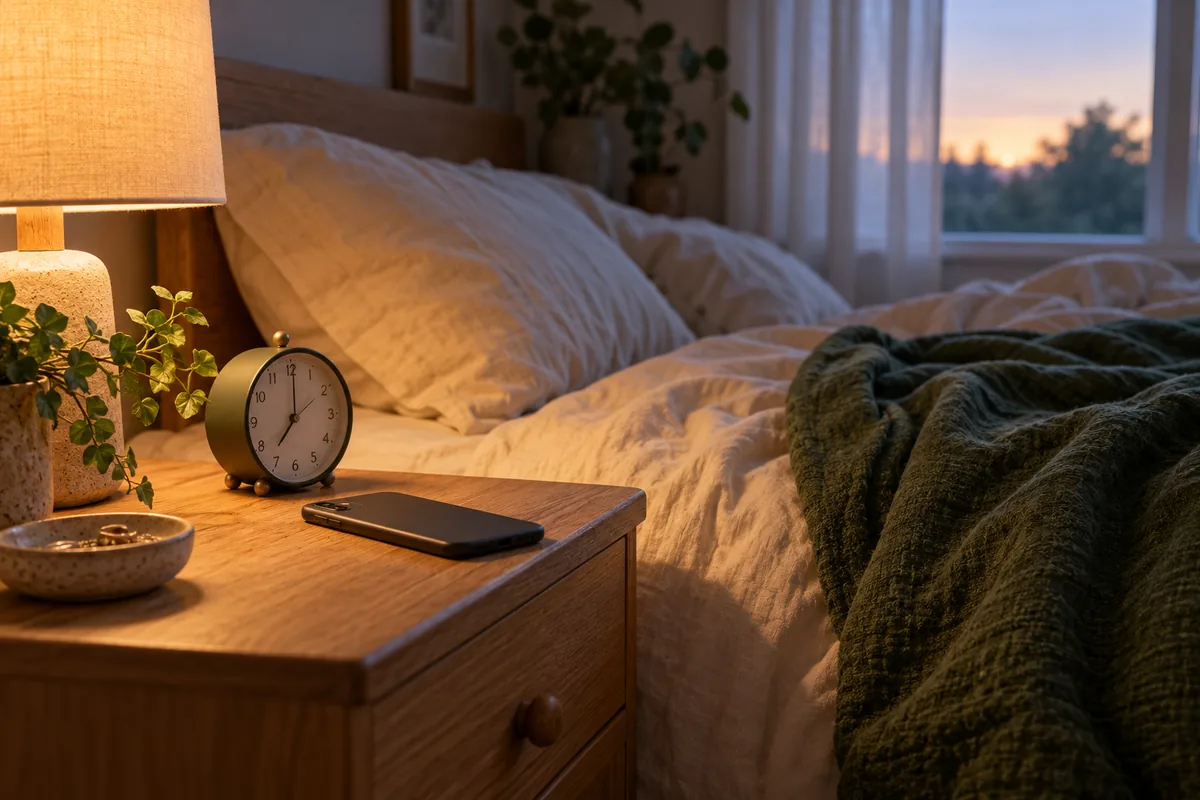
Choose the alarm signal before choosing the action
For a Home Assistant next alarm automation on Android, use the Companion app’s Next Alarm sensor as the time source. A negative offset starts the routine early: a 07:00 alarm with a fifteen-minute lead means a 06:45 start. First prove that schedule with a message inside Home Assistant, then connect it to a routine you already trust.
On iPhone, the simplest documented route is different: let Apple Shortcuts react when you stop a selected alarm and call Home Assistant. That suits a “start my morning” action after you wake up. For a light that must begin before an iPhone alarm, start with an editable Home Assistant time helper; it will not automatically follow changes in Clock.
This guide supplies the timing connection. Our wake-up-light walkthrough covers gradually brightening an existing lamp and providing a stop control. Keep those as separate decisions: when the routine starts, and what it does.
Researched from Home Assistant, Companion app, Android and Apple documentation on October 19, 2026. The examples are documentation-based and were checked locally for configuration syntax and timing arithmetic; they were not run on phones or a live Home Assistant installation. Menu labels and available iOS actions vary by installed version. The cover is an AI-generated bedroom illustration.
1. Match the method to the moment you want
Swipe sideways to read all columns.
| You want… | Start with… | Main limit |
|---|---|---|
| A routine before an Android alarm | Next Alarm timestamp plus a negative Time offset | The phone must report the intended alarm before the calculated start. |
| A routine when you stop an iPhone alarm | Shortcuts → Alarm → Is Stopped, selecting one existing alarm | The phone must reach Home Assistant when the shortcut runs. |
| A pre-alarm routine with a predictable time on either phone | An editable Home Assistant date/time helper | You maintain the schedule separately from the phone’s alarm. |
| Proof that an alarm rang or was dismissed | An actual alarm-event integration or supported phone automation | A future timestamp alone does not report what happened afterward. |
The platform distinction follows the Companion sensor documentation and Apple’s alarm-event options. Avoid starting with a long delay that merely guesses when the next alarm will happen.
2. Check the Android sensor before writing a routine
- Install and sign in to the Home Assistant Companion app on the Android phone. In its settings, open Companion app → Manage sensors → Next Alarm and enable the sensor.
- Set a temporary alarm in your chosen clock app. In Home Assistant, find that phone’s Next Alarm entity under its Mobile App device. An entity is a named reading or control; copy its entity ID, such as
sensor.my_phone_next_alarm. - Inspect the Local Time and Package attributes. Package identifies the app that supplied the alarm. The sensor’s main timestamp uses UTC; that alone does not mean the alarm is in the wrong time zone.
- If necessary, enable the sensor’s Allow list and select your clock app. Change the test alarm, then check the reported value again. Do not build the routine until the displayed local date and time are right.
The allow list filters; it cannot search all your alarms. Android’s getNextAlarmClock API returns the next alarm across applications. If another app owns that next entry, filtering it out does not reveal every later alarm from your preferred clock. The Companion documentation also notes that no next alarm produces unavailable.
3. Create a message-only Android rehearsal
Create a Toggle helper under Settings → Devices & services → Helpers → Create helper. Name it “Phone alarm routine,” check its ID, and turn it on for this test. A toggle helper is a software switch. Turn it off to block new starts. It does not stop a separate routine that is already running; that routine needs its own stop control.
Under Settings → Automations & scenes, create a new empty automation. Choose Edit in YAML from its menu. Replace the empty contents with the following, substituting your sensor and helper IDs. YAML is Home Assistant’s text configuration format; do not add an outer automation: line in this editor.
alias: "Phone alarm - timing rehearsal"
mode: single
triggers:
  - trigger: time
    at:
      entity_id: sensor.my_phone_next_alarm
      offset: "-00:15:00"
conditions:
  - condition: state
    entity_id: input_boolean.phone_alarm_routine
    state: "on"
actions:
  - action: persistent_notification.create
    data:
      notification_id: phone_alarm_rehearsal
      title: "Phone alarm timing check"
      message: >-
        The pre-alarm routine ran at
        {{ now().strftime('%H:%M:%S') }}.
        No device was operated.
The Time trigger accepts a timestamp sensor directly. This avoids manually cutting the hour and minute out of a date string. An unknown or unavailable source supplies no valid time to schedule. A positive offset can fail if the phone changes its “next alarm” before that later time arrives.
The action creates a persistent notification inside Home Assistant, not a phone push alert. Reusing the notification ID updates the same message. Its displayed execution time helps you spot another run without filling the notification panel.
A worked schedule: changing tomorrow’s start
Suppose your alarm is 07:00 and this routine has a fifteen-minute lead. At 22:00 you change the alarm to 07:30, and Home Assistant receives that new timestamp. The planned start becomes 07:15. If the sensor instead still shows 07:00, stop here and investigate the phone update; changing the automation’s offset will not repair stale input.
If you cancel at 06:30 and the sensor reports no alarm before 06:45, that old start should not occur. If you cancel at 06:50, the 06:45 action has already happened. A lamp routine needs its own stop behavior; removing the source alarm is not an undo command.
4. Verify timing, changes and cancellation while awake
Use one-off test alarms and remove each before the next test, so an earlier alarm cannot take its place in the sensor.
- For a short test, change the example’s offset to
"-00:01:00"and save. Set a temporary phone alarm about five minutes ahead. Confirm its date and local time in Home Assistant. - Leave the helper on and wait. Expect the in-app message about one minute before that alarm. Check the automation’s trace, its record of a run, to confirm that the Time trigger started it. Pressing Run actions checks the action only, not this timing path.
- Dismiss the test message. Set another test alarm sufficiently far ahead, then move it later before its original pre-alarm time. Once the sensor shows the new time, expect no message at the old target and a message at the new target.
- Repeat with a new test alarm, but cancel it before the target. Confirm the sensor no longer carries that timestamp. Expect no message for the canceled target; a different remaining alarm may create a different target.
- Repeat with the helper off. The trigger may appear in the trace, but the condition should prevent the message. Restore your chosen offset afterward and remove temporary phone alarms.
Use Home Assistant’s trace guidance to distinguish “did not trigger” from “triggered but a condition blocked it.” If you miss the target while Home Assistant is off, this small recipe has no catch-up step. Keep the phone’s independent alarm enabled.
5. On iPhone, rehearse an alarm-stopped shortcut
Use this path when an action after dismissal is enough. Sign in to the Companion app and check that it can reach your Home Assistant server. Apple documents separate stopped and snoozed events; choose the one you actually intend.
Version check: the current Companion App Intents documentation marks these newer actions as beta and lists iOS 17 or later for Perform action. An older app may show Call Service instead; the documentation marks that legacy action deprecated. Check your installed app’s available actions rather than assuming the new name is present. If Perform action is absent, use the supported action offered by your installed app or keep the separate time-helper schedule; this guide does not require installing a beta release. Both the server selection and supplied data matter.
- In Shortcuts → Automation, create a personal automation using Alarm → Is Stopped. Select one existing test alarm, rather than every alarm.
- Add Home Assistant’s Perform action. Select your server and
persistent_notification.create. Enter the JSON below in Action data. - Choose automatic execution if your installed Shortcuts version offers it, and resolve any permission prompt during this rehearsal. Let the selected test alarm sound, then stop it.
- Open Home Assistant’s notifications. Expect “iPhone alarm stopped.” Snoozing is a different event and should not satisfy this stopped-only test.
{
  "notification_id": "iphone_alarm_rehearsal",
  "title": "iPhone alarm stopped",
  "message": "The selected alarm was stopped. No device was operated."
}
This shortcut sends an event-time request. It does not publish tomorrow’s next alarm to Home Assistant, and cannot provide a fifteen-minute advance warning. A shortcut that exports a schedule beforehand is a separate synchronization project: it must handle disabled alarms, repeat days, changes and time zones.
When the result is wrong
Swipe sideways to read all columns.
| Symptom | Check | Next step |
|---|---|---|
| Android shows the wrong alarm | Local Time, Package and the next alarm reported by Android | Change one test alarm and observe the sensor. A filter cannot manufacture a later timestamp. |
| Message appears when you press Run, but never on schedule | Whether the pre-alarm target was still in the future when saved; sensor availability; helper state | Use a fresh five-minute test and inspect its trace. |
| An after-alarm offset never runs | Whether the Next Alarm sensor advanced first | Use a supported actual alarm event when the intent is dismissal, rather than adding time to a moving timestamp. |
| A later alarm runs the routine again | Additional alarms or a snooze that exposes another future target | Decide whether repeats are acceptable before attaching devices. Single mode is not a once-per-day limit. |
| iPhone shortcut does nothing | Selected alarm/event, execution permissions, action availability and server connection | Run the same message action manually, then repeat with the selected alarm while the phone is locked. |
As the automation-mode documentation explains, single blocks overlapping runs only. Once a run finishes, another trigger can start it again. For a real routine, prefer explicit “turn on” actions over “toggle,” and decide whether to add a once-per-morning record or other condition before using multiple alarms.
Connect one routine after the rehearsal passes
Start with a non-critical lamp or an informational message. Keep the visible pause control and add an appropriate at-home check before operating a bedroom while you are away. Phone updates still need a working path to the server; being able to use Home Assistant on home Wi-Fi does not establish that it is reachable elsewhere.
If several triggers should share the same morning actions, use a reusable script instead of duplicating device commands. For a routine that should skip public holidays or personal leave, follow the Workday and days-off guide. Decide whether the phone’s deliberately set alarm or that calendar should take priority.
Tara’s local home automation kit explains how coordinated routines and household controls fit into a planned setup. The useful result is a morning routine whose timing and pause behavior everyone understands.
Common questions
Does Next Alarm tell Home Assistant that I woke up?
No. It reports a scheduled time. It does not establish that the alarm sounded, that you heard it, or that you got out of bed.
Will canceling an alarm stop an already running light routine?
No, not in this example. Cancellation received before the target can remove that pending start. A routine that has begun needs its own stop control.
Do I need HACS or a blueprint for this example?
No. The Android rehearsal uses the Companion sensor, a built-in helper, a Time trigger and a persistent notification. The iPhone rehearsal uses Apple Shortcuts and the installed Companion app’s action support.