The Short Answer
If an IKEA ALPSTUGA shows 00:00 or the wrong time after a power outage, update Home Assistant's official Matter Server app to version 9.1.0 or newer, leave time_sync set to auto, and wait 30 to 60 minutes after Matter Server starts. Matter Server is the local controller service Home Assistant uses to talk to Matter devices. Version 9.1 added a native clock update, so a new Home Assistant OS setup no longer needs the community Matter Time Sync component or a hand-written low-level command for this job.
The wait is the part most people miss. The first scheduled pass runs 30 to 60 minutes after Matter Server starts, then every 24 hours. After that startup window, reconnecting ALPSTUGA may trigger an immediate attempt. Matter Server limits those reconnect-triggered attempts for each sensor to one in 24 hours, so a recent attempt can leave the clock waiting for the periodic pass. Restarting Matter Server starts a new 30-to-60-minute window, but it briefly interrupts Matter control. Matter Server always sends the standard world time, called UTC. It adds time-zone data when ALPSTUGA exposes that feature and daylight-saving offsets when the sensor requests them.
What Changed in Matter Server 9.1
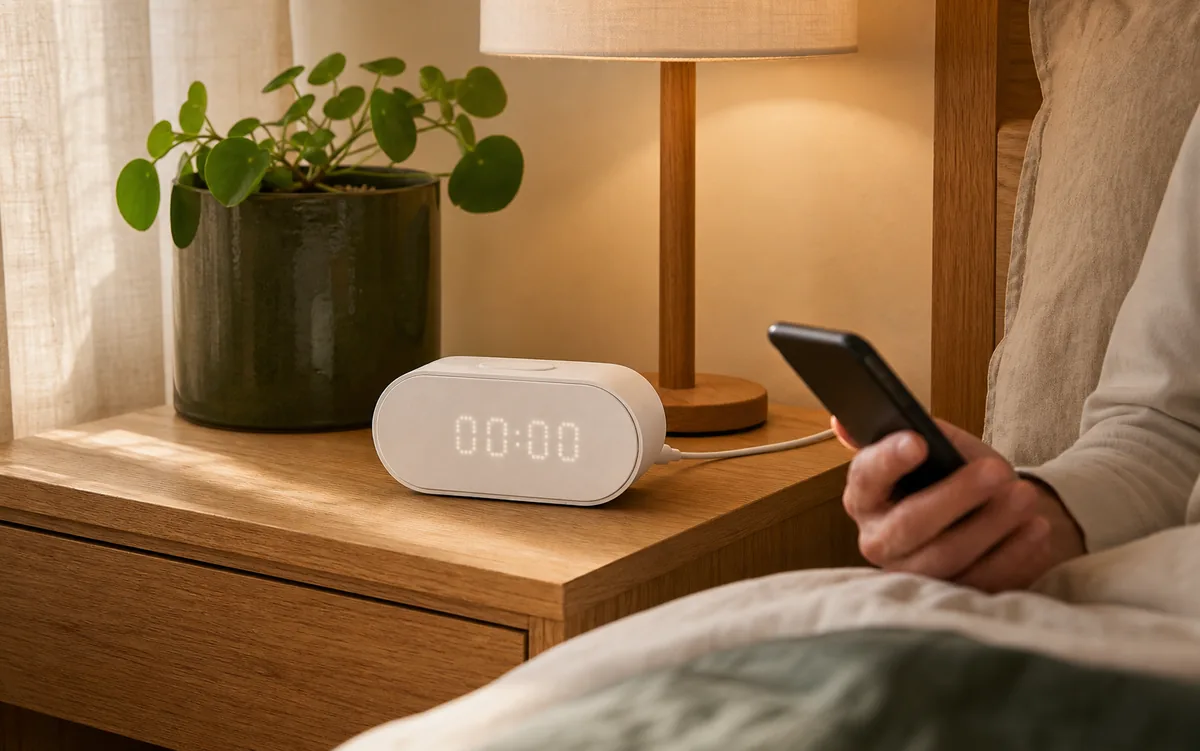
IKEA's ALPSTUGA, article 706.093.96, is a USB-C-powered Matter-over-Thread air-quality sensor. Matter is the shared smart-home control standard; Thread is the low-power local radio network ALPSTUGA uses. It measures CO₂, PM2.5, temperature, and humidity, and its front display can also act as a clock. IKEA's manual explains how to set that clock with physical buttons, but a power interruption can leave owners doing the same button sequence again.
Home Assistant's official Matter Server app changelog now lists a direct fix in 9.1.0: compatible Matter devices can receive synchronized time. The app adds a time_sync choice with three modes:
auto: the default and the right choice for most homes. At startup, it turns synchronization on only when the host clock is synchronized through NTP.on: forces the feature and warns when NTP is not synchronized. A wrong Home Assistant clock can then become a wrong device clock.off: disables Matter time pushes.
NTP is the network time service that keeps the computer running Home Assistant on the correct date and time. The safety check matters: automatic synchronization is useful only when its source clock is trustworthy.
Fix the ALPSTUGA Clock in This Order
- Confirm the sensor is otherwise healthy. In Home Assistant, make sure ALPSTUGA readings are updating and the device is not unavailable. Time sync cannot repair a broken Thread connection.
- Make a Home Assistant backup. If Matter Server is still on 8.x, the move to 9.x includes a controller-data migration. Follow Tara's Matter Server 9 upgrade guide instead of rushing the migration for a clock.
- Install the current stable Matter Server update. Open Settings > Apps > Matter Server and update to 9.1.0 or later. Keep Beta off; native time sync is in the stable app.
- Check the configuration. In the Matter Server app's Configuration tab, leave
time_synconauto. Confirm Home Assistant itself shows the correct time and time zone before Matter Server starts, becauseautomakes its NTP decision at startup. - Let Matter Server start normally. Keep ALPSTUGA powered and reachable. Wait a full 60 minutes before judging the first synchronization.
- Verify tomorrow as well. The server repeats the push every 24 hours. A correct clock after the first window and again the next day is better evidence than a single lucky display update.
If you only power-cycled ALPSTUGA: Matter Server may try the clock as soon as the sensor reconnects after the startup window. If it already made a reconnect-triggered attempt for that sensor within the previous 24 hours, ALPSTUGA may instead wait for the periodic pass. That does not prove the feature failed. A planned Matter Server restart begins a new 30-to-60-minute window, but it briefly interrupts Matter control, so do it only when the household can tolerate that interruption.
If It Still Shows 00:00
Do these checks in order. Stop when the clock corrects itself:
- Read the exact Matter Server version. Home Assistant Core and the Matter Server app are separate updates. A current Home Assistant dashboard can still be connected to an older Matter Server.
- Confirm
time_syncis not off. If the option is missing, the app update is not installed. Theautosetting checks the host's NTP state when Matter Server starts, not continuously. After fixing the host date, time zone, or NTP setting, restart Matter Server so it checks again. - Allow the whole first window. The official matterjs-server changelog says 30 to 60 minutes, not “on device startup.”
- Check that ALPSTUGA is online. Look for fresh CO₂, PM2.5, temperature, or humidity readings. If all readings are stale, use the Matter-over-Thread offline checklist first.
- Review the Matter Server startup log. Look for
Time sync 'auto': host NTP is synchronized, enabling time syncorhost NTP is not synchronized, leaving time sync disabled. The second message is informational, not a warning. Do not paste private Matter security details, QR codes, or full logs containing home-network details into a public post. - Update the ALPSTUGA device software when Home Assistant offers an Update row. That device software is called firmware. Home Assistant warns that its Matter update path does not currently work for Thread devices on a network with any Apple border router. In that case, use an update offered through Apple or IKEA, or follow Home Assistant's documented border-router workaround. Do not sideload an unknown firmware file.
A factory reset belongs at the very end of a genuine pairing failure, not a clock problem. Resetting removes the device relationship, can disturb entity names and automations, and does not make Matter Server send time any faster.
Official Support, Local Control, Cloud, and Apple Home
ALPSTUGA is one product, but the surrounding controller path changes what the homeowner should expect. A Thread border router carries the sensor's local radio traffic; a Matter controller operates it. One hub can perform both jobs. Current examples include an Apple HomePod mini, Apple TV 4K (2nd generation), Apple TV 4K (3rd generation, Wi-Fi + Ethernet), Google Nest Hub (2nd generation), Google TV Streamer (4K), and IKEA DIRIGERA. Home Assistant Yellow or Home Assistant Green with Connect ZBT-2 can also provide both roles, but Yellow and ZBT-2 run Zigbee out of the box. They need manual Thread setup and the OpenThread Border Router app first; Home Assistant still labels its own Thread border-router integration with Matter as work in progress.
| ALPSTUGA path | Official support | Local and cloud boundary | Matter / HomeKit path | Main caveat |
|---|---|---|---|---|
| Direct to Home Assistant Official Matter Server app 9.1+ |
Home Assistant's official Matter integration and IKEA's certified Matter product path. Home Assistant OS with the official app is the supported server installation. | Daily readings, control, and automations stay local. No IKEA account is required. NTP, controller updates, certificates, and firmware downloads can need internet access. | Pair ALPSTUGA through Matter over Thread. Apple Home can be added later through Matter sharing; legacy HomeKit pairing and Home Assistant's HomeKit Bridge are not required. | Time is scheduled, not instant. Home Assistant must know the device and the sensor must support Matter's clock feature. |
| Apple or Google first, then shared to Home Assistant | IKEA lists Apple and Google among compatible Matter systems; Home Assistant supports adding a Matter device already in use. | Home Assistant receives its own local Matter relationship. Apple or Google accounts, voice, remote access, and vendor management keep their separate cloud boundaries. | Use a fresh Matter sharing code from the first platform. This is Matter multi-admin, not a cloud import and not HomeKit Bridge. | Time synchronization should be eligible when Home Assistant can access the compatible Matter clock feature, but exact controller and firmware behavior must be verified on the device. |
| DIRIGERA and IKEA Home smart | IKEA's own hub, app, support, and firmware path. | The IKEA path adds its hub and app. Basic in-home behavior can be local, while setup, remote features, support, and updates can involve IKEA services. | ALPSTUGA is a native Matter-over-Thread device. Share the individual device to Home Assistant when two-controller access is wanted. | Adding DIRIGERA as a Matter bridge does not guarantee that every native Matter device appears automatically. |
| Standalone, no smart system | IKEA documents local use and physical clock buttons. | No account, hub, or cloud is needed. The display and measurements work locally from USB-C power. | No Matter controller, Apple Home, Google Home, Alexa, SmartThings, or Home Assistant connection. | Set the time manually. There is no automatic Home Assistant synchronization. |
The Apple path is worth spelling out: ALPSTUGA uses Matter over Thread. In Apple Home it is a Matter accessory, not an older HomeKit-only accessory. Matter sharing can give Home Assistant its own controller relationship without moving the sensor off the existing Apple Thread network.
What About the Matter Time Sync Custom Integration?
Before Matter Server 9.1, Home Assistant users built a community integration to write time to Matter devices such as ALPSTUGA. That work solved a real gap and helped prove the use case. It is no longer the first step for a normal Home Assistant OS installation.
For a new setup, use the official stable feature first. It has a documented NTP safety check, lives inside Matter Server, and does not require exposing or scripting the server's low-level WebSocket control connection. If the custom component is already installed, make a backup, disable its automation, and verify one native synchronization window before deciding whether to remove it. Avoid two independent jobs writing the same setting while you are troubleshooting.
A custom external Matter Server or Home Assistant Container deployment is different. Home Assistant's official docs call the Home Assistant OS app the supported Matter Server path. Automatic time synchronization entered matterjs-server 1.2.0; an advanced external server needs that version or newer and its own --enable-time-sync configuration. Home Assistant's Matter Server app 9.1.0 bundles matterjs-server 1.2.6. Do not copy the app's update or restore steps onto an unsupported container without that server's documentation.
What Time Sync Does Not Fix
The new feature always sends UTC. It adds time-zone data when the device exposes that feature and daylight-saving offsets when the device requests them. It is not a general ALPSTUGA settings backup. IKEA's manual treats these as separate physical controls:
- 12-hour versus 24-hour clock format
- Celsius versus Fahrenheit
- Which reading remains on the display
- Manual hour and minute adjustment
Do not promise that time synchronization restores those choices after every outage. Display brightness, sensor calibration, firmware behavior, and whether a preference survives power loss are also separate issues. If the time becomes correct but the display returns to the wrong mode or temperature unit, the time-sync feature worked; the remaining problem belongs to ALPSTUGA firmware or its exposed Matter features.
A Small Air-Quality Safety Boundary
Clock accuracy does not validate sensor accuracy. ALPSTUGA is a consumer indoor air-quality monitor, not a smoke alarm, carbon-monoxide alarm, medical device, or emergency ventilation controller. Keep code-required smoke and CO alarms in place, do not block ALPSTUGA's rear air openings, and do not let one questionable reading trigger unsafe HVAC behavior. IKEA says a newly powered unit can take up to 12 hours to settle on an accurate CO₂ reading.
Tara's Recommendation
Use the current stable Home Assistant and Matter Server app, keep time_sync on auto, and let the full first hour pass. Keep ALPSTUGA paired to the controller that runs the home's real automations, then share it only to the other household apps that are actually useful. This preserves local control and avoids adding DIRIGERA or a custom integration solely to repair the clock.
If the clock remains wrong after the scheduled window, prove three things before changing the device: the Home Assistant host time is correct, Matter Server is 9.1.0 or newer, and ALPSTUGA readings are live. Those checks separate a time-source problem from an offline Thread sensor without sacrificing a working pairing.
Frequently Asked Questions
Can Home Assistant set the IKEA ALPSTUGA clock automatically?
Yes. Matter Server app 9.1.0 added native time synchronization for compatible Matter devices. Leave time_sync on its default auto setting and make sure the Home Assistant host has a correct, NTP-synchronized clock.
Why does ALPSTUGA still show 00:00 after the update?
The first scheduled pass runs 30 to 60 minutes after Matter Server starts, then every 24 hours. After that startup window, reconnecting ALPSTUGA may trigger an immediate attempt. If Matter Server already made a reconnect-triggered attempt for that sensor within 24 hours, it may instead wait for the periodic pass. Restarting Matter Server begins a new 30-to-60-minute window but briefly interrupts Matter control.
Do I still need the Matter Time Sync custom integration?
Usually not on Home Assistant OS with the official Matter Server app 9.1.0 or newer. Use the native stable feature first. The older custom integration remains a community-supported option for unusual or older deployments, not the default homeowner fix.
Do I need IKEA DIRIGERA for this?
No. A directly paired ALPSTUGA can use Home Assistant's Matter controller and a compatible Thread border router. DIRIGERA is optional when IKEA's app, support, or firmware path is important to you.
Does time sync preserve 12/24-hour format or Fahrenheit?
No such promise is documented. Matter Server always sends UTC. It adds time-zone data when the device exposes that feature and daylight-saving offsets when the device requests them. Treat clock format, temperature unit, display choice, brightness, and calibration as separate device or firmware settings.