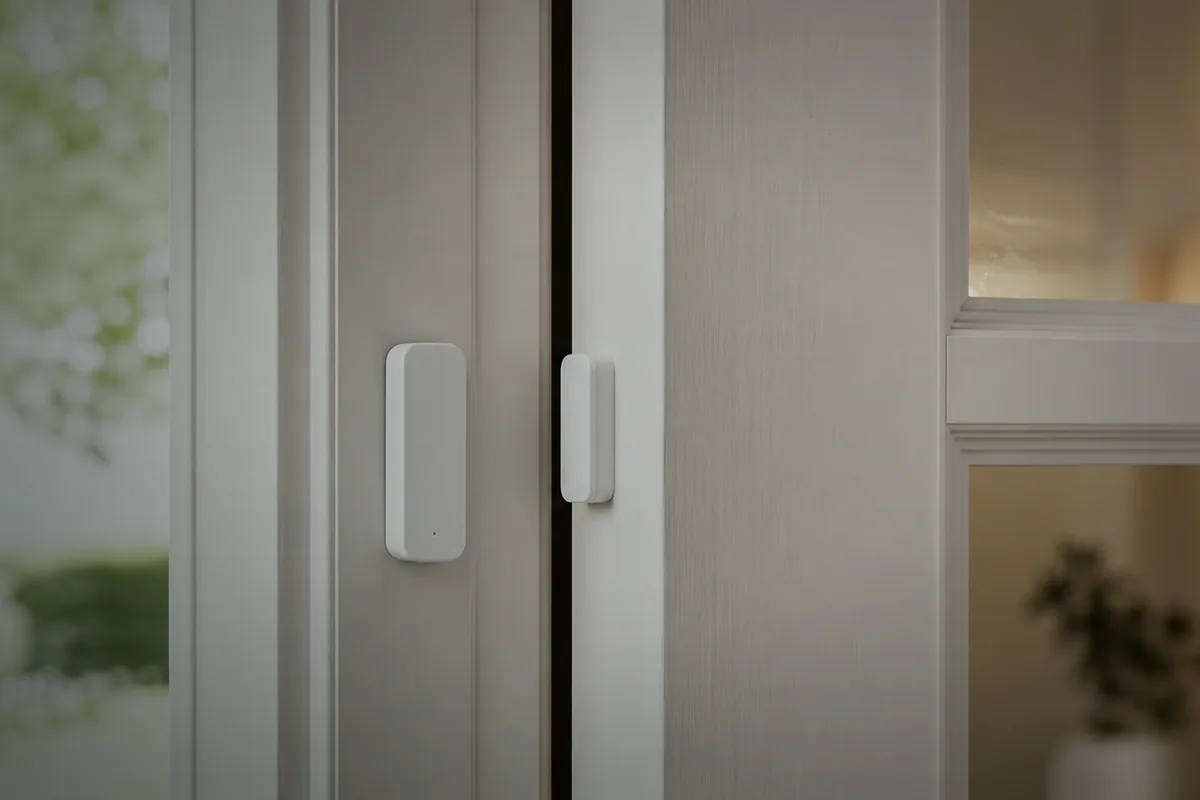
How to Pair IKEA Matter Devices Directly
Use the official Matter integration to add the device directly to Home Assistant. For a Matter-over-Thread model, a Thread border router connects the sensor's low-power wireless network to your home network. You can use a compatible router you already own or configure supported Home Assistant hardware for Thread; buying DIRIGERA is optional.
Start by checking the exact model. Then make sure the Home Assistant phone app has the intended Thread network credentials, put the device in its documented pairing mode, and use Add Matter device in the app. If Apple Home, Google Home, or another controller already owns the device, open its Matter sharing option and use the temporary code instead of resetting the device.
The steps below separate those setup choices and the checks to make if pairing fails. Direct local control does not mean every initial setup, firmware update, voice feature, or remote-access service works without internet.
Which IKEA Sensors Need a Thread Border Router?
Read the product name before changing your setup. IKEA now sells two generations that look similar in search results but use different radios. Newer MYGGBETT door sensors and MYGGSPRAY motion sensors say Matter compatible and Matter over Thread on IKEA’s product pages. Those devices need access to a Thread border router.
In plain English, Matter is the compatibility standard and Thread is the low-power wireless network these newer sensors use. A Thread border router connects that sensor network to the rest of the home network; it may already be built into compatible Home Assistant, Apple, Google, or IKEA hardware.
PARASOLL door sensors and VALLHORN motion sensors belong to IKEA’s earlier Zigbee range. They pair through DIRIGERA or a compatible Zigbee coordinator, meaning the hub or radio that manages Zigbee devices. They do not need a Thread border router, and they cannot be commissioned with a Matter QR code. This distinction matters because many searches combine the older names with “Matter over Thread,” even though the product generation does not match the phrase.
If the box has a Matter QR code and the product documentation says Matter over Thread, continue with this guide. If it is PARASOLL or VALLHORN, use the Zigbee instructions for your hub or coordinator instead.
IKEA Matter-over-Thread Products
IKEA’s current Matter range includes several low-power devices that use Thread. Examples currently listed by IKEA include:
- MYGGBETT - door and window contact sensor
- MYGGSPRAY - motion and light sensor
- TIMMERFLOTTE - temperature and humidity sensor
- KLIPPBOK - water leak sensor
- ALPSTUGA - air quality sensor
- BILRESA - button and remote products
Do not infer the radio from whether a device has a battery, plug, or bulb. Check the exact IKEA product page, manual, and logos on the box. A device marked Matter over Thread needs a Thread border router; a Zigbee device needs a Zigbee coordinator or bridge.
Step 1: Set Up the OpenThread Border Router in Home Assistant
A Thread border router is the bridge between your Wi-Fi/Ethernet LAN and the Thread mesh network that battery-powered IKEA devices live on. Without one, Home Assistant has no way to reach Thread devices at all. The commissioning process will fail with “device requires a border router” before you even scan a QR code.
Hardware Options for Your Thread Border Router
You need a Thread network that Home Assistant can reach. Common paths are:
- Home Assistant-owned Thread network - use supported Home Assistant Connect hardware configured for Thread with the OpenThread Border Router app. This gives Home Assistant direct ownership of the Thread credentials.
- An existing Apple or Google Thread network - supported models can provide the border router, but Home Assistant must receive the matching Thread credentials through the Companion app. Do not assume every speaker or streaming box includes Thread.
- IKEA DIRIGERA - DIRIGERA can provide IKEA’s guided setup path. It is useful if you want the IKEA app, but it is not the only Thread border router that can carry an IKEA Matter-over-Thread device.
If one working Thread network already covers the home, add the IKEA device to that network before buying another radio. Multiple border routers can improve coverage when they share one Thread network; accidentally creating several unrelated Thread networks usually makes setup harder.
Installing the OpenThread Border Router Add-on
On Home Assistant OS, install the official OpenThread Border Router app for supported radio hardware and follow the current Home Assistant Thread setup flow. Then open Settings > Devices & services > Thread and confirm that a preferred Thread network exists before trying to add the IKEA sensor.
If you already use Apple or Google border routers, open the Home Assistant Companion app’s Thread troubleshooting tools and import or synchronize the existing credentials as described in the current Home Assistant documentation. The network shown as preferred in Home Assistant must be the same network the phone will give the IKEA device.
Installing the Matter Server Add-on
Add the official Matter integration from Settings > Devices & services. On Home Assistant OS, the supported flow installs the official Matter Server app when needed. Use the current stable versions first. Switch to beta software only when current official release notes or support guidance identify a specific fix you need and you have a verified backup.
Step 2: Fix IPv6 - The Hidden Blocker
Thread uses local IPv6, even when your internet provider does not give you public IPv6 service. Home Assistant, the phone used for commissioning, and the border router need working local IPv6 and multicast discovery between them.
A “Something went wrong” message does not prove one specific IPv6 fault. It can also come from the wrong Thread credentials, an expired pairing window, stale device state, blocked multicast traffic, or a phone that cannot reach Home Assistant locally. Check the supported basics in order instead of changing advanced router settings at random.
How to Check and Fix IPv6
- Go to Settings > System > Network
- Under your active network interface, locate the IPv6 section
- Use Automatic unless you intentionally manage IPv6 routes and router advertisements yourself
- Save the setting, let Home Assistant reconnect, and recheck the Thread integration
You do not need public IPv6 from your internet provider. You do need functional IPv6 inside the local network. If you intentionally use VLANs, custom firewall rules, or managed multicast settings, verify the required discovery and IPv6 paths from the official Matter and Thread documentation before weakening network isolation.
Verifying Thread Connectivity
Go to Settings > Devices & services > Thread. Confirm that Home Assistant shows the intended network and that it is marked preferred. If Home Assistant and your phone show different Thread networks, fix the credential mismatch before resetting the IKEA device.
Step 3: Commission the IKEA Matter Device
With a working Thread network and the official Matter integration, you are ready to pair. The phone starts the nearby setup over Bluetooth and gives the device credentials for the selected Thread network. Apple or Google hardware is not required when Home Assistant owns a supported Thread border router, but an existing compatible Apple or Google border router can also provide the network.
Share Thread Credentials to Your Phone
Install the current Home Assistant Companion app, sign in, and use its Thread troubleshooting screen to confirm the phone has the same credentials that Home Assistant marks as preferred. Menu names can differ by phone platform and app release, so use the current Home Assistant Thread documentation if the labels below have moved.
- Open the Home Assistant Companion app on the phone you will use for pairing
- Open Settings > Companion app > Troubleshooting > Thread, or the current equivalent
- Import or synchronize the intended Thread credentials when the app offers that action
- Confirm that Home Assistant and the phone identify the same preferred Thread network
The phone can now give that network to the IKEA device during commissioning.
Put the Device into Pairing Mode
Follow the reset and pairing sequence in the manual for the exact model; IKEA does not use one universal button sequence across every sensor, remote, plug, and display. Keep the Matter QR code from the product and packaging. Photograph it for your private household records before mounting the device, but do not publish the code because it is a commissioning credential.
Commission via the Home Assistant App
- Open the HA Companion app on your phone
- Go to Settings > Devices & Services (from within the app)
- Tap the + Add Device button and select Add Matter device
- Scan the Matter QR code on the IKEA device, or enter its numeric manual setup code. The
MT:text encoded by a QR code is not the numeric code requested by a manual-entry field - Keep the phone close to the device for the Bluetooth setup step and make sure the installation location has Thread coverage
- Wait for setup to complete, then inspect the sensors, controls, or events Home Assistant exposes for that exact model
Name the device and assign its room after it appears. Test the open, motion, leak, temperature, or button event before mounting it permanently.
Troubleshooting: Fixing Common IKEA Matter Pairing Failures
Even with a border router running, commissioning can fail. Keep the device close to the phone for Bluetooth setup, verify the exact preferred Thread network, and change one thing at a time.
”Something went wrong” at the final step
Update Home Assistant OS, Core, the Companion app, and the stable Matter Server app. Then confirm local IPv6, phone access to Home Assistant, the preferred Thread credentials, and the device’s pairing mode. Read the Matter Server log before resetting the device; the last failure stage helps separate Bluetooth discovery, credential, network, and attestation problems.
Device pairs but disappears after a few minutes
Test the device beside the border router first, then at its intended location. Check battery state, firmware, Thread coverage, and the Matter Server log. Matter supports sharing a device with more than one controller, so multi-admin alone is not proof of the fault. If the problem began immediately after sharing, test one controller at a time before deleting every fabric.
Commissioning fails with “Thread border router required”
This usually means the phone can see the device over Bluetooth but cannot give it a usable Thread network. Verify that at least one compatible border router is online, Home Assistant shows the intended preferred network, and the phone has the matching credentials. On a segmented network, review the official IPv6 and multicast requirements instead of opening broad firewall access.
BILRESA remotes commission but show no actions in HA
Open the automation editor and inspect the triggers Home Assistant exposes for that exact device and firmware. A button may appear as a device trigger or event instead of a normal on/off entity. If no useful trigger appears, check the current Home Assistant Matter documentation and release notes before assuming the remote is defective.
ALPSTUGA air quality readings appear in HA but update slowly
Battery and low-power devices often report on firmware-controlled intervals instead of updating continuously. Compare the physical display with Home Assistant over time and check firmware before treating a slower update as a lost Thread connection. Do not promise a fixed interval unless IKEA documents it for the exact firmware.
Why Local-Only Is the Right Architecture for IKEA Matter Devices
Direct Matter control lets Home Assistant operate supported IKEA devices on the local network. That is useful when you want household routines to keep one local owner instead of recreating them in every vendor app.
A Home Assistant-owned Thread path can give you:
- Local control: supported commands and automations run between Home Assistant and the device on the home network
- Internet-independent core routines: local actions can continue during an internet outage when power, the LAN, the server, and the Thread mesh are healthy
- One automation owner: IKEA sensors can participate in the same routines as other supported Home Assistant devices
- No required subscription for control: Matter commissioning and local Home Assistant automation do not require a monthly IKEA plan
Firmware delivery, remote access, voice services, or an optional vendor feature can still involve the internet or another ecosystem. “Local control” should describe the actual command path, not imply that every lifecycle task is permanently cloud-free.
If you are planning several sensors, test one exact model first. Confirm pairing, firmware, entities, event support, range, and battery behavior before buying the rest of the house.
Frequently Asked Questions
Do I need the IKEA Dirigera hub to use IKEA Matter-over-Thread devices in Home Assistant?
No. DIRIGERA is one compatible path, but a Matter-over-Thread device can use another compatible Thread border router. For direct Home Assistant setup, use the official Matter integration, a Thread network Home Assistant can reach, the current Companion app, and the device’s Matter code.
Why does IKEA Matter Thread pairing fail in Home Assistant with “Something went wrong”?
There is no single cause. Check current stable software, pairing mode, the preferred Thread network, phone credentials, local IPv6, multicast discovery, and Matter Server logs in that order. On a VLAN, verify the documented network paths before changing firewall rules.
Do I need an iPhone or Apple TV to commission Matter-over-Thread devices?
No. A supported Home Assistant-owned Thread border router can provide the network. Apple or Google border routers are another option when Home Assistant and the commissioning phone have access to the matching Thread credentials.
Which IKEA devices from the 2026 lineup support Matter over Thread?
Current examples include MYGGBETT, MYGGSPRAY, TIMMERFLOTTE, KLIPPBOK, ALPSTUGA, and BILRESA products. Check the exact current IKEA product page and packaging because names, regional availability, and radio details can change. PARASOLL and VALLHORN are Zigbee products, not Matter-over-Thread models.
What hardware do I need to run an OpenThread border router in Home Assistant?
Use hardware listed by the current Home Assistant Thread documentation or a compatible Apple, Google, or IKEA border router whose Thread credentials Home Assistant can use. Confirm the exact model before buying; not every smart speaker, streaming box, or multi-radio dongle provides a supported Thread path.