Short Answer: Choose the Failure Behavior First
Pair BILRESA directly to an IKEA light when the job is simply “this physical remote controls these IKEA lights.” IKEA documents a no-smart-system pairing mode: press the system button four times, hold the remote within 5 cm of the light, and let the two devices pair. No DIRIGERA hub, Home Assistant server, phone app, or internet service sits in that everyday control path. The tradeoff is that the button behavior is fixed and the remote stays inside the compatible IKEA product family.
Pair BILRESA to Home Assistant when the remote should do more. Home Assistant can use its button events to control a Philips Hue scene, a Shelly relay, a Zigbee group, music, shades, or several brands together. Matter is the common control standard; Thread is the low-power network the BILRESA uses for this path. Core control stays local in the house, but Home Assistant, the local network, and a working Thread border router must be available for the automation to run.
Use DIRIGERA when you want IKEA to manage the system. It is the simpler path for IKEA Home smart app setup, IKEA groups and scenes, vendor-guided updates, and cases such as two BILRESA remotes controlling one product. In plain English: direct pairing is the smallest and most outage-resistant path, Home Assistant is the most flexible path, and DIRIGERA is the most IKEA-managed path.
Tara's rule: use direct pairing for a light switch that should remain boring. Use Home Assistant when the button is really a whole-home input. Do not add a controller merely to recreate the same on/off behavior the devices can already perform by themselves.
The Three Supported Paths, Side by Side
| Setup path | Official support and concrete models | Local control and cloud dependency | Matter, HomeKit, and Home Assistant path | Main caveat |
|---|---|---|---|---|
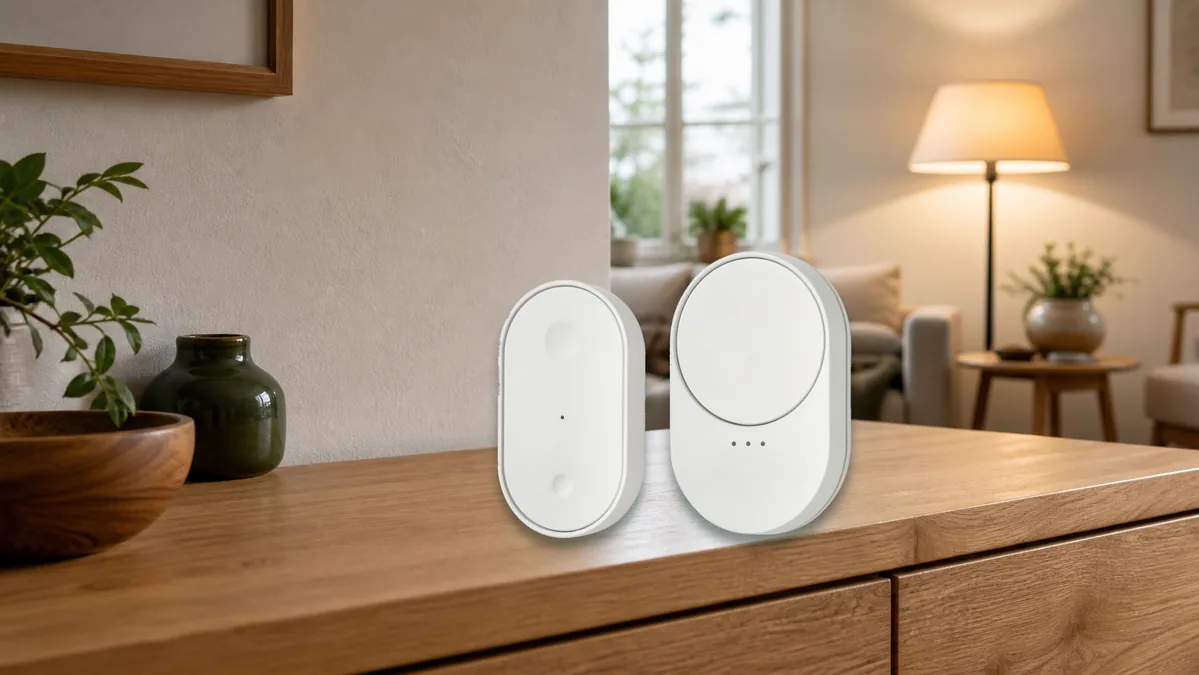
| Direct BILRESA-to-IKEA pairing | IKEA documents this for the BILRESA dual-button remote, article 806.178.76, and scroll-wheel remote, article 706.174.57, with compatible IKEA smart products. IKEA Denmark also says BILRESA can pair with earlier TRÅDFRI products. | No hub, app, or internet is in the daily control path. The dual-button model can directly control up to 10 IKEA products. The scroll-wheel model has three groups with up to 10 products in each group. | This is not commissioning to Apple Home, Google Home, Alexa, SmartThings, or Home Assistant. IKEA says BILRESA supports Zigbee; its four-press direct mode is a separate hubless compatibility path. | Fixed IKEA behavior only. Do not assume a direct relationship will survive later Matter commissioning, and IKEA says two separate BILRESA remotes cannot directly control the same product without a hub. |
| BILRESA directly to Home Assistant over Matter | The Connectivity Standards Alliance (CSA) certifies BILRESA for Matter 1.4 as the standard remote-control device type called a Generic Switch. The current dual-button record lists firmware 1.9.15—the version of the software stored inside the remote. Home Assistant officially supports Matter devices locally, but BILRESA is not separately listed as Works with Home Assistant certified. | Button events and automations run locally without a vendor cloud. A Home Assistant outage, broken local network, or missing Thread route stops the automation. Internet can be absent after setup, although certificate checks and firmware maintenance can still need it. | Requires Home Assistant's Matter integration, a working Matter Server, Companion app commissioning, local IPv6 and mDNS, and a Thread border router. Matter's device-sharing feature, called multi-admin, can share devices between controllers, but event features can differ by platform. | Cross-brand control is flexible, but the controller remains in the path. Use the event types Home Assistant actually exposes; do not paste a guessed entity name or event value from somebody else's setup. |
| BILRESA through IKEA DIRIGERA | IKEA documents DIRIGERA plus the IKEA Home smart app as its managed smart-system path. It is useful for IKEA app rooms, groups, scenes, firmware, older IKEA gear, and multiple-remotes-to-one-product setups. | IKEA says local remote and app control can continue when the internet is down if DIRIGERA, the Wi-Fi router, and the local phone connection remain available. Remote Control Anywhere and software updates need internet. | DIRIGERA includes IKEA's controller and Thread infrastructure. Supported devices can be exposed through IKEA's Matter paths, but do not assume every BILRESA event or vendor feature appears identically in Home Assistant, HomeKit, Google Home, Alexa, or SmartThings. | A DIRIGERA power outage is different from an internet outage. IKEA does not promise that hub-managed remote behavior keeps working while the hub itself is off. |
Path 1: Pair BILRESA Directly to IKEA Lights
Choose this path when the remote's only job is controlling compatible IKEA lights or plugs with IKEA's built-in behavior. It is the clearest choice for a bedside lamp, under-cabinet lights, a child's room, or a guest room where a physical switch should work even when the smart-home server is being maintained.
- Start with compatible IKEA products. The manual promises direct pairing with IKEA smart products, not arbitrary Matter lights from another brand. Current KAJPLATS lights and earlier TRÅDFRI lights are the relevant IKEA families; verify the exact product documentation before buying.
- Turn on the light or plug. If several unpaired IKEA products are close together, IKEA says to turn off or disconnect the ones already paired while adding the next device.
- Put BILRESA into direct-pair mode. Open the battery compartment and quick-press the system button four times. Hold the remote within 5 cm of the IKEA product. The direct-pairing window lasts 30 seconds.
- Wait for confirmation. The LED blinks quickly during pairing and twice when connected. Test every physical action before mounting the remote.
- Add more products carefully. The dual-button model supports up to 10 directly paired products. The scroll-wheel model supports three selectable groups and up to 10 products per group.
For an IKEA light, the dual-button manual gives the practical defaults: short press for on/off, double press for the next color, and long press for dimming. The scroll-wheel model can switch among three groups, and wheel behavior depends on the connected product type.
Four Presses Is Not a Matter Binding
This distinction prevents a lot of bad troubleshooting. IKEA's US manual calls four presses direct pairing without a smart system. IKEA Denmark says the Matter-over-Thread BILRESA also supports Zigbee, and IKEA told Matter Alpha that hubless lamp-and-remote control used Zigbee Touchlink, a close-range device-to-device pairing method, while Matter binding was not implemented in the range at launch. A binding is a controller-managed rule that lets one device address another directly. You are not creating that kind of Matter rule inside Home Assistant when you press the BILRESA system button four times.
Firmware can change, so this is a current support boundary rather than a claim about all future versions. The safe homeowner rule is simple: treat direct mode and Matter mode as alternative setup paths. IKEA does not document a supported arrangement where a direct pairing is guaranteed to stay intact after both products are commissioned into Matter.
Path 2: Pair BILRESA to Home Assistant
Choose this path when a press should control more than one IKEA product family. Home Assistant turns BILRESA into a local input for any supported entity: a light, scene, media player, fan, cover, script, or grouped room action. An entity is simply Home Assistant's on-screen representation of a device function.
What You Need
- Home Assistant 2026.7 or newer. This provides the clearer Event received automation trigger used below.
- The official Matter integration and Matter Server. Matter Server is the controller service Home Assistant runs to communicate with Matter devices. Home Assistant OS is the supported easy path; custom containers add networking responsibilities and are not the beginner route.
- A Thread border router. It connects BILRESA's low-power Thread network to the normal home network. Home Assistant OpenThread hardware, a compatible Apple border router with iPhone commissioning, or a compatible Google border router with Android commissioning can provide that path when configured correctly.
- Working local IPv6 and mDNS. These are local addressing and discovery services Matter needs inside the house. Avoid isolated guest Wi-Fi or a separate advanced network segment, often called a VLAN, until the basic setup works.
- The Home Assistant Companion app near the remote. Bluetooth is used during commissioning, then normal control moves to Thread.
Pair the Remote
- Update Home Assistant and the Matter Server app, then make a current backup.
- Insert two AAA batteries. A new or reset BILRESA enters smart-system pairing mode for 15 minutes. If needed, press the system button once to reopen pairing mode.
- In the Home Assistant Companion app, open Settings > Matter, choose Add device, and scan the Matter QR code from the remote or its yellow instruction cover.
- Keep the phone close until commissioning finishes. Then open the new BILRESA device page and press each physical control once.
- Confirm that Home Assistant shows button event entities. An event entity records a moment such as a single, double, or long press; it is not a switch that stays on.
Build the Automation With Event Received
- Go to Settings > Automations & scenes and create a new automation.
- For the trigger, choose Event received.
- Select the BILRESA button event entity you want.
- Choose an event type from the values Home Assistant offers for that exact entity. A dual-button BILRESA commonly reports single press, double press, long press, and long release choices, but the device's own dropdown is the authority.
- Add the action: toggle a light, activate a scene, run a script, or control a room. Save and press the same button repeatedly to confirm every press is received.
Do not build this with a plain state rule that only watches whether event_type changed. Two consecutive single presses can carry the same event type even though they happened at different times. Home Assistant 2026.7 specifically calls out this event-entity trap; Event received expresses the physical press directly.
Safety boundary: use BILRESA freely for lights, scenes, media, and ordinary convenience. Do not let an easy accidental press directly unlock an exterior door, open a garage, disable an alarm, or start a hazardous appliance. Add confirmation, presence, time, or other safety conditions for security-sensitive actions.
Path 3: Use DIRIGERA When IKEA Should Own the Experience
DIRIGERA is not required just because BILRESA says Matter, but it remains useful. Choose it when the household wants IKEA Home smart as the main app, when IKEA-guided firmware and device support matter more than avoiding another hub, or when more than one BILRESA must control the same product. IKEA's BILRESA support page says two separate remotes cannot directly control one product without a hub and the IKEA Home smart app.
DIRIGERA also separates internet dependency from hub dependency. IKEA says the app and remote can keep controlling products during an internet outage while the hub remains powered, connected to the router, and reachable from a phone on the same Wi-Fi. Control Anywhere and software updates need internet. If DIRIGERA itself loses power, IKEA does not promise that hub-managed controls keep working.
If Home Assistant also needs the devices, use the supported IKEA integration or Matter sharing path intentionally and test the exact events that arrive. A bridge may expose common controls while withholding an IKEA-only feature. Avoid duplicate automations in both IKEA Home smart and Home Assistant; pick one automation brain.
Dual Button or Scroll Wheel?
| Current model | Direct IKEA control | Home Assistant path | Recommendation |
|---|---|---|---|
| BILRESA dual button White, article 806.178.76 |
Up to 10 directly paired IKEA products. Short, double, and long presses provide straightforward light behavior. | Commonly exposes two button event entities with press variants. Home Assistant 2026.7's Event received trigger makes the basic setup direct. | Best first BILRESA for Home Assistant. Choose it when dependable discrete presses matter more than a physical wheel. |
| BILRESA scroll wheel White, article 706.174.57 |
Three selectable groups, each with up to 10 directly paired IKEA products. The wheel can adjust supported lights or other compatible IKEA product functions. | Can expose several button or wheel endpoints. Current IKEA reviews and Home Assistant community threads report more uneven scroll behavior across platforms and firmware. | Choose only when the wheel or three groups are the point. Test every rotation, press, group, sleep/wake cycle, and restart before relying on it. |
This is not a blanket quality verdict. Some homeowners report stable Matter BILRESA remotes; others report missed or delayed events, especially with the scroll wheel. Product reviews and forum reports are caveats, not controlled reliability tests. Keep the receipt, update firmware, and test the exact room and border-router placement during the return window.
If You Need to Switch Paths
- Record what exists now. Note the remote model, firmware, current controller, lights or scenes it operates, and save the Matter setup code securely.
- Remove it from the current smart system first. This reduces stale Matter fabric records and duplicate devices.
- Factory-reset BILRESA. Open the battery compartment and hold the system button for about 10 seconds, until the red LED stops blinking. It restarts in smart-system pairing mode.
- Choose one new path. Use four quick presses for direct IKEA pairing, one press plus the Matter QR code for Home Assistant or another Matter system, or the IKEA Home smart app for DIRIGERA.
- Test the outage that matters. For direct pairing, briefly take the smart-home server offline. For Home Assistant, disconnect internet but keep the LAN running. For DIRIGERA, test an internet outage separately from hub power. Restore everything after the test.
Do not reset every light while diagnosing one remote. Start with the BILRESA, one nearby test light, fresh batteries, and one control path. Once that works, expand deliberately.
Tara's Practical Recommendation
For a homeowner who just wants one IKEA remote to control one room of IKEA lights, direct pairing is the better default. It is simpler, contains fewer failure points, and keeps the physical light control independent of a server.
For a Home Assistant household, start with the BILRESA dual-button model paired directly to Home Assistant over Matter when the remote needs to run cross-brand scenes or logic. Use Home Assistant 2026.7's Event received trigger, keep the automation local, and make sure the Thread border router covers that room. Choose the scroll wheel only after accepting its more complex event behavior.
Choose DIRIGERA when IKEA app support, groups, updates, or multiple remotes are more valuable than minimizing hubs. There is no universally best path; the right answer is the smallest control path that still performs the job the household actually wants.
Related Tara Reading
- How to pair IKEA Matter-over-Thread devices directly to Home Assistant
- Do you still need IKEA DIRIGERA with Home Assistant?
- Can Home Assistant update Matter firmware without the vendor app?
- Which Thread border router should you use?
- Where should your smart-home automations live?
FAQ
Does IKEA BILRESA need DIRIGERA?
No. Pair BILRESA directly to compatible IKEA smart products for fixed hubless control, or commission it to Home Assistant or another Matter system with a Thread border router. DIRIGERA is the IKEA-managed option for app control, groups, updates, and setups such as multiple remotes controlling one product.
Does BILRESA need a Thread border router?
It needs a Thread border router when you add it to Home Assistant or another Matter system. IKEA's separate four-press direct-pairing mode works with compatible IKEA smart products without a smart system.
Will BILRESA still control lights if Home Assistant is down?
A Home Assistant automation cannot run while Home Assistant, the local network, or the active Thread route is down. IKEA's documented direct-pairing path has no hub in the control path, so choose it when simple IKEA light control must not depend on Home Assistant.
Is four-press BILRESA direct pairing a Matter binding?
No. IKEA documents it as a separate direct, no-smart-system pairing path and says BILRESA supports Zigbee. IKEA also told Matter Alpha that hubless remote-to-light control used Zigbee Touchlink while Matter binding was not implemented in the range at launch.
Can two BILRESA remotes directly control the same light without a hub?
IKEA says no for BILRESA. Use DIRIGERA and the IKEA Home smart app when two separate BILRESA remotes need to control the same smart product.
Which BILRESA is easier with Home Assistant?
The dual-button model is the simpler starting point. The scroll-wheel model can control three groups directly, but its Matter event layout and scrolling behavior require more testing in Home Assistant and other platforms.