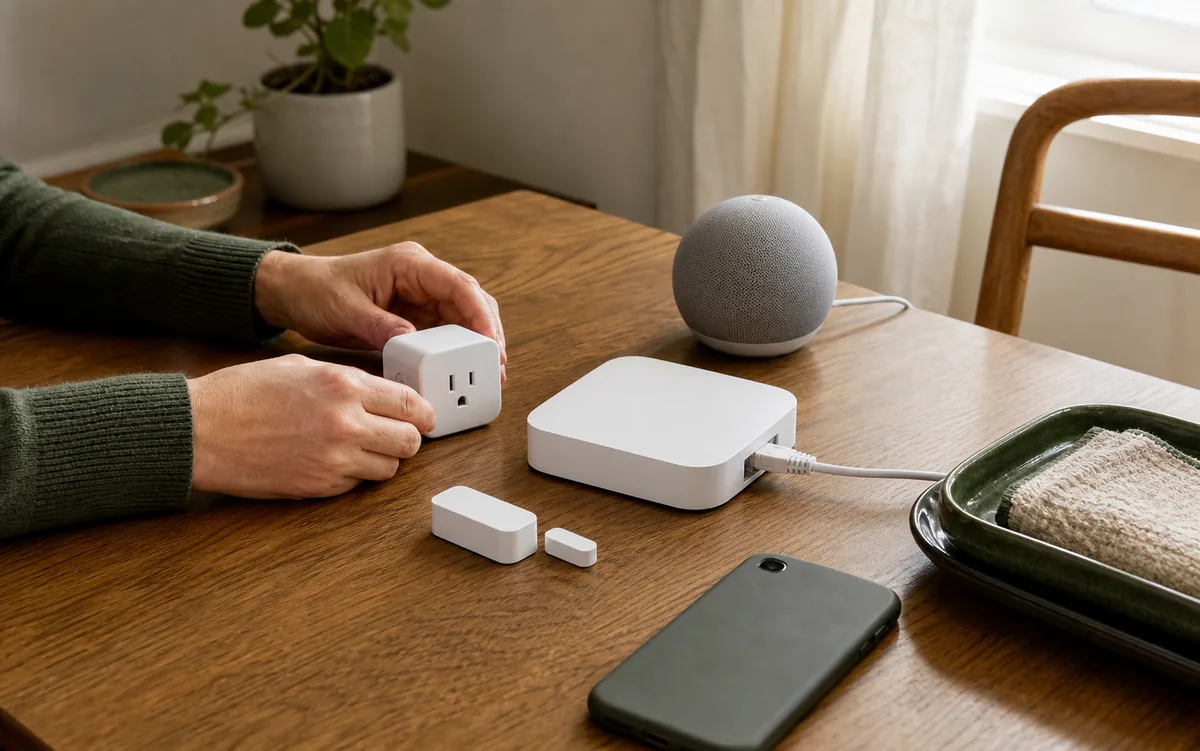
Short Answer: Share, Test, Remove the Old Controller Last
You normally do not need to factory-reset a Matter device just because you want Home Assistant to become its main controller. Matter includes multi-admin, which lets one device trust more than one smart-home platform at the same time. In Home Assistant, open the Companion app, go to Settings > Matter > Add device, choose Yes, it is already in use, and follow the Apple Home or Google Home sharing flow. Use the fresh temporary sharing code from the controller that already owns the device; do not reuse the QR code printed on the box.
Once Home Assistant controls the device, test it before changing the old setup. Local control means those daily commands stay inside the home network instead of waiting for a vendor's internet server. Open the device page, use Manage fabrics—Matter's name for each secure controller relationship—and confirm Home Assistant plus the original platform are listed. Move one automation—a rule that makes the device act on its own—verify status updates, and keep a manual fallback for a lock, garage door, alarm, heater, or other safety-sensitive device. If Apple Home or Google Home still supplies Siri, Home Key, remote access, device-software updates (often called firmware), or a family-friendly app, you can simply keep both controllers.
If you truly want to retire the old controller, remove only that controller's fabric after testing. For a Matter-over-Thread device, keep its existing Thread border router online or join a Home Assistant border router to the same Thread network first. Adding Home Assistant control and replacing the Thread radio are two separate jobs.
The one-sentence order: share first, test second, move automations third, remove the old fabric fourth, and replace border-router hardware only after the same Thread network works through the replacement.
First Confirm What Kind of Device You Have
Look for the Matter logo in the product documentation or its current app. The word Thread describes a low-power local network; it does not prove the device supports Matter. These examples are current as of July 12, 2026, and exact features can vary by region, hardware revision, and device software.
| Device path and concrete examples | Official Home Assistant path | Local control and cloud boundary | Matter or HomeKit path | Main caveat |
|---|---|---|---|---|
| Native Matter-over-Thread device Examples: IKEA KAJPLATS Matter-over-Thread bulb; Aqara Door and Window Sensor P2. |
Add the already-paired device through Home Assistant's Matter integration. A working third-party Thread border router can carry the traffic; Home Assistant does not need a second radio just to control it. | Home Assistant's normal Matter commands stay local. The vendor app or original ecosystem may still be useful for firmware, diagnostics, remote access, or extra settings. | Use Matter multi-admin. A HomeKit-only Thread device without Matter uses the separate HomeKit Device integration instead. | Keep the current Thread border router until another router has joined the same network. A new, separate Thread network does not move the device. |
| Native Matter-over-Wi-Fi device Example: TP-Link Tapo P125M smart plug. |
Use the same already-in-use Matter flow. No Thread border router is required because the plug uses 2.4 GHz Wi-Fi. | Configured Matter apps can control the P125M locally when the internet is down. Tapo remote control and some app extras use the vendor account and internet service. | Matter multi-admin can share it among Home Assistant, Apple Home, Google Home, Alexa, and SmartThings. | Do not buy a Thread radio to fix a Wi-Fi device. Feature exposure can differ between the Tapo app and each Matter controller. |
| Matter bridge A hub that presents its child devices through Matter. Examples: IKEA DIRIGERA, Philips Hue Bridge, Aqara Hub M3, and SwitchBot Hub 2. |
Add the bridge itself as an already-used Matter device. Home Assistant receives only the child-device types and features the bridge exposes through Matter. | The bridge-to-Home Assistant Matter path is local. Vendor apps, accounts, firmware, scenes, and remote features can still have separate cloud requirements. | This is Matter bridging, not HomeKit Bridge. Home Assistant's native Hue integration can expose more features than Hue-over-Matter and also runs locally. | Removing or resetting one bridge can affect many child devices. Test one room and compare missing features before retiring the native integration. |
| HomeKit-only accessory The packaging says Works with Apple Home or HomeKit but has no Matter logo. |
Use Home Assistant's HomeKit Device integration—its built-in connection for HomeKit accessories—not the Matter migration steps in this guide. | Home Assistant's HomeKit Device control is local after pairing. Apple remote access and Siri remain Apple ecosystem features. | HomeKit-over-Thread is still HomeKit. Matter multi-admin codes do not convert it into a Matter device. | Moving it may require removing the accessory from Apple Home so Home Assistant can discover it. Save the HomeKit code and follow the exact product instructions. |
| Works with Google Home or vendor-cloud device No Matter logo or Matter accessory entry is present. |
Use the matching Home Assistant integration, local API, HomeKit Device path, or vendor cloud integration where supported. | Cloud-linked control can stop during an internet or vendor-service outage. A local Home Assistant integration is preferable when the product officially provides one. | This is not Matter multi-admin, even if Google Home shows the device next to Matter products. | A temporary Matter sharing code will not exist. Do not reset the device looking for one. |
Before the First Device: Preserve the Working House
- Update the supported path. Install the current stable Home Assistant, Matter Server app, and Companion app. Matter Server is the official local service that maintains Home Assistant's Matter controller relationships. Home Assistant Operating System with that app is the supported route.
- Make a Home Assistant backup. Also save each original Matter setup code, model, serial number, room, current platform, and any important platform-only feature.
- Choose a harmless pilot. Start with one plug or light you can operate manually. Do not make a front-door lock, water shutoff, smoke alarm, or heating control your first test.
- Write down the Thread route. In Settings > Devices & services > Thread, note the visible Apple, Google, Home Assistant, IKEA, Aqara, Amazon, or SmartThings networks and border routers. Seeing a network does not mean Home Assistant knows its password-like credentials.
- List duplicate routines. Decide which Apple Home or Google Home routines will move to Home Assistant and which family-facing controls should remain. Two automations responding to the same event can make a successful migration look broken.
Apple Home to Home Assistant: The Safe Order
- Keep Apple Home working. Leave the iPhone signed into the Apple Account that owns the Home. Keep the HomePod mini, HomePod 2nd generation, or supported Apple TV 4K online if it is serving Thread devices.
- Open the Home Assistant Companion app on the iPhone. Go to Settings > Matter > Add device.
- Choose the already-in-use option. Select Yes, it is already in use, then choose Apple Home and follow the prompts. Apple documents that a previously paired Matter accessory can be selected by another Matter-capable app.
- Use the new sharing permission. Do not scan the original box code as though the device were new. The current Apple controller opens a temporary pairing window for Home Assistant.
- Confirm real control. Rename the device, operate it from Home Assistant, verify state changes, and run one simple automation. For a lock, test locking, unlocking, PIN behavior, Home Key, notifications, and a physical key or keypad fallback with an adult present.
- Check both fabrics. On the Home Assistant Matter device page, open the menu next to Share device, choose Manage fabrics, and confirm both Home Assistant and Apple appear.
- Stop here if Apple still adds value. Keeping Apple Home does not make Home Assistant less local. It preserves Home Key, Siri, Apple family access, and any Apple-specific behavior the household still wants.
- If retiring Apple control, move routines first. Turn off duplicate Apple automations and test Home Assistant through a normal day.
- Remove only the Apple fabric. In Home Assistant's Manage fabrics view, remove the Apple controller of interest. Home Assistant also instructs Apple users to remove the matching Apple Keychain entry. On iPhone or iPad, Apple exposes Matter accessories under Settings > General > Matter Accessories; do not choose Remove From All Services when Home Assistant should remain.
Do not delete the Apple Home as a migration shortcut. A Home contains people, rooms, automations, hubs, and other accessories that have nothing to do with the one device you are moving. Remove one controller relationship at a time.
Google Home to Home Assistant: The Safe Order
- Keep Google Home and its hub online. A Nest Hub 2nd gen, Nest Hub Max, Nest Wifi, Nest Wifi Pro, or Google TV Streamer may be the only Thread border router serving the device.
- Open the device in Google Home. Touch and hold its tile, open Settings, then Linked Matter apps & services.
- Start Matter sharing. Choose Link apps & services and select Home Assistant when offered, or generate a fresh temporary pairing code. Google documents both app-to-app sharing and temporary code or QR-code paths.
- Add it as already used in Home Assistant. In the Home Assistant Companion app, go to Settings > Matter > Add device, choose Yes, it is already in use, select Google Home, and follow the dialog.
- Test before changing Google. Operate the device, watch state updates, and run one Home Assistant automation. Under Manage fabrics, confirm Home Assistant and the Google controller are both present.
- Move or disable duplicate Google routines. Voice control and family access can stay in Google Home while Home Assistant owns the serious automation logic.
- If retiring Google control, remove the Google fabric last. Use Home Assistant's Manage fabrics view after testing. Google's normal Remove device flow also removes that device's Google Home settings and routines, so do not make it the first step.
Google says Matter commands issued while you are at home can stay local, while away-from-home commands use its cloud before the hub sends the final command locally. Home Assistant's Matter control is local; remote access to Home Assistant is a separate choice. Removing Google app control can reduce one cloud path, but only after you have replaced any remote access or voice behavior the household expects.
Do Not Confuse the Controller With the Thread Border Router
A Matter controller is the trusted platform relationship represented by a fabric: Home Assistant, Apple Home, Google Home, Alexa, or SmartThings. A Thread border router is the local network bridge that forwards encrypted packets between the low-power Thread mesh and Ethernet or Wi-Fi. One box, such as a HomePod mini or Nest Hub, can perform both jobs, but the jobs remain separate.
You do not need a Home Assistant Connect radio merely to control a shared Matter-over-Thread device. Home Assistant's Matter documentation lists Apple TV, HomePod, Nest Hub, Nest Wifi Pro, and Home Assistant OpenThread routers as usable Thread paths. Home Assistant still needs working local IPv6—the inside-the-house addressing Matter uses—and nearby-device discovery traffic to reach the border router and device.
If you plan to unplug the final Apple or Google border router, add the replacement first. Home Assistant's current Thread documentation supports importing an Apple-created network with the appropriate iPhone or a Google-created network with the appropriate Android phone. Make that network preferred, configure a Home Assistant OpenThread Border Router using Home Assistant Yellow, Connect ZBT-1, Connect ZBT-2, or another supported adapter, and confirm it joins the existing network. Test powered and battery devices before the old hub leaves.
Do not form a fresh Home Assistant Thread network just because you bought a new radio. Existing Thread devices will not jump to a different password automatically. Join the known working network or plan a separate, device-by-device migration.
What Each Ecosystem Still Owns
- Home Assistant: local Matter control, entities—the individual controls and sensors Home Assistant creates—dashboards, and automations. Home Assistant Cloud is optional for remote access and supported voice-assistant linking; it is not required for local Matter commands.
- Apple Home: Apple Account and Home membership, Siri, Home Key where supported, Apple remote access, and Apple-managed hubs. A Matter fabric does not copy Home Key into Home Assistant.
- Google Home: Google Account and Home membership, Assistant or Gemini voice behavior, Google routines, remote access, and Google-managed hubs. Its cloud boundary is separate from local Matter traffic inside the home.
- Alexa and eero: selected Echo and eero models provide Thread border routing, while Alexa app, voice, remote, and account behavior remain Amazon services. Share the Matter device to Home Assistant; do not assume Home Assistant can administer the Amazon Thread network.
- SmartThings: current hubs and selected Samsung devices can act as Matter controllers and Thread border routers. Multi-admin can share control with Home Assistant, but SmartThings routines, account services, device-type coverage, and hub firmware remain SmartThings concerns.
- IKEA, Aqara, Eve, Nanoleaf, TP-Link, and other vendors: standardized Matter functions can move between controllers. Vendor-only settings, diagnostics, updates, and warranty support may still require the exact app, account, hub, or controller path named by the manufacturer.
Community experience is useful for spotting failure patterns, not for overriding the official steps for your model. A Home Assistant GitHub issue documents stale or duplicated entities after devices were reset and re-added without first removing the old Matter record. That supports a careful removal order; it does not prove that every reset or every brand will fail.
What to Avoid During the Move
- Do not reuse the original QR code for an already-paired device. Generate a fresh temporary sharing code from its current controller.
- Do not delete the whole Apple Home or Google Home. Migrate and verify one Matter device at a time.
- Do not choose “remove from all services.” Remove only the controller fabric you intend to retire.
- Do not unplug the last Thread border router. Keep it powered until another border router has joined the same network and passed a power-cycle test.
- Do not expose the same device twice. A direct Matter entry plus a Home Assistant-to-Apple or Home Assistant-to-Google bridge entry can create duplicate tiles and ambiguous voice names.
- Do not assume every feature follows. Check Home Key, energy readings, advanced lock settings, scenes, firmware updates, notifications, and vendor diagnostics before retiring an app.
- Do not make a critical device the pilot. Keep manual keys, physical controls, alarm procedures, and heating or water fallbacks available throughout testing.
If Home Assistant Will Not Add the Shared Device
- Generate another sharing code. Temporary Matter codes expire. The original printed code is not the replacement.
- Use the Companion app, not a desktop browser. Home Assistant's Matter pairing flow depends on the mobile platform and current app permissions.
- Confirm the Matter integration and Matter Server app are current. Do not install an unrelated community Matter bridge and expect it to import Google or Apple devices.
- Check the local network path. Home Assistant, the controller hub, and Matter device need usable local IPv6 and discovery traffic. Keep them on the same simple local network while testing.
- For Thread, check credentials and the border router. Home Assistant can discover a Thread network name without knowing its credentials. Follow the official iPhone or Android import flow when adding a Home Assistant border router to an existing Apple or Google network.
- Check whether the product is truly Matter. HomeKit-only, Works with Google, and vendor-cloud devices will not produce a valid Matter multi-admin path.
- Reset only as the documented last resort. First remove stale controller records where possible, preserve setup codes, and follow the manufacturer's exact reset sequence for that model.
If pairing stalls on network checks, use Tara's Matter connectivity checklist. If the device appears but features are missing, read the Matter feature support guide before assuming the migration failed.
Tara's Practical Recommendation
For an Apple- or Google-first house, do not rebuild a working Matter setup to make Home Assistant look like the first controller. Add Home Assistant as another fabric, migrate one non-critical device, move the automation, and observe it through a normal day. Keep the family-facing app if it remains useful.
Retire a platform only when the benefits are clear: fewer duplicate routines, less cloud dependence, or a simpler handoff. Even then, remove the controller fabric separately from its Thread hardware. The homeowner should finish with a short note naming the Matter controllers, the Thread network owner, the border routers, the firmware app, and the manual fallback for every critical device.
Related Tara Reading
- How Matter multi-admin works across Home Assistant, Apple, Google, Alexa, and SmartThings
- Should you pair a Matter device to Home Assistant or Apple/Google first?
- Replace a Thread border router without re-pairing Matter devices
- Where should smart-home automations live?
- Will Home Assistant and Matter work without internet?
- Do you still need IKEA DIRIGERA with Home Assistant?
FAQ
Can I move a Matter device from Apple Home or Google Home to Home Assistant without a factory reset?
Yes. Use Matter multi-admin to create a fresh temporary sharing code from the controller that already has the device, then add it in the Home Assistant Companion app as a device that is already in use. Test Home Assistant before removing any old controller fabric.
Why does the original Matter QR code not work when I add Home Assistant?
The code printed on the device is for its original pairing. Once the device is already paired, open the existing controller's sharing flow and generate a new temporary multi-admin code or QR code for Home Assistant.
Does Home Assistant need its own Thread radio to control a shared Matter-over-Thread device?
Not when a working Apple, Google, or other Thread border router already connects that Thread network to the same local network as Home Assistant. Add a Home Assistant Thread radio only when you want Home Assistant to own or add resilience to the Thread path, and join it to the existing network before retiring the old router.
Can a Nest Hub, HomePod, or Apple TV remain the Thread border router after I remove its Matter controller from a device?
The Matter controller relationship and the Thread border-router role are separate. Keep the hub registered, powered, and on the home network, verify Home Assistant control, and do not remove the hardware until another border router has joined the same Thread network and passed testing.
Will Apple Home Key or vendor-only features move to Home Assistant through Matter?
Not necessarily. Matter shares the standardized features supported by both the device and Home Assistant. Apple Home Key, vendor diagnostics, some device-software updates, and other platform-specific extras can require the original platform or vendor app, so keep that controller fabric if those features matter.