The Safe Order: Decide, Document, Transfer, Verify
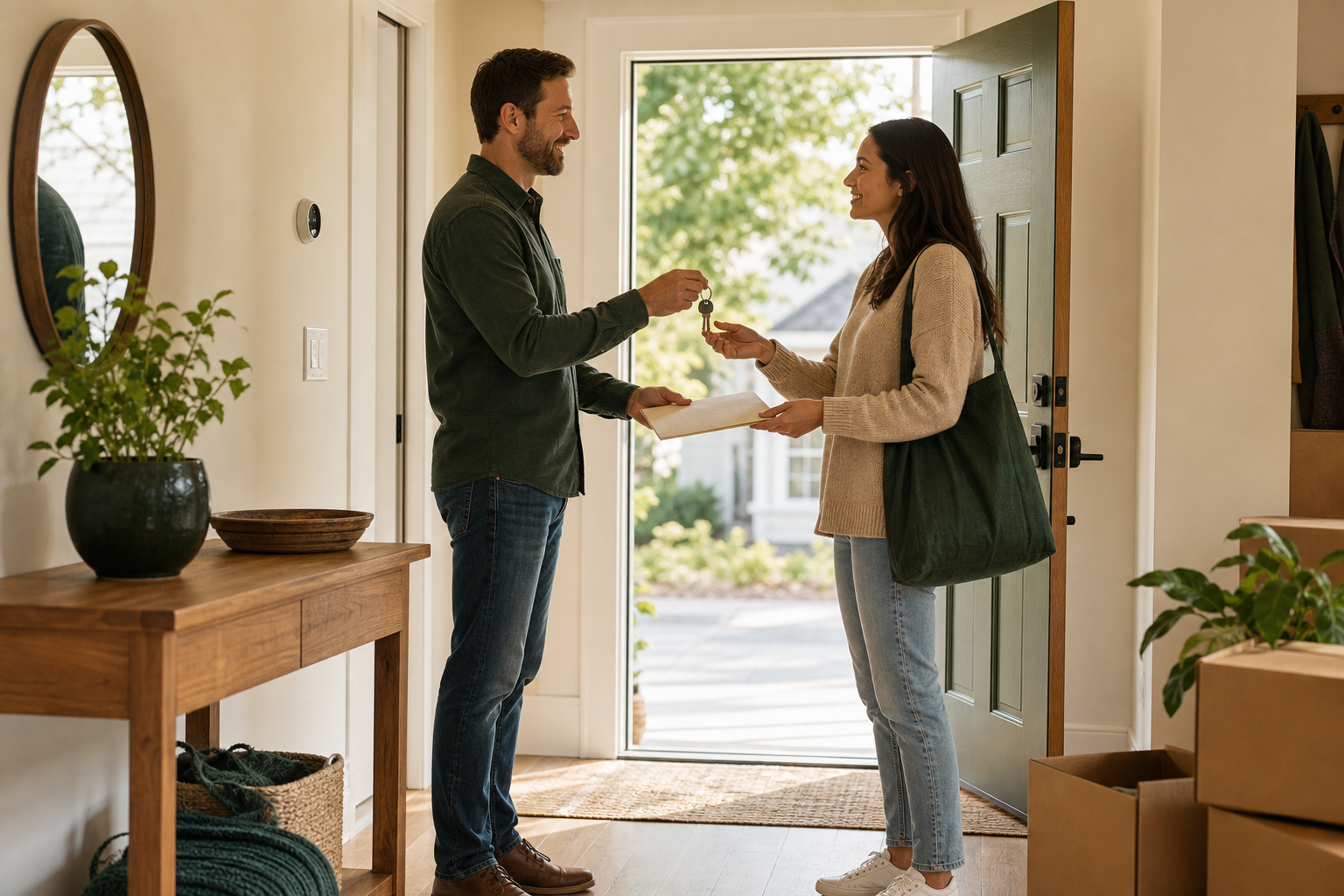
The safest smart-home handoff follows five steps. First, list the devices. Second, agree in writing what stays and what goes. Third, keep included devices working normally until the agreed transfer time. Fourth, move ownership or reset each device by following its maker's current instructions. Fifth, let the buyer test both the app setup and the physical controls before your access is removed for good.
This order avoids two common mistakes: taking a device the buyer believed was included, or wiping a thermostat, alarm, door lock, or lighting system before anybody has a working replacement. It also stops a buyer from inheriting the seller's camera recordings, voice history, location rules, payment account, or smart-home credentials.
Do not decide “fixture or personal property” from this guide. A wired device can still be treated differently by a particular contract or location. Name the item, model, and included hub in the sale paperwork with your agent or attorney. This article is practical handoff and privacy guidance, not legal advice.
1. Make One Room-by-Room Inventory
Walk through the house with the lights on and your smart-home apps open. Record every device that a buyer can see, every hidden controller it needs, and every service that could stop after your account is gone. Include old devices that no longer work; an abandoned wall tablet or disconnected hub can be more confusing than no device at all.
| Device group | Decide before listing | Safe handoff check |
|---|---|---|
| Wall switches, dimmers, thermostats, shades, irrigation | Name the exact controls and any hub or bridge—the small connector box—they need. Record what is included or excluded. | Normal buttons, schedules, temperature changes, and manual stops still work without your phone. |
| Locks, garage doors, alarms, cameras, video doorbells | Confirm hardware, monitoring, storage, and subscription terms separately. Plan when security access changes. | Old users, clips, codes, automatic location rules, and subscriptions are removed; the buyer creates fresh access and tests it. |
| Hubs, bridges, Home Assistant hardware, and radio adapters for short-range Zigbee or Z-Wave devices | Record which devices depend on each controller and whether the controller stays with the property. | The buyer gets buyer-owned setup, not your personal account or private backup, and knows what stops if the controller is unplugged. |
| Speakers, displays, tablets, plugs, sensors, robot vacuums | Explicitly include or exclude portable items. Remove excluded items before photos and showings when practical. | Anything left is signed out, reset when required, and ready for a new owner rather than showing your photos, calendar, purchases, or voice profile. |
| Router, Wi-Fi, cloud account, voice platform, Matter (the cross-brand smart-home standard), or Apple Home setup | Document the network and app each included device needs. Never promise that a shared home or app guest account is permanent ownership. | The buyer uses new network and owner details; the seller's smart-home networks, app connections, and remote access are removed as the vendor requires. |
For each line, write down the brand, model, room, controller, app, setup-code location, internet requirement, subscription, physical control, and final decision: stays, goes, or replace before listing. Do not put lock codes, passwords, or photographed setup codes in a public listing. Keep that part for a secure closing packet.
2. Make Everything Included Work Without Your Phone
A buyer should be able to turn on a light, change the temperature, open a shade, and lock a door without needing the seller's phone, voice profile, or private dashboard. Test the normal wall controls first. If a smart bulb has been made permanently live behind a disabled switch, a thermostat depends on an undocumented automation, or a lock cannot be operated with its keypad or physical key, fix the basic control path before handoff. Use a qualified electrician, HVAC technician, alarm provider, or installer for fixed wiring and systems you cannot test safely.
Local control—commands handled by a device or hub inside the house instead of a vendor's internet service—helps, but it does not erase ownership or privacy. A local hub can still store hidden access keys, device-network keys, automations, camera history, presence patterns, and names. A cloud device can sometimes have a clean official transfer. Treat where the automation runs and who owns the account and data as separate questions.
If an included device becomes useless without a bridge, radio, neutral wire, paid plan, or internet service, say so plainly. Tara's guide to choosing where smart-home automations should run can help you identify which routines live on a device, in a hub, in Home Assistant, or in a cloud account.
3. Use the Maker's Transfer Path, Not One Universal Reset Rule
“Delete the app and factory-reset everything” is not a reliable universal plan. Some platforms offer an ownership transfer. Others require account removal before a reset. Some local hubs preserve paired switches and scenes while changing the owner's account. Read the exact support page for the model you are leaving.
| System example | Documented owner path | Main caveat |
|---|---|---|
| Ring doorbells, cameras, chimes, and Alarm | Use Transfer Ownership in the Ring app for supported devices or remove them from the account. | Ring says physically uninstalling a device, cancelling the subscription, deleting the app, or using its website does not release ownership. |
| Google Home and Nest devices | Google's moving guide gives model-specific remove and factory-reset steps for devices left for the next resident. | Camera or doorbell subscriptions and stored history need separate attention; reset timing and steps vary by model. |
| Lutron Caseta | Remove third-party integrations, remove the Lutron account from the system, then reset the Smart Hub's network settings. | Lutron documents that its network reset can preserve paired controls, scenes, and schedules. A full factory wipe is not the same handoff. |
| Apple Home accessories | Remove the Home and factory-reset accessories when required, then the new owner adds each accessory to a new Home. | Removing a person or sharing control is not the same as ending the seller's ownership and setting up the buyer's Home. |
| Matter accessories or another brand | Follow the accessory maker and the app that first set it up. Remove seller access and add it to the buyer's home again, or reset it, when the instructions require it. | Do not assume sharing one device with several apps, copying its setup code, or removing it from one app automatically removes every old controller or account. |
Plan the exact transfer time with the buyer. A useful sequence is: confirm the included hardware, save any seller records that must be kept, remove personal app connections and household members, run the official transfer or reset, have the buyer add the device to a new account on their phone, test it, then confirm the seller can no longer view or control it.
A factory reset erases the setup stored on a device. It does not by itself prove that the vendor deleted cloud recordings or account history, cancelled billing, or released ownership. Check those items separately in the account and support instructions.
4. Treat Cameras, Locks, Alarms, and Voice Devices as Sensitive
Cameras and video doorbells
Review every camera, doorbell, local recorder, cloud plan, shared user, and exported clip. Save only records you have a legitimate reason to keep, then follow the vendor's deletion and ownership instructions. The buyer should create a new account or accept a documented transfer, verify live view, and confirm that your app no longer shows the property. Cancelling a storage plan is not necessarily the same as releasing the hardware.
Locks, garage access, gates, and alarms
Coordinate the moment when admin codes, guest codes, phone keys, auto-unlock rules, garage access, and monitoring change. Give the buyer every physical key and let them create new owner codes. Do not interrupt a monitored alarm, smoke alarm, carbon-monoxide alarm, access-control system, or required safety service casually; use the provider's transfer process and professional help where the system or local rules require it.
Speakers, displays, tablets, and voice assistants
These devices may expose photos, calendars, contacts, purchases, conversations, cameras, microphones, and household routines. If one stays, remove it from your personal home and account, factory-reset it as its maker instructs, and let the buyer add it to a new account. If it goes with you, remove it before showings so nobody reasonably assumes it is part of the sale.
5. Do Not Hand Over a Personal Home Assistant Backup
Home Assistant's own backup guidance says its backups can contain settings, keys for integrated devices, and history about how the household lives. Current restore instructions also require the original system credentials and the backup encryption key. That makes a full backup excellent for moving your system to your next server, but a poor default package for a stranger buying the house.
If your Home Assistant computer and its USB radio adapters—the small devices that connect Zigbee or Z-Wave sensors, lights, and locks—are going with you, document which included devices will lose automation and return them to a usable manual or vendor-supported state. Tara's Home Assistant hardware-move guide covers moving your private setup, and the backup guide covers protecting a copy for yourself.
If the Home Assistant computer or radios are staying, the safer general path is a clean, buyer-owned installation or an installer-managed move of the existing setup. Connecting devices to the controller again and rebuilding rules may be more work, but it avoids handing over years of personal history, old users, hidden cloud access keys, phone-notification links, Wi-Fi details, and private device logins. For a complex Zigbee, Z-Wave, alarm, camera, or energy system, have a knowledgeable installer plan the boundary before closing instead of improvising on transfer day.
Creating a buyer admin account is not a complete privacy cleanup. Deleting your visible user does not prove that history, app connections, hidden app access keys (API tokens), passwords stored for automations, backups, phone registrations, or remote-access links are gone. Start clean or have the existing installation reviewed and sanitized by someone who understands the full configuration.
A Practical Timeline From Listing to Closing
Before listing
- Make the full inventory and photograph model labels for your private records.
- Decide what is included, excluded, or replaced, and put the decision in the sale documents.
- Remove excluded portable devices before photos and showings when practical.
- Restore simple physical control for included lighting, climate, shades, doors, and other everyday functions.
- Map every dependency: router, hub, bridge, radio, account, subscription, installer, and internet service.
- Make an encrypted private backup for your own records and next home; do not place it in the buyer packet.
Several days before closing
- Confirm the final included-device list with the buyer through the proper sale channel.
- Open the current manufacturer instructions for every transfer or reset and note the required order.
- Remove old guests, temporary codes, unused integrations, voice purchases, and location sharing that can be cleared safely before handoff.
- Arrange the exact ownership-transfer time for locks, cameras, alarms, subscriptions, and monitored services.
- Prepare the one-page home guide, manuals, setup-code locations, physical keys, installer contacts, and support links.
At handoff and after closing
- Run the maker's official transfer, account-removal, or reset path while the buyer can add and test the device.
- Test one physical action and one owner-app action for each important system.
- Confirm the buyer has new admin codes and credentials and that your app no longer controls or views the home.
- Cancel or move seller subscriptions and remote access only after the agreed transfer is working.
- After closing, check your password manager and platform apps for the old address, remaining devices, location sharing, remote connections, alerts, and recurring charges. Revoke anything that should have ended.
What to Put in the Buyer Handoff Packet
Keep the guide short enough that somebody will use it. One page plus manuals is better than a folder of screenshots with no explanation.
- Included inventory: room, device, brand, model, serial number when useful, and the hub or bridge it needs.
- How it works: wall control, app, voice platform, local hub, cloud account, Matter or Apple Home path, and what happens when the internet is down.
- Fresh-owner step: official transfer, new-account setup, or factory reset, with a link to the current manufacturer page.
- Setup-code location: say where the original label or sealed copy is stored. Do not print old passwords, hidden app keys (API keys), backup encryption keys, or permanent lock codes.
- Subscriptions and support: which plans are optional, which monitoring service needs a new contract, and who installed the system.
- Manual fallback: how to operate the light, thermostat, lock, shade, gate, irrigation, or alarm if the app, hub, or internet is unavailable.
For a larger system, a buyer handoff is part of the design, not an afterthought. Tara's local-first home automation approach keeps owner accounts, ordinary controls, controller dependencies, and household documentation visible from the start.
What to Avoid
- Do not promise that every visible device stays. Record inclusions and exclusions by item.
- Do not factory-reset everything before you know the buyer's plan. You can disable essential controls or make an alarm, thermostat, camera, or hub harder to transfer.
- Do not leave your personal email, password, voice profile, phone key, payment method, cloud plan, or Home Assistant backup.
- Do not assume cancelling a subscription releases device ownership. Ring explicitly warns that it does not.
- Do not call an inside-the-home system automatically private. A local controller can still contain household history, hidden access keys, and device-network keys.
- Do not make the buyer depend on an unlabeled hub or a custom dashboard for basic lights, heating, or locks.
- Do not interrupt life-safety or monitored security systems without the provider and any required professional involved.
FAQ
Do smart-home devices stay when you sell a house?
There is no universal list. The sale agreement and local rules decide. Identify each smart switch, thermostat, lock, camera, hub, and portable device before listing, then record what is included or excluded with your real-estate professional.
Should a seller factory-reset smart-home devices before closing?
Reset only at the planned handoff, after confirming the device is included and reading the maker's instructions. Use an official ownership transfer when one exists. Otherwise remove your account and erase the device's saved setup with a factory reset in the documented order, then let the buyer add and test it.
Can you leave Home Assistant for a new homeowner?
You can leave agreed hardware, but do not give the buyer your personal login or full backup as the default handoff. Use a clean buyer-owned installation or an installer-managed move of the existing setup, document the devices and any USB radio adapters, and prove that important physical controls still work.
Should a seller leave the Wi-Fi password for smart-home devices?
Do not hand over a password you reuse. If the router or network is included, arrange fresh buyer-owned credentials and document which hubs need Ethernet or Wi-Fi. Test the included devices on the agreed final network rather than leaving your personal network account active.
Can Matter or Apple Home devices be handed over without a reset?
Follow the device maker and platform instructions. Do not treat shared access as a final ownership transfer. Remove the seller's home or account access and reset or add the accessory to the buyer's home again when required. Keep its setup code in the secure buyer packet, not a listing photo.