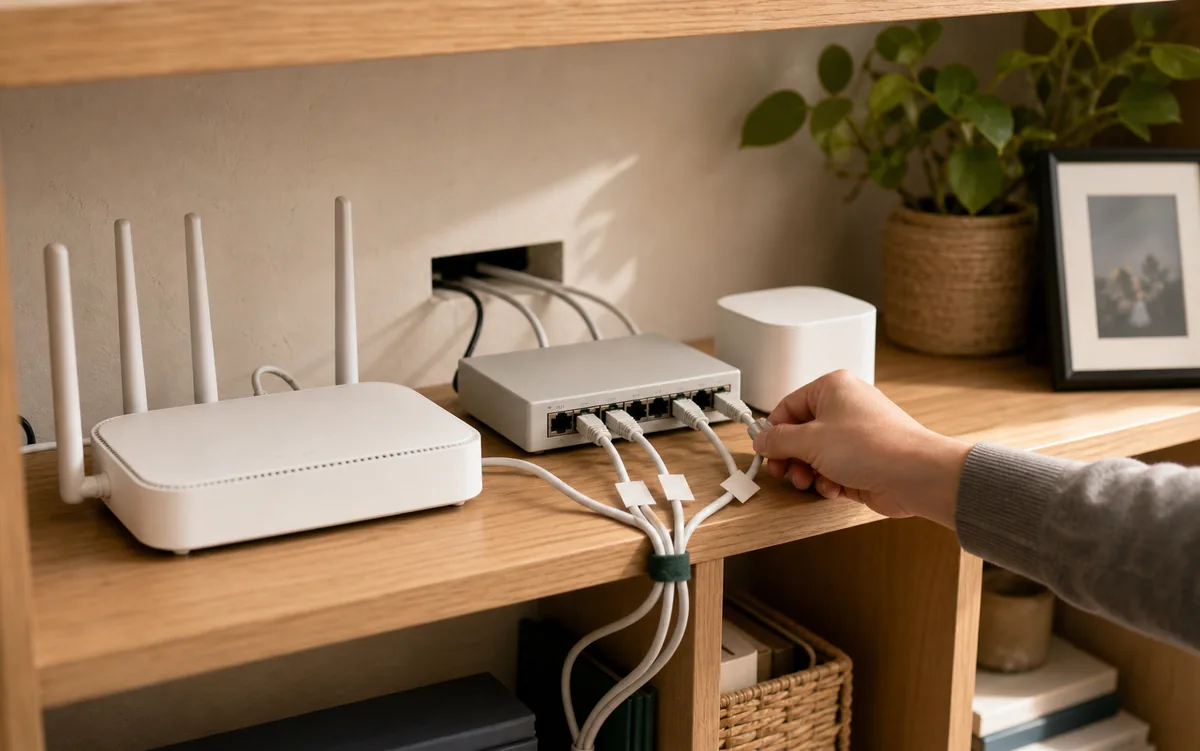
Reserve a few important addresses, not the whole house
A smart device does not need a permanent address merely because it is smart. It needs one when another device or app has saved that address and will fail to follow a change. That commonly applies to a smart-home controller, a network video recorder (NVR) that records cameras, a bridge or hub that joins devices to the home network, or a Wi-Fi device added to a Home Assistant connection—called an integration—by typing its address.
Sometimes the device stores the controller's address, too. Current Shelly documentation, for example, tells some devices to send local updates to the Home Assistant server's IP address. That makes the controller itself the first sensible reservation.
The safest default for a normal home is a DHCP reservation. DHCP is the router service that hands out local addresses automatically. A reservation tells the router, “When this exact device asks, give it the same address again.” The device itself can remain on Automatic or DHCP, so the router keeps the address plan in one place.
A manual static IP is different: you type the address, network details, gateway, and DNS into the device. That can be useful for special network equipment, but one wrong value can make the device disappear. It is unnecessary for most smart-home gear.
Which devices should keep the same address?
| Device or connection | Reserve an address? | Why |
|---|---|---|
| Home Assistant or another local controller | Usually yes | Apps, dashboards, callbacks, and other local services need to keep finding the controller. Prefer a router reservation. |
| Local camera or NVR | Usually yes | Reserve it when a recording system or stream address contains the device's IP. |
| Ethernet or Wi-Fi bridge | Often useful | Reserve a Hue-style bridge or similar hub if any controller reaches it by IP. Discovery-only setups may recover without one. |
| WLED, ESPHome, Shelly, or another local Wi-Fi device | Only when needed | Reserve it if the integration stores its IP, it crosses a subnet, or address changes have caused failures. Good discovery support may follow a change. |
| Cloud-controlled Wi-Fi plug, bulb, or appliance | Usually no | The app normally finds it through the vendor account. A fixed local address does not remove the cloud dependency. |
| Matter device on Wi-Fi or Thread | Not for Matter | Matter uses IPv6 and mDNS. Reserve IPv4 only if a separate non-Matter integration also needs that address. |
| Zigbee or Z-Wave end device | No | A sensor, bulb, or switch on those radio networks has no home-network IP to reserve. The Ethernet or Wi-Fi hub may have one. |
| Phone, tablet, or laptop | Usually no | These devices move between networks and may use a private, rotating Wi-Fi address. Reserve one only for a specific local service. |
Home Assistant can follow some address changes—but not all
Current Home Assistant supports device discovery through DHCP, mDNS or Zeroconf, and SSDP. In plain English, those are ways for a device to announce “I am here” without you typing its address. Home Assistant's current integration guidance says a supported integration should use a trusted device identity to update its saved network address when that address changes.
That is a design goal, not a promise for every integration. Some devices cannot announce themselves, some community integrations store the host you entered, and discovery may not cross a separated IoT network. Home Assistant's DHCP Browser at Settings > System > Network > DHCP Browser can show what it has seen on the network.
WLED gives a useful current example. Home Assistant documents how DHCP can reuse an old address for a different WLED controller, producing a safety-minded MAC-address mismatch instead of controlling the wrong lights. The official fix is to enter the correct address and consider a reservation or device-side static address. The same page also notes that discovery may update the address automatically. In other words, use a reservation when the actual integration needs stability; do not assume every device does.
Reolink shows why the router-first rule matters. Home Assistant currently recommends a router reservation for Reolink cameras and NVRs, but explicitly says to leave the Reolink device itself on DHCP because its device-side static setting can still send incorrect DHCP requests. Follow the current integration instructions when a vendor has a known exception like this.
How to create a safe DHCP reservation
- Make a short list. Start with the smart-home controller, NVR, cameras, bridges, and devices you added by hostname or IP. Do not begin with every Wi-Fi gadget.
- Open the router's device list. Look for a menu named DHCP reservation, reserved IP, address reservation, fixed lease, or static lease. This is usually in LAN or Network settings.
- Select the device that is online now. Confirm its device name and MAC address—the hardware identifier shown by the router—before saving. Do not guess from a similar name.
- Keep the current address when practical. That avoids breaking an integration while you organize the network. If you choose a new address, make sure the router says it is available.
- Leave the device on Automatic or DHCP. The router, not the gadget, should remember the assignment.
- Renew one device at a time. Restart or reconnect it during a quiet time, confirm it receives the reserved address, and test its dashboard, camera stream, and automations.
- Record the result. Export the router configuration if it supports that, or keep a simple list of device, MAC address, and reserved IP. You will need it when replacing the router.
Do not edit Home Assistant's hidden storage files to change a device address. Use the integration's Reconfigure option when available, or remove and add that integration again after confirming the device's current address. Back up Home Assistant first if a change affects several integrations.
When a manual static IP is justified
Manual addressing can make sense for equipment that must remain reachable even when the router's DHCP service is unavailable, or for a carefully managed network where reservations are not possible. It is an advanced exception, not the first step for a light bulb or camera.
If you must set one, choose an address outside the router's automatic DHCP pool—or explicitly exclude it from that pool—and enter the correct network mask, gateway, and DNS server. Otherwise the router may give the same address to another device, creating an intermittent duplicate-address failure. Write down the setting before changing anything.
A router reservation is easier to find, back up, and move later. It also lets a reset device return to automatic networking without becoming stranded on an address from the old network.
Matter and Thread are the important exception
Matter is an IP-based smart-home standard, but it communicates primarily over IPv6, the newer form of local network addressing. Matter devices can use Wi-Fi, Ethernet, or Thread. A Thread end device receives IPv6 connectivity through a Thread border router; it does not need an ordinary IPv4 reservation in the home router.
Matter also relies on mDNS multicast, the local announcements controllers use to find devices. Home Assistant's current Matter guidance says IPv6 and multicast must travel freely between the Matter device, border router, and Home Assistant. A reserved IPv4 address cannot repair filtered multicast, a broken IPv6 path, or a Thread border router on the wrong network.
If Matter pairing fails or devices become unavailable, leave address reservations alone at first. Check the steps in Tara's plain-English Matter and IPv6 guide, and keep the network simple until commissioning works.
What a fixed address will not fix
- Weak Wi-Fi: a device at the same address is still offline if it cannot reach the access point. Use Tara's mesh Wi-Fi checklist for smart devices.
- Cloud dependence: a stable private address does not make a vendor-cloud integration local or keep it working during an internet outage.
- VLAN and firewall rules: a VLAN is a separate network for smart devices. A reservation does not allow blocked traffic or carry discovery between networks. Tara's main-LAN versus IoT-VLAN guide covers that decision.
- Multicast trouble: mDNS and Matter can fail even while a device answers at a familiar IPv4 address.
- Power and hardware faults: no address setting can revive an unplugged hub, a failed power supply, or a crashed device.
If several devices disappeared immediately after a reboot or outage, follow Tara's unavailable-after-restart troubleshooting order before assigning new addresses. A reservation is a prevention tool only when address changes were the cause.
Plan for the next router before it arrives
DHCP reservations live in the router, not in the smart device. When you replace the router, they do not automatically move unless the new system imports the old configuration. Save the reservation list before the change, then recreate the most important entries using the same MAC addresses.
Reusing the old Wi-Fi name and password can help many Wi-Fi devices reconnect, but it does not recreate reservations, VLAN rules, or multicast settings. Tara's router-change guide for Matter, Thread, and Wi-Fi devices separates what can be preserved from what must be rebuilt.
A private fixed address is not a security feature
A reservation makes a device easier to find inside the home. It does not authenticate the device, encrypt its traffic, or safely expose it to the internet. Do not create a public port-forward merely because a camera or controller now has a predictable address.
The useful goal is a small, understandable core: a controller with a reserved address, documented bridges and cameras, normal DHCP for everything else, and local controls that still work when the internet is down. Tara's local smart-home hub guide shows how that controller fits the larger no-cloud design.
Tara's practical default
- Reserve the address of the smart-home controller.
- Reserve each camera, NVR, bridge, or local Wi-Fi device only when another system stores its IP or discovery has proved unreliable.
- Leave the device itself on Automatic or DHCP.
- Do not reserve Zigbee or Z-Wave end devices, and do not use an IPv4 reservation as a Matter fix.
- Keep a copy of the reservation list and test the important devices after a router, VLAN, or Wi-Fi change.
This gives the few devices that need a dependable address one, without turning the home network into a spreadsheet that must be repaired every time a gadget is reset.
Frequently asked questions
Do all smart-home devices need static IP addresses?
No. Reserve addresses only for the smart-home controller, bridges, cameras, or local devices that another system reaches by IP address. Leave most automatically discovered, cloud-only, Zigbee, and Z-Wave end devices alone.
Is a DHCP reservation better than a manual static IP?
For most homes, yes. A reservation keeps address management in the router while the device remains on automatic DHCP. A manual static address requires you to enter the address, network, gateway, and DNS correctly on the device and avoid the router's DHCP pool.
Should the Home Assistant server have a fixed IP address?
Usually, yes. Give the Home Assistant host a router-side DHCP reservation so apps, local integrations, dashboards, and other services can keep finding it. Keep the host itself on automatic DHCP unless your network design specifically requires manual addressing.
Will a DHCP reservation stop smart devices going offline?
Only when a changed or reused IP address is the cause. It will not fix weak Wi-Fi, lost power, a cloud outage, blocked multicast, a VLAN rule, or a failing device.
Do Matter or Thread devices need static IP addresses?
Not for their Matter connection. Matter uses IPv6 and mDNS multicast over Wi-Fi, Ethernet, or Thread. An ordinary IPv4 reservation does not repair Matter discovery; fix IPv6, multicast, and Thread border-router reachability instead.