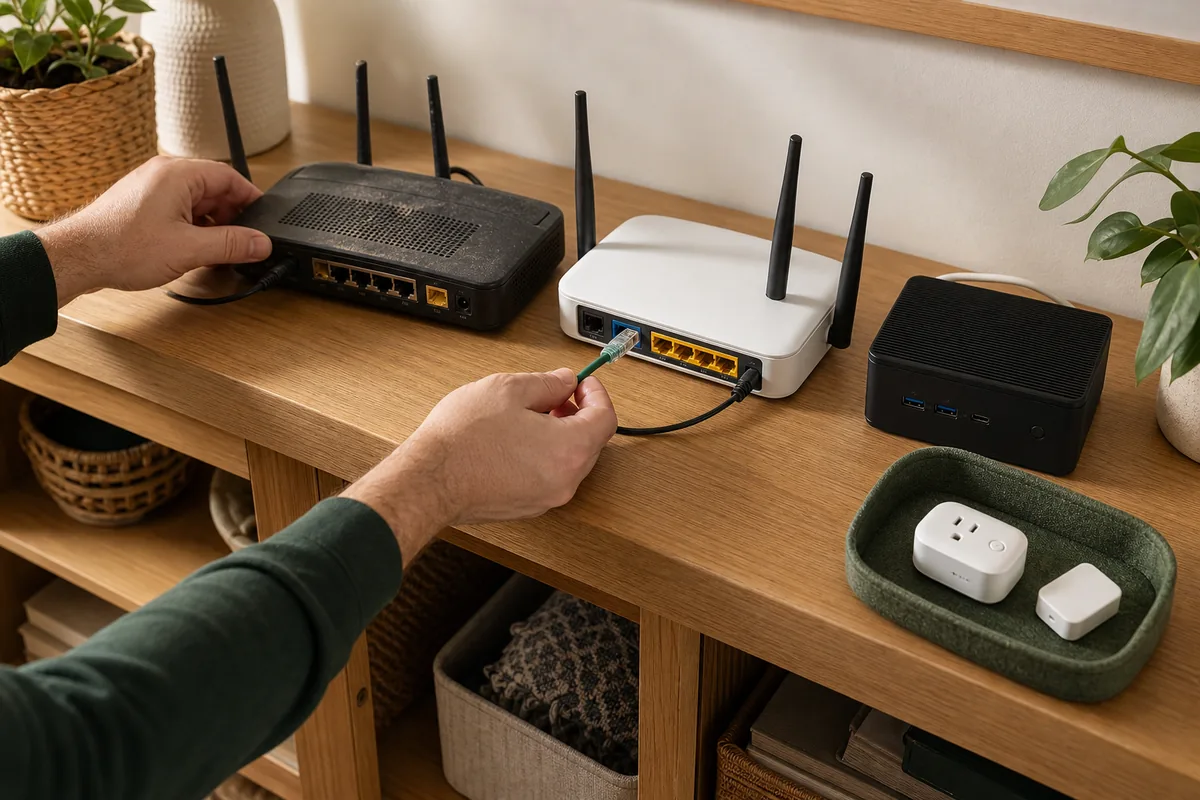
Short Answer: Recreate the Old Home Network Before Changing It
A new Wi-Fi router does not automatically erase Matter pairings or a Thread mesh. The lowest-risk move is to configure the new router with the exact old Wi-Fi network name, password, and a compatible security setting. Google gives the same advice when replacing Nest Wifi with Nest Wifi Pro: changing the name or password means wireless devices need new network details, while reusing both lets many devices reconnect.
Matter-over-Wi-Fi devices connect directly to that Wi-Fi network. Matter-over-Thread devices do not: they stay on a separate low-power Thread mesh and reach Home Assistant through a Thread border router, the hub that links Thread to the normal home network. The swap succeeds when that border router reconnects to the new router and Home Assistant can still find it on the home network.
Do not combine the router swap with a new Wi-Fi name, new password, stricter security mode, different local address range, isolated device network, and new Thread hub on the same afternoon. Recreate the old network first. Once Home Assistant can control the house locally again, make one security or network improvement at a time.
The one-sentence plan: copy the old Wi-Fi settings, keep the Thread network intact, replace the router, test the house, and only then retire or reconfigure anything else.
What Actually Changes for Each Device Path
The word “Matter” describes the control language, not the radio. Check the Network type in Home Assistant's Matter device information before deciding what needs attention.
| Device path | What the new router changes | If name and password stay the same | If credentials change | Local and cloud boundary |
|---|---|---|---|---|
| Matter over Wi-Fi | The device joins the household Wi-Fi directly and must still reach Home Assistant over local IPv6. | It should usually reconnect; power-cycle only devices that remain offline after the router settles. | Use a documented vendor or ecosystem network-change flow if one exists. Some devices still must be factory-reset and added again. | Routine Home Assistant control is local. Vendor firmware, remote access, and some setup tools can still need internet or an account. |
| Matter over Thread with a separate border router Home Assistant with a Connect ZBT-2 configured for Thread and the OpenThread Border Router app, HomePod mini, Nest Hub (2nd gen), or another hub |
The end devices keep their Thread credentials. The border router must regain Ethernet or Wi-Fi access to the local home network. | The hub or Home Assistant host should reconnect; the Thread endpoints should not need the Wi-Fi password. | Update the hub's Wi-Fi through its official app. Do not form a new Thread network just because household Wi-Fi changed. | Matter traffic remains local. Apple, Google, or another vendor may require its app or account to move the hub to new Wi-Fi. |
| Wi-Fi router is also the only Thread border router For example, Nest Wifi Pro or a Thread-capable eero |
Removing the old router can remove the only route between the Thread mesh and Home Assistant. | Matching Wi-Fi credentials alone does not copy the bundle of Thread network credentials into unrelated replacement hardware. | Follow the platform's router or Thread replacement flow and preserve the existing Thread credentials where supported. | Thread packets are local, but platform-managed credential migration may depend on the vendor app, phone keychain, or account. |
| Zigbee or Z-Wave device through a hub | The sensor itself does not join Wi-Fi; its bridge, coordinator, or Home Assistant host must reconnect. | Usually only the hub path needs attention. | Update the bridge or hub network without resetting its child devices. | Depends on the integration: some bridges are local, while others still use vendor cloud services. |
| HomeKit Bridge or voice-assistant connection | Home Assistant, the home hub, and speakers must rediscover one another on the new local network. | Existing pairings should normally survive if the local network stays reachable. | Reconnect the hub or speaker through Apple, Google, Alexa, or SmartThings before deleting integrations. | HomeKit Bridge can remain local; remote voice and out-of-home control follow each platform's internet requirements. |
Before You Unplug the Old Router
- Write down the exact Wi-Fi name, password, and security mode. Capitalization matters. Record whether the old router used WPA2 Personal, WPA3 Personal, or a mixed mode, and confirm that 2.4 GHz was enabled.
- Record the local network details. Note the router's local address and the range of local device addresses. Also save addresses reserved for Home Assistant, bridges, cameras, storage systems, or important hubs. A device found by name may tolerate a new address, while an integration configured to a fixed address may not.
- Identify your Thread networks and border routers. In Home Assistant, open Settings > Devices & services > Thread and see which border routers sit under each Thread network. If the outgoing Wi-Fi router is the only border router, pause and use the Thread border-router replacement guide.
- Back up Home Assistant. A router swap should not require restoring it, but a current backup protects the Matter controller database, automations, and integration settings if another problem appears during the change.
- Save every Matter setup code. Photograph the QR code and numeric code with enough context to identify the physical device. Keep that record private; the setup code proves permission to add the accessory to a Matter home.
- Check updates several days beforehand. Install only necessary stable updates when there is time to test them; otherwise postpone updates until after the router swap. Do not choose the router-change window for beta firmware.
- Plan manual control. Keep physical keys, wall controls, thermostat access, garage remotes, alarm procedures, and leak shutoff access ready. Schedule the work when a temporary smart-home outage is safe.
The Safest Router-Swap Order
- Preconfigure the new router. Reuse the old Wi-Fi network name (SSID) and password. Start with a security mode your existing 2.4 GHz devices support instead of moving everything to WPA3-only immediately.
- Keep the old local-network details when practical. Reusing the old address range and important fixed-address rules reduces unrelated integration failures. Do not copy a fixed address that would conflict with another device.
- Turn off the old router's Wi-Fi before enabling the new one. Two unrelated routers broadcasting the same SSID can leave phones and hubs on different local networks. If the ISP box also broadcasts Wi-Fi, disable that radio or use a documented bridge or access-point arrangement.
- Connect Home Assistant first. Confirm its local page opens from a phone on the new Wi-Fi. If it is wired, check the Ethernet link and assigned address before touching accessories.
- Bring up border routers and bridges. Verify Home Assistant's OpenThread Border Router, Apple Home hubs, Google hubs, eero, SmartThings, Hue, Aqara, and other bridges that actually exist in your home.
- Wait before resetting anything. Give powered devices several minutes to reconnect. Battery Thread devices may check in on their own schedule. Restart one offline powered accessory at a time.
- Test by path. Try one Matter-over-Wi-Fi device, one Matter-over-Thread device, one bridged device, and one HomeKit Bridge or voice-assistant command. A single working light does not prove every route is healthy.
- Test local control without internet. Briefly disconnect the router's internet cable while leaving the local network, Home Assistant, and hubs powered. Home Assistant's direct Matter control should still work. Restore internet before checking remote access, firmware updates, or cloud voice services.
- Retire the old router last. Keep it powered off but available until the house has stayed stable and every critical automation has passed a real test.
Why the Same SSID and Password Help—but Are Not Magic
An SSID is simply the Wi-Fi network name. Recreating that name and password lets a Wi-Fi device try the credentials already stored inside it. The secure Matter relationship with Home Assistant uses separate credentials, so a successful Wi-Fi reconnection does not require a new Matter pairing.
The shortcut can still fail when the new router changes something else:
- WPA3-only replaces WPA2 or mixed mode. The router and Matter standard may support WPA3 while an older hub or accessory does not.
- 2.4 GHz disappears or gets isolated. Many Matter-over-Wi-Fi accessories use 2.4 GHz even when the phone prefers 5 or 6 GHz.
- Guest or client isolation blocks local traffic. Matter expects direct local communication, not an internet-only guest network.
- IPv6 or local device discovery is blocked. Matter needs devices and Home Assistant to find and talk to one another inside the home. Home Assistant's official Matter docs say this local traffic must travel freely between the device, border router, and controller.
- Two routers split devices between separate home networks. This is sometimes called double NAT. A modem/router plus another router can put Home Assistant and hubs on opposite sides of a boundary even when both have internet.
- A manually assigned device address or firewall rule still points to the old network. Matter discovery may recover, while a camera, MQTT broker, or manually configured bridge stays offline.
The Connectivity Standards Alliance recommends keeping Matter devices and controllers on one normal local network and using a single SSID for easier setup and reliability. That is a good starting point. It is not a reason to weaken the router, expose Home Assistant to the internet, or abandon all security segmentation without a plan.
If You Want a New Wi-Fi Name or Password
A password change is a different job from a hardware swap. Matter includes a standard way to update network details, but apps and device firmware do not provide one universal migration button. Home Assistant's current Matter documentation also does not promise a bulk Wi-Fi rewrite for every device.
Use this order:
- Keep the old Wi-Fi available long enough to reach devices through their official vendor or ecosystem app.
- Look for a documented change network, update Wi-Fi, or forget network flow for that exact hub or accessory.
- Move one non-critical device first and confirm it still appears in Home Assistant and every other Matter controller.
- If no supported update path exists, save the setup code, note automations and names, remove the device from each smart-home platform as the manufacturer directs, factory-reset only that device, and add it again.
- Generate fresh temporary Matter sharing codes to add it back to Apple Home, Google Home, Alexa, or SmartThings. Use the printed code when a factory-reset device is new to its first controller; adding another controller to an already-set-up device uses a fresh temporary code from a controller that already owns it.
Thread end devices are the exception to the Wi-Fi-password work. They keep using their Thread Active Operational Dataset—the bundle of Thread network credentials and settings. Update the Wi-Fi or Ethernet connection of the border router, not every Thread sensor.
When the Old Wi-Fi Router Is Also the Thread Border Router
This is the most important trap. Nest Wifi Pro and many current eero models can act as Thread border routers. If one of them is the only bridge between the Thread mesh and the local home network, removing it is not merely a Wi-Fi change.
The replacement needs to join the same Thread network with the same Active Operational Dataset. Reusing the old Wi-Fi name does not copy those Thread credentials. A Matter device can remain securely paired to Home Assistant yet show unavailable because no border router can carry packets to it.
Keep the old router online until the platform's supported replacement path completes or another compatible border router has joined the existing Thread network. eero's documentation is explicit that regenerating Thread credentials creates a new Thread network and can force third-party devices to be set up again. If you are moving from a router-owned Thread network to Home Assistant, Apple, or Google, follow the dataset-preserving migration order instead of guessing.
Will a New ISP or Public IP Address Break the House?
Normally, no. Your public internet address is separate from your Matter pairings and Thread network credentials. A new address from your internet provider does not, by itself, make Matter devices forget Home Assistant.
The replacement router still has to rebuild a healthy local network. Home Assistant and Matter use IPv6 inside the home, and Thread border routers tell devices which local path to use. A router that disables local IPv6, blocks those route announcements, filters local discovery traffic, or creates a second isolated network can make devices unreachable even while ordinary websites work.
If the new router causes a “Checking Network Connectivity” stall or devices disappear, use Tara's Matter network-connectivity checklist. Avoid opening inbound ports or exposing Home Assistant to the public internet as a fix; neither action repairs local discovery.
What Stays Local and What May Still Need Cloud
Direct Matter control from Home Assistant is local. The Matter integration is classified as Local Push, and normal commands travel over the local network or through a local Thread border router. Once the new router is working, those commands should continue during an internet outage.
The migration tools around that local path can be less independent. A Google Nest speaker or display may use the Google Home app to forget and join Wi-Fi. eero can sync Thread credentials through the phone's Apple or Google keychain. Out-of-home control in Apple Home, Google Home, Alexa, or SmartThings may rely on a compatible hub, an account, and the platform's internet service; exact requirements vary. Vendor firmware and Matter device-verification data can also need internet access.
HomeKit Bridge and Matter sharing are different paths. HomeKit Bridge sends Home Assistant controls to Apple Home. Matter sharing instead lets Apple Home and Home Assistant each control the same Matter device directly. A router replacement should not erase either relationship, but every controller and home hub still needs a working local route.
Safety Check for Locks, Alarms, Garage Doors, and HVAC
Do not use a router change as an unattended resilience test for entry, heating, water protection, or alarms. Before the swap, confirm the physical key, keypad, thermostat controls, garage remote, alarm panel, and manual water shutoff work. Tell household members that app control may be temporarily unavailable.
Afterward, test the physical control first, then Home Assistant, then every other app, then the automation that depends on it. Check from inside the house before testing remote access. For cameras and doorbells, confirm recording and retention behavior before assuming a live thumbnail means security footage is being stored.
Tara's Take
A router replacement should be boring. The winning plan is not a mass factory reset; it is a short inventory, the same Wi-Fi identity, a preserved Thread dataset, and a deliberate test of each control path.
Once the old router is safely out of service, improve the network in small steps. Add a stronger password, change security mode, move smart devices onto a separated network, or reorganize fixed addresses one change at a time. That makes every failure explainable—and keeps a practical home from turning into a weekend-long setup project.
Related Tara Reading
- Replace a Thread border router without re-pairing Matter devices
- Fix Matter pairing stuck on checking network connectivity
- Fix Matter-over-Wi-Fi devices that keep going offline
- Matter over Thread vs Wi-Fi for Home Assistant
- Should Home Assistant be on the main LAN or an IoT VLAN?
- Should you pair Matter to Home Assistant or Apple/Google first?
FAQ
Will Matter devices reconnect if the new router uses the same Wi-Fi name and password?
Usually. Matter-over-Wi-Fi devices and Wi-Fi-connected hubs should recognize the old credentials on the new router. Keep 2.4 GHz enabled and use a compatible security mode. Restart devices that stay offline before resetting them.
Do Matter-over-Thread devices need the new Wi-Fi password?
No. Thread end devices use Thread network credentials, not the household Wi-Fi password. Their Thread border router must reconnect to the new local network, and Home Assistant still needs local IPv6 reachability to that router.
Does changing internet providers or public IP addresses break Matter?
Not by itself. Matter controller credentials and Thread network credentials are separate from the public internet address. Problems come from local changes such as blocked IPv6, filtered device discovery, an isolated network, two routers creating separate local networks, or loss of the only Thread border router.
Can Home Assistant change the Wi-Fi password stored on every Matter device?
There is no universal Home Assistant button for every device. Matter defines network-update commands, but device firmware and controller support vary. Use the exact manufacturer's documented network-change flow; otherwise a device may need to be reset and added again.
What if the old Wi-Fi router was also the Thread border router?
Keep it online until a supported replacement or second border router has joined the same Thread network. The replacement needs the same Thread dataset, not merely the same Wi-Fi name. Removing the only border router can leave Thread devices paired but unreachable.