Yes—but local means four different things here
Some Tuya devices can work locally with Home Assistant, but Home Assistant's built-in Tuya connection is not local. Home Assistant calls this kind of software connection an integration. The official one is the easiest route for devices already in the Tuya Smart or Smart Life app. Home Assistant classifies it as Cloud Push, which means your commands and device updates travel through Tuya's online service.
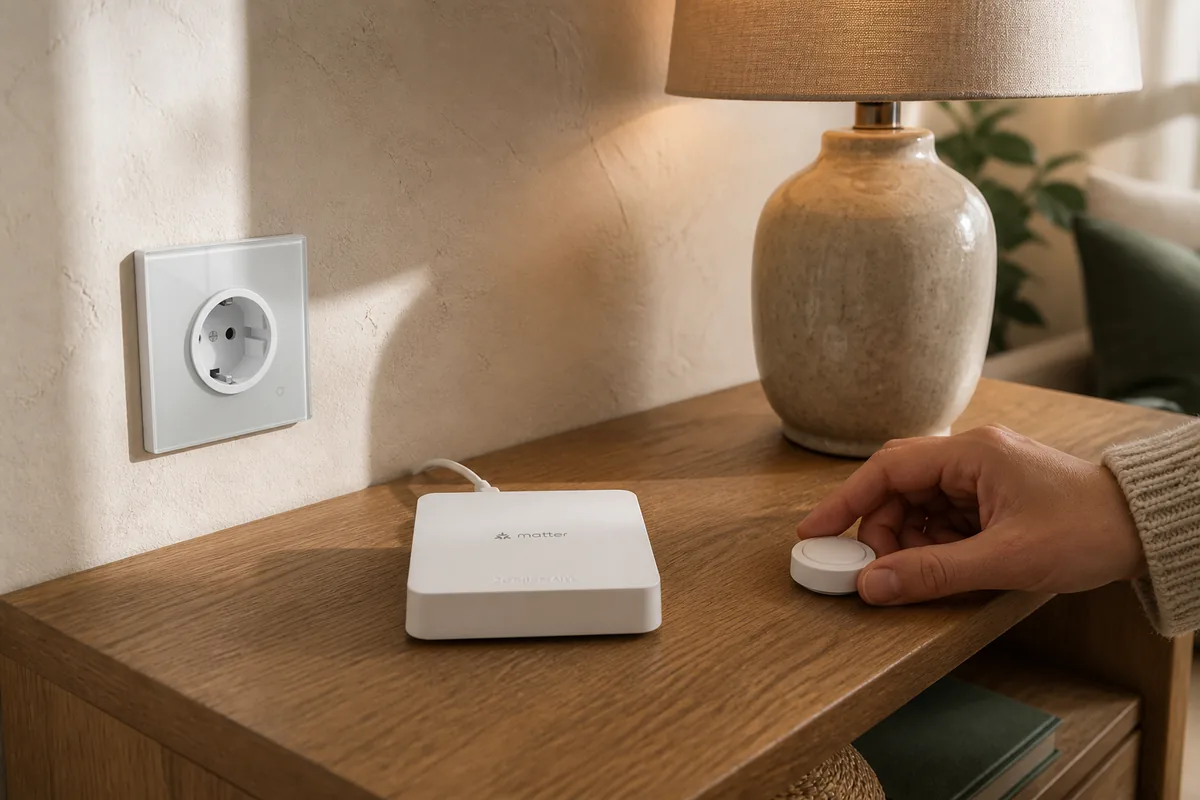
For less cloud dependence, first check how each device connects. Many Tuya Zigbee devices can leave the Tuya hub and pair directly with Home Assistant's Zigbee radio, usually a USB adapter. You can use Home Assistant's built-in Zigbee option, ZHA, or the separate community option Zigbee2MQTT. Some supported plug-in or hard-wired Wi-Fi devices can instead use the community Tuya Local integration, which sends ordinary commands across your home network. A smaller set of current Tuya hubs and products can be shared through Matter, a cross-brand local-control standard.
The safe order is simple: inventory the exact models, keep the working cloud setup as a baseline, choose one non-critical device, try the least disruptive local path, then test it during an internet outage. Do not reset the rest of the home until that first device still reports state, follows automations, and remains understandable to everyone who uses it.
Local control is not the same as cloud-free setup or blocked cloud traffic. A device can accept commands locally while still needing a vendor account during setup or continuing to contact Tuya. Treat those as three separate questions.
Choose the control path device by device
| Path | Official support | Local control | Cloud dependency | Matter or Apple Home path | Community caveat |
|---|---|---|---|---|---|
| Built-in Tuya integration | Official connection built into Home Assistant and using Tuya's supported software | No; it is Cloud Push | Tuya Smart or Smart Life account, app authorization, internet, and Tuya service are required | It does not turn a device into Matter. Selected Home Assistant controls can be shown in Apple Home through the HomeKit Bridge feature, but the Tuya part stays cloud-based | No community add-on to maintain, but exact categories and features can be missing |
| Direct Zigbee through ZHA or Zigbee2MQTT | ZHA is built into Home Assistant; Zigbee2MQTT is a separate community project | Yes; commands stay on the Zigbee and home networks | No Tuya cloud is needed for routine control after direct pairing | Not a Matter conversion. Home Assistant can share supported controls with Apple Home through its HomeKit Bridge feature | Exact model support, unusual device behavior, and device-software updates need checking; moving it requires a reset |
| Tuya Local for Wi-Fi devices | Community add-on installed from the Home Assistant Community Store, not official Home Assistant or Tuya support | Yes for supported commands on compatible devices | Cloud-assisted setup can retrieve device details; the device may still contact Tuya afterward | No direct Matter or HomeKit conversion; HomeKit Bridge can share the resulting Home Assistant controls | Model and device-software variants, the device-specific local key needed for control, communication versions, single-connection limits, and future maintenance belong to you |
| Matter device or Tuya-compatible Matter bridge | Home Assistant's Matter integration is official; bridge compatibility belongs to the vendor | Yes for the Matter features the product exposes | Routine Matter control is local, but a vendor app or account may be required to enable and share the bridge | A genuine Matter code can support Home Assistant and, when the product allows it, share the same device with Apple Home | A bridge may expose only some devices connected behind it and fewer features than the vendor app; verify the exact hub and device |
Identify what you own before resetting anything
“Works with Smart Life” describes an ecosystem, not the radio inside the product. Two switches with nearly identical names may use different Wi-Fi parts, Zigbee identities, product IDs, or device software. Before changing a working setup, make a short inventory for each device:
- Brand and exact model: copy the label, including suffixes and region. A shop title is not precise enough.
- Connection type: note whether it joins Wi-Fi directly, uses a Tuya Zigbee hub, advertises Bluetooth, or supplies a real Matter QR code.
- Current job: list the controls and measurements you actually use, such as power monitoring, color temperature, cover position, schedules, or notifications.
- Physical fallback: record how a person operates it when Home Assistant, the internet, or the vendor app is unavailable.
- Recovery information: save the reset instructions and current automations before removing the device from Smart Life or its hub.
Then search the exact identifier in the current ZHA device-support discussions, Zigbee2MQTT device pages, or Tuya Local supported-device list. A family name such as “Tuya wall switch” is too broad. Even a listed model can change internally, so keep the receipt when buying and trial one unit before repeating it across the home.
Use the official Tuya integration when simplicity wins
The built-in integration is the least disruptive choice for an existing Smart Life household. Add Tuya from Settings > Devices & services, enter the user code shown in the app, and scan Home Assistant's QR code with Tuya Smart or Smart Life. Old guides that begin by creating an IoT developer project and copying access keys do not describe today's normal official setup.
This route can be perfectly reasonable for a decorative light, vacuum, or other convenience device when easy setup matters more than offline operation. Home Assistant says the integration can create many kinds of controls, but not lock or remote controls, and Tuya's own setup page warns that not every device category is guaranteed. The official Tuya software also exposes fewer functions than Smart Life has for some products. A device may appear with basic control, only a Tuya scene, or no useful controls.
Test the features you need rather than counting the device as supported merely because its name appears. If an integration reload or a Tuya service problem makes the device unavailable, that is expected cloud-path behavior—not evidence that Home Assistant itself lost local network access.
For Tuya Zigbee, direct pairing is usually the cleanest local route
A Tuya Zigbee sensor, plug, dimmer, or button normally belongs to one Zigbee hub or radio at a time. Moving it from a Tuya hub to ZHA or Zigbee2MQTT means factory-resetting that one device, pairing it to the new Zigbee network, and rebuilding the automations that referred to the old Home Assistant control. Afterward, routine commands and reports stay local; the Tuya hub and Smart Life account are no longer in that device's control path.
Direct does not mean universal. Home Assistant does not promise one complete ZHA compatibility list, and unusual behavior may need a small device-specific compatibility fix. Zigbee2MQTT publishes exact device pages, but it is community software with its own setup, updates, and device list. Tara's ZHA versus Zigbee2MQTT guide explains the maintenance tradeoff before you choose one.
- Confirm the exact device has a documented direct path.
- Back up Home Assistant and write down the automations using the old Home Assistant control.
- Reset and pair only one non-critical device near the Zigbee radio.
- Check every control, measurement, battery report, and physical button.
- Give the new Home Assistant control a clear name, repair its automations, and watch it for several days before moving the next device.
Use Tuya Local as a community path for compatible Wi-Fi devices
Tuya Local here means the actively maintained make-all/tuya-local integration. It is installed as a community add-on through HACS, the Home Assistant Community Store, and is not built into Home Assistant. It communicates directly with supported devices that run Tuya software over Wi-Fi. Its August 9, 2026 release added 25 device configurations and changed discovery and device communication, which is a useful sign of active maintenance—and a reminder that this is an ongoing third-party project.
The easiest configuration can sign in to Tuya briefly to retrieve the device ID, its device-specific local key needed for control, and its address on your home network. The project says the temporary sign-in permission is not saved, but the setup is still cloud-assisted. Manual entry is possible when you already have the required details. Each time a device is paired again, its local key changes.
Do not configure Tuya Local and LocalTuya against the same device at the same time. They are separate community projects with confusingly similar names, and many Tuya devices accept only one local connection. The open Smart Life app or another local tool can occupy that connection too.
Tuya Local's own documentation says that using it does not stop a device from sending status to Tuya. It also warns that some devices stop responding after extended loss of cloud access. Do not block a whole smart-device network and assume success because an on/off command worked for five minutes. Start with one non-critical device, keep Wi-Fi running, disconnect only the internet, and test immediate commands, state changes, automations, a reboot, and at least a day of offline time.
Always-powered devices are the better candidates. The project says standalone battery Wi-Fi sensors cannot be supported reliably because they sleep to preserve battery. Tuya hubs also have tight local-connection limits for subdevices. For a Tuya Zigbee sensor already behind a hub, direct Zigbee is usually calmer than trying to pull every sleeping subdevice through the Wi-Fi hub.
Matter can make a compatible bridge local, with limits
A real Matter device or bridge gives Home Assistant a local standards-based control path. Home Assistant says Matter control itself does not require an internet connection, although some vendors require an account or app before they reveal the Matter sharing option. A bridge can expose existing non-Matter devices without forcing them all to pair directly.
The Zemismart M1 is one current example. Its vendor page describes it as a Tuya Zigbee and Thread hub—Thread is another low-power smart-home radio—that can share compatible devices to Matter platforms with a QR code. That is a vendor claim about this exact hub, not proof that every Tuya hub received Matter or that every connected Tuya product will cross the bridge. Home Assistant explicitly warns that a Matter bridge may expose only some devices connected behind it and only some features.
If Apple Home is involved, use the bridge's documented Matter sharing flow when available. A device already represented in Home Assistant can alternatively be shared through Home Assistant's HomeKit Bridge feature; that keeps Home Assistant in the middle and does not change the original Tuya cloud or local path. Do not call a “works with Siri” badge native HomeKit or Matter support unless the exact product supplies the relevant pairing or sharing code.
Current model examples show why exact identifiers matter
These are examples of documented paths as of August 10, 2026, not a ranked shopping list or a promise about similar-looking products.
| Example | Documented path | What it demonstrates | What to verify |
|---|---|---|---|
| MOES model identifier Moes_plug | Zigbee2MQTT documents direct Zigbee control and electrical measurements | A Tuya-platform plug can leave the vendor hub and report locally through a documented community path | Match the exact identifier, plug standard, electrical rating, and exposed measurements before buying or resetting |
| MOES MS-105Z in-wall dimmer | Zigbee2MQTT has a current device page for direct Zigbee pairing | A mains-wired Tuya Zigbee module can have a direct local route | Confirm the full model, region, load type, neutral requirement, and installation instructions; use a qualified electrician where required |
| Tuya TS0044 four-button family | Zigbee2MQTT lists multiple white-label models under the same technical device identity, including a MOES variant | The same underlying device can appear under several retail brands | Check the printed identifier and the actions exposed by the exact variant, not just the product photo |
| Zemismart ZM25EL roller shade | Added as a Tuya Local device in release 2026.8.0 | Community Wi-Fi support continues to expand to named products | A new support entry is not official Home Assistant certification; verify direction, position, calibration, device software, and manual operation |
| Zemismart M1 hub | Vendor-documented Tuya Zigbee-to-Matter bridge | A Matter bridge can offer a local path without moving every compatible subdevice | Confirm the exact connected devices and features the current device software shares to Home Assistant before relying on it |
Move an existing Smart Life home without creating chaos
- Keep the official integration working first. It gives you a known baseline while you identify which devices are worth moving.
- Group devices by connection type. Put direct Wi-Fi, hub-based Zigbee, battery Wi-Fi, Matter-capable hubs, cameras, locks, and infrared remotes in separate lists.
- Choose the low-risk first device. Start with a lamp plug or spare light, not the front-door lock, leak shutoff, alarm, heater, garage access, or primary room lighting.
- Choose only one new path. Pair a Zigbee device directly, add a Wi-Fi device through Tuya Local, or share a compatible bridge through Matter. Do not test all three against one product.
- Verify every control before moving automations. Test status updates as well as commands. Check power measurements, dimming, cover position, schedules, and physical controls individually.
- Run a controlled outage test. Leave Home Assistant, the router, and local Wi-Fi powered; disconnect the internet. Test from Home Assistant and from the physical control, then reconnect before updating device software.
- Move slowly and document the rollback. Keep the old device name and reset instructions until the replacement path has survived normal household use, a Home Assistant restart, and an update.
If your goal is a whole home that remains useful without subscriptions or vendor servers, Tara's no-subscription smart-home plan shows how device protocols, fallbacks, remote access, and household handoff fit together. A local checkbox on one integration is only one part of that design.
Treat locks, cameras, alarms, infrared, and battery devices separately
- Locks and access devices: do not make a community integration the only way into the home. Preserve the key, keypad, manufacturer-supported recovery, and audit behavior. The official Tuya integration does not provide a lock platform.
- Cameras and doorbells: local live video, recording, two-way audio, events, and notifications are different capabilities. A camera appearing in one integration does not prove that every security function works locally.
- Smoke, gas, leak, and alarm devices: keep their independent audible or physical safety behavior. Home Assistant notifications are useful additions, not replacements for listed life-safety equipment and installation rules.
- Infrared and RF blasters: Tuya's preset remote database can remain cloud-based even when learned commands are sent locally. Use Tara's local infrared-control guide for the distinct learning, storage, and fallback decision.
- Battery Wi-Fi sensors: their long sleep intervals make direct local polling unreliable. A supported Zigbee sensor paired directly is normally a better local design.
If local Tuya control is slow or unavailable
- Confirm which integration owns the device. Disable duplicate Tuya Local, LocalTuya, or other local entries during diagnosis.
- Close the Smart Life app on the home network. Some devices allow only one local connection, and the app can occupy it.
- Keep the Wi-Fi address from moving. After confirming its current address, reserve it for that device in the router settings. Router apps often call this Address Reservation or DHCP Reservation.
- Check the device-specific local key after re-pairing. Tuya Local says every new pairing changes it.
- Recheck the exact configuration. A listed retail model can ship with another product ID, communication version, or device software. Compare the data the device actually reports.
- Slow down automations. Some Tuya devices fail or reboot when sent several commands rapidly. Combine supported changes in one action or add a brief delay between commands.
- Test on a simple local network. Guest Wi-Fi and strict network separation can block direct traffic even while cloud control still works. A router setting called client isolation or device isolation deliberately prevents nearby devices from talking directly to one another.
Make privacy and safety separate decisions
Local commands can improve response time and reduce dependence on a remote outage, but they do not automatically stop a device from sending usage or status data. If you plan to block a device from the internet, first confirm what fails after several hours and after a reboot. Keep that trial to a non-critical device. Device-software updates, clock setting, app setup, voice services, and recovery may behave differently from ordinary on/off control.
For in-wall switches, dimmers, breakers, valves, heaters, and shade motors, follow the exact manufacturer instructions, ratings, and local rules. Use a qualified professional where required and keep an understandable physical control. Never let a Home Assistant integration become the only safety control for heat, water, access, or alarms.
Tara's practical approach
Keep a working Tuya home working while you simplify it one device at a time. Pair supported Zigbee products directly, use community local Wi-Fi control only where it solves a real reliability problem, and keep the official cloud integration when it is the honest low-maintenance choice.
Document five things for every moved device: exact model, control path, remaining cloud use, physical fallback, and rollback. That record matters more than whether an app badge says local.
Frequently asked questions
Can Tuya devices work locally with Home Assistant?
Yes, some can. Many Tuya Zigbee devices can pair directly to a Home Assistant Zigbee network, and some supported plug-in or hard-wired Tuya Wi-Fi devices can use a community local connection. Home Assistant's built-in Tuya connection is cloud-based, and support still depends on the exact model and device software.
Does Home Assistant's official Tuya integration work without the internet?
No. Home Assistant classifies the built-in Tuya integration as Cloud Push. It uses a Tuya Smart or Smart Life account and an internet connection for normal device updates and commands.
Should I use Tuya Local or pair a Tuya Zigbee device directly?
For a supported Tuya Zigbee device, direct pairing with Home Assistant's Zigbee radio is usually the cleaner local path because it removes the Tuya hub from routine control. The built-in ZHA option or the separate community option Zigbee2MQTT can provide that path. Tuya Local is mainly useful for compatible Wi-Fi devices you already own. Check the exact model before resetting anything.
Does Tuya Local stop a device from contacting Tuya's cloud?
No. The Tuya Local project says its local control path does not stop a device from sending status to Tuya. Blocking outbound internet access is a separate network decision, and some Tuya devices stop responding after being offline for a while.
Can a Tuya device use Matter or Apple Home?
Only when the exact device or its compatible hub provides a Matter setup or sharing code. A Matter bridge can make supported devices behind it locally controllable in Home Assistant and sometimes Apple Home, but it may expose only a subset of devices and features. Home Assistant can also share selected controls with Apple Home through its HomeKit Bridge feature.