Should You Use Matter or an Alexa Skill?
Start with one connection. If the device is Matter-certified and Alexa supports the controls you actually use, add it to Alexa with Matter and leave the vendor skill disabled. If the device has no Matter support—or Matter omits a feature you need—use the official vendor skill instead.
Matter is a shared smart-home standard. It is the simpler default because Alexa can talk to the accessory over the home network through a compatible Echo or eero. That is what local control means here: the supported device command does not have to make a round trip through the manufacturer's internet service. A smart-home skill takes that cloud route instead. The skill may expose more brand-specific features, but it adds an account, an internet connection, and another service that has to remain available.
The rule is not “Matter is always better.” It is “use the fewest connection paths that deliver the controls your household needs.” That same one-owner rule is useful when planning a home automation kit with local routines and one clear app handoff.
Fast decision: choose Matter for ordinary device control; choose the skill for a documented missing feature; choose both only when the vendor explicitly says Alexa will merge the two routes into one device tile.
What Changes Between Matter and a Skill?
| Alexa connection | Official support | Local control | Cloud dependency | Matter or Apple Home path | Main caveat |
|---|---|---|---|---|---|
| Matter only | Amazon supports compatible Matter device types through supported Echo and eero models | Supported commands stay on the home network between the Echo or eero and the device | Setup, Alexa services, away-from-home use, routines, and vendor extras may still need internet | The same Matter device can be shared to Apple Home with multi-admin—the Matter feature for adding one device to several home apps; this is separate from older HomeKit-only pairing | Matter may expose fewer controls than the vendor app or skill; a Matter-over-Thread device also needs a Thread Border Router, which connects its low-power Thread network to the home network |
| Vendor skill only | The manufacturer publishes an Alexa Smart Home skill and lets you sign into its account from Alexa | Usually no: the command travels through Amazon's and the vendor's internet services | Requires the Alexa service, the vendor service, internet, and a linked vendor account | No Apple Home path is created; Apple needs its own HomeKit or Matter connection | Can expose richer features, but service changes or an outage can stop control |
| Matter plus skill | Appropriate only when the vendor documents the combined setup and gives Alexa matching identity details for both routes | Matter can carry supported basic commands locally; skill-only features remain cloud-based | The skill half still depends on the vendor account and cloud | The Matter half can be shared to Apple Home; the skill half cannot | If Alexa cannot match the two routes, it can create two devices for one physical product |
Amazon's current Works with Alexa requirements address this exact duplicate risk. When a product can arrive through more than one skill and a local Matter connection, the manufacturer is expected to give Alexa matching identity details so it represents the product once. That is the manufacturer's job—not something a homeowner can safely assume from the badge on the box.
Does Works with Alexa Mean Matter or Local Control?
No. Amazon's Works with Alexa program covers several ways to connect a device, including a cloud skill, Matter, Alexa Connect Kit, and other hub or local integrations. The badge confirms Alexa compatibility. It does not tell you which path the product uses, whether an account is required, or what remains usable during an internet outage.
Before buying, open the exact model's setup page and answer four questions:
- Does this model have Matter certification, or does it only say “Works with Alexa”?
- Does Alexa support the device type and the specific control you need?
- Is a compatible Echo or eero already in the home? If the accessory uses Matter over Thread, is there a supported Thread Border Router to connect that low-power network to Wi-Fi or Ethernet?
- Which useful features remain only in the vendor app or skill?
If the product page does not make the connection method clear, treat it as a cloud-dependent Alexa purchase until the manufacturer documents otherwise.
Which App Should Pair the Device First?
If Alexa Will Be the Main Smart-Home App
- Check and update first. Follow the manufacturer's instructions to install current firmware—the software inside the device. You may need its app for this step, but do not enable the Alexa skill automatically.
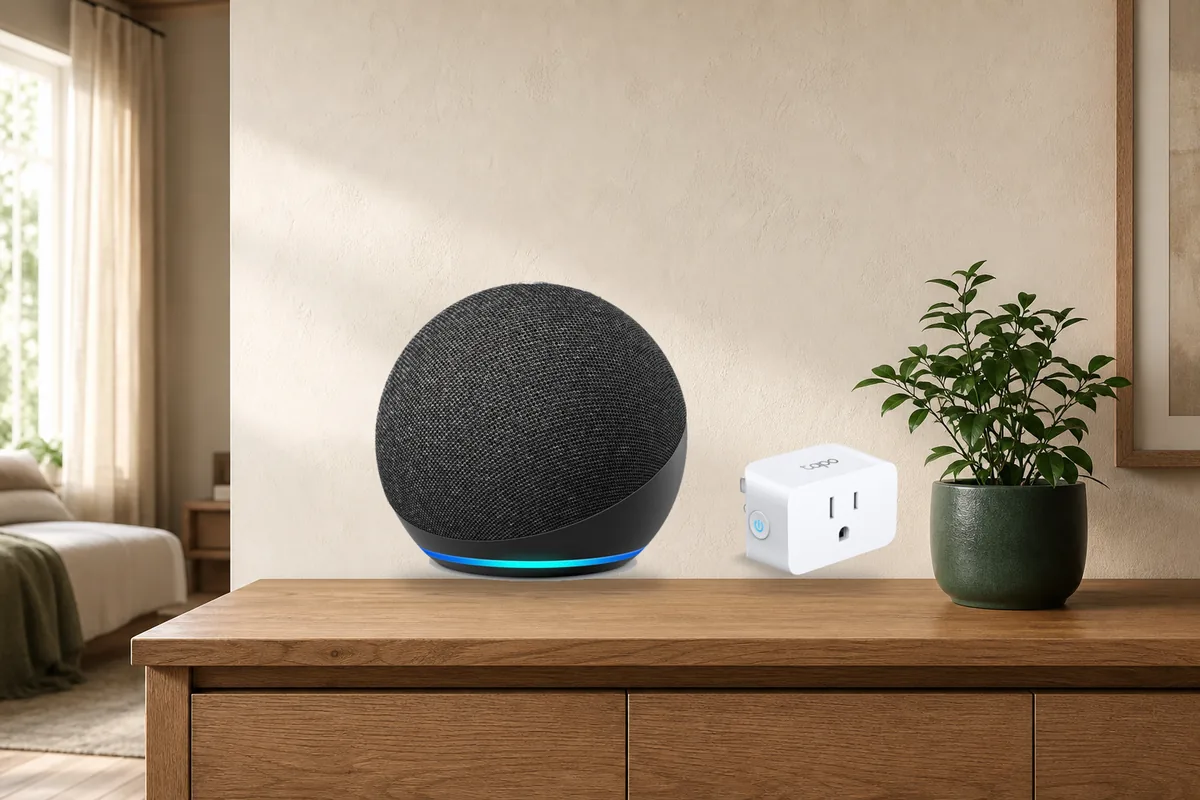
- Use direct Matter setup when the vendor supports it. In the Alexa app, add a device, choose Matter, and scan the product's Matter QR code. The Tapo P125M is one current example that TP-Link says can be set up directly in a Matter app.
- Name and test one device. Confirm on/off or the main control, place it in one Alexa room, and use it in one simple routine before adding a second connection.
- Add the skill only for a reason. Write down the missing feature first. After enabling the skill, confirm Alexa still shows one device before rebuilding rooms or routines.
If Apple Home, Google Home, or Another Matter App Already Owns It
Do not reuse the printed Matter code and do not factory-reset a working device. In the app that already controls it, choose the option to add another home app or assistant. Matter calls this multi-admin: one physical device keeps a separate, approved connection to each home app. The first app creates a fresh, temporary sharing code for Alexa.
An Alexa skill does not provide this sharing path. If the device exists in Alexa only through a skill, adding it to Apple Home requires the manufacturer's Apple Home/HomeKit setup or a separate Matter commissioning path.
Current Product Examples: What the Connection Really Means
| Current model | Official Alexa support | Local control | Cloud or account dependency | Matter and Apple Home path | Community caveat |
|---|---|---|---|---|---|
| TP-Link Tapo P125M | Matter-certified smart plug with official Alexa support and direct setup in a Matter app | Core plug control can use Alexa's local Matter path | The Tapo app remains useful for firmware and Tapo-specific features; platform feature support differs | Can join Alexa through Matter and be shared to Apple Home through Matter multi-admin | TP-Link community reports show that two ways of finding the same product can still create duplicate Alexa copies; verify one tile before making routines |
| Philips Hue Bridge | Hue's current Alexa setup tells Bridge owners to enable the Hue skill; the Bridge then connects with Matter automatically | The Bridge controls Hue lights over its own low-power Zigbee radio, while Matter carries supported controls to Alexa | A Hue account and skill are part of the documented Alexa setup; cloud features still use online services | The Bridge supports Matter and Apple Home/HomeKit paths; use Hue's documented setup rather than manually creating another copy | This is a vendor-managed combined setup. If Hue already appears once, scanning another path can create confusion instead of adding features |
| Aqara Hub M3 | Aqara lists Alexa support and positions the M3 as a Matter controller and bridge—a hub that can present supported Aqara devices to other home apps | Aqara documents local hub automations; supported bridged controls can stay inside the home | The Aqara app and account may still be needed for setup, firmware, remote use, and brand-specific features | The M3 can present supported Aqara Zigbee devices to Matter home apps and works with Apple Home | An Aqara community explanation notes that a third-party Matter device added to M3 cannot simply be passed onward to Alexa; share that original Matter device with multi-admin instead |
These examples are not interchangeable. Tapo offers a straightforward Matter-first plug. Hue documents a managed skill-plus-Matter setup. Aqara can be both a controller and a bridge, but those roles do not let it republish every third-party Matter device. Follow the path documented for the exact model and firmware, not a generic brand tutorial.
What If Matter and the Skill Create Duplicate Alexa Devices?
Do not factory-reset the physical device first. The hardware may be fine; Alexa may simply have found the same product in two different ways.
- Pause affected routines. Note every routine, room, and group using either tile.
- Test each tile separately. Give the two entries temporary names, operate each one, and note which route has the features you need.
- Choose the route to keep. Prefer Matter for adequate core control. Keep the skill instead when it supplies a required feature Matter lacks.
- Remove only the extra route. Disabling a vendor skill can remove every device supplied by that skill, so inventory the rest of that brand first. If you remove Matter instead, make sure Apple Home or another platform is not relying on that Matter relationship.
- Repair routines and groups. Point them to the surviving tile, test once, and remove the temporary name.
Repeatedly running device discovery is not a cleanup method. It can bring the same cloud and Matter representations back before you know which one owns the routines.
Will Alexa Matter Work Without Internet?
Amazon says a Matter route can provide local Alexa control when the internet is out or the device's skill is unavailable. That is a meaningful advantage over a skill-only device, but it is not a whole-home offline guarantee.
- Likely local: the supported Matter command between Alexa's compatible controller and the device, such as a plug's on/off control.
- Still potentially online: setup, account linking, remote access, Alexa app services, voice interpretation, routines, notifications, and features supplied only by the vendor skill.
- Always test: unplug the internet connection—not the Wi-Fi router—and try the exact noncritical command or routine your household depends on.
Do not make a lock, alarm, garage door, thermostat, medical device, or critical appliance your first outage test. Keep the manufacturer's manual control and safety behavior available.
Tara's Practical Recommendation
For a new Alexa home, make Matter the default connection for lights, plugs, sensors, shades, and thermostats when Alexa exposes the controls you need. Keep the manufacturer's app for firmware. Enable a skill only when you can name the extra feature it provides.
For an existing home, do not migrate every device at once. Move one low-risk plug or light, confirm one Alexa tile, test one room and one routine, then document whether Matter or the skill owns that device. A clear single route is easier to support than two routes that happen to work today.
FAQ
Should I connect a smart-home device to Alexa with Matter or a skill?
Use Matter for supported core controls. Use the manufacturer's Alexa skill when the product has no Matter support or the skill provides a specific feature that Matter does not expose.
Can I use Matter and an Alexa skill for the same device?
Only when the manufacturer documents that the routes are designed to work together and Alexa shows one device. Otherwise, using both can create duplicate tiles, groups, and routine targets.
Does Works with Alexa mean a device works locally?
No. The badge can cover a cloud skill, Matter, or another supported Alexa connection. Check the exact product documentation for Matter support, account requirements, and outage behavior.
Will an Alexa Matter device work without internet?
Supported Matter device commands have a local path, and Amazon explicitly describes local control when a skill or internet connection is unavailable. Do not assume every voice request, routine, remote command, setup step, or vendor feature is offline. Test the exact behavior you need.
Can I share an Alexa Matter device with Apple Home?
Yes, when the device supports Matter multi-admin and Apple Home supports its device type. Create a fresh sharing code from the app that already owns the device. An Alexa skill by itself cannot share the device to Apple Home.