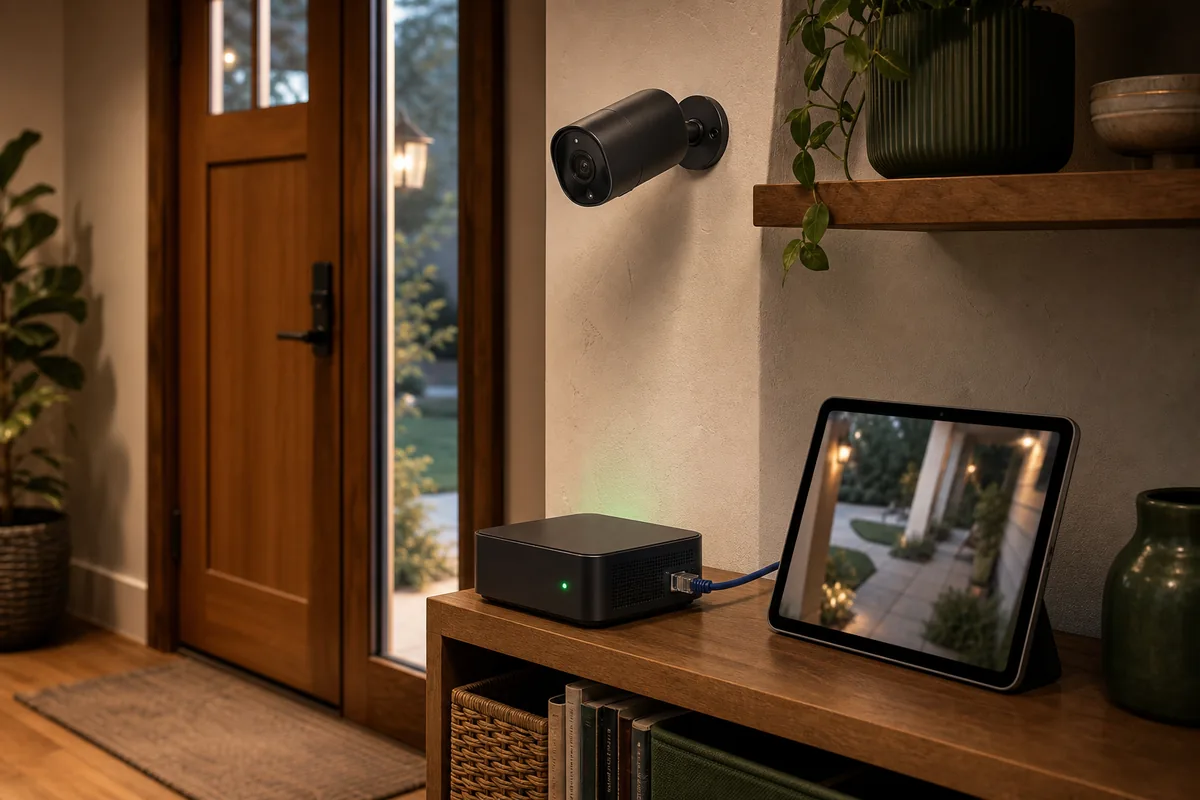
Short Answer: Fix the Stream Path, Not the Whole Camera System
The fastest fix is to find where the delay starts. A camera feed can be late because the camera is slow to wake, the stream is being converted into a browser-friendly format, WebRTC could not make a direct path, the dashboard device is overloaded, or Home Assistant is trying to show a recording-quality stream where a live-view substream would do.
Start with three tests. First, open the camera in its own local app, NVR, Frigate page, or raw RTSP-capable player on the same network. An NVR is a network video recorder, and RTSP is a common local camera streaming URL format. Second, open one Home Assistant camera entity by itself. An entity is the named camera object Home Assistant shows in dashboards and automations. Third, open the real dashboard with the other cards and streams. If the direct view is delayed, fix the camera or NVR settings. If the single Home Assistant entity is delayed, focus on WebRTC, go2rtc, LL-HLS, codec, and stream-source settings. If only the full dashboard falls behind, make a lighter dashboard and use substreams.
For most homes, the stable answer is a wired or strong local camera, H.264 video for live view, WebRTC/go2rtc when possible, a lower-resolution stream for dashboards, and a separate recording owner such as the camera SD card, Reolink NVR/Home Hub, UniFi Protect, Frigate, or another NVR.
The Quick Diagnosis Map
| What you see | Most likely cause | What to try first |
|---|---|---|
| Live view opens 5-15 seconds late but eventually works | HLS buffering, cold stream startup, or no low-latency path | Use WebRTC/go2rtc where possible. If using Home Assistant stream, check LL-HLS and consider preload only after checking CPU. |
| Feed drifts behind over time on a wall dashboard | Dashboard device, browser, or too many heavy cards/streams | Test one camera on a blank dashboard, then use substreams and remove heavy history graphs or extra live feeds. |
| Camera works in vendor app but not in Home Assistant | Wrong integration path, disabled RTSP, unsupported codec, or credentials | Use the official Home Assistant integration when one exists, or add a Generic Camera stream source with a local RTSP URL. |
| Works at home but remote viewing is flaky | WebRTC cannot make a clean direct path or remote proxy path | Use a secured remote path such as Home Assistant Cloud, Tailscale, or WireGuard. Do not expose raw RTSP. |
| Video is fast but audio or two-way talk is missing | Codec mismatch or camera-specific audio path | Check AAC, opus, PCMA/PCMU, and Frigate/go2rtc audio guidance before assuming the camera is broken. |
| Battery camera wakes slowly or drops the stream | Sleep behavior and vendor stream limits | Use wired power or Power over Ethernet (PoE) for always-on dashboards and security views. Keep battery cameras for event snapshots, not constant live view. |
Test in This Order Before Rebuilding Anything
- Test the camera outside Home Assistant on the local network. Use the vendor app, NVR interface, Frigate page, or a local RTSP-capable player. If this is already delayed, Home Assistant is not the first problem.
- Test one camera entity in Home Assistant. Open one camera by itself, not the whole security dashboard. This separates stream startup from dashboard load.
- Test the same feed on another browser or device. A feed that is fine on a desktop but late on an old tablet is usually a client problem, not a camera problem.
- Test a substream. A substream is the camera's lower-resolution live feed. It is often the right feed for dashboards because it uses less bandwidth and decoding power.
- Then change one stream layer. Move from HLS to WebRTC/go2rtc, or change the codec, or simplify the dashboard. Do not change the camera, card, NVR, and network all at once.
Tara's rule for camera lag: prove the delay with one camera, one screen, and one stream before tuning the whole security dashboard.
Know Which Camera Path You Are Actually Using
Home Assistant can show many kinds of cameras, but the support path matters. An integration is Home Assistant's connector for a device, app, or service. Local control means the camera path still works inside your house without needing a vendor cloud service. Official integration support, local control, cloud dependency, Apple/HomeKit behavior, and community extras are different questions.
| Path | Official support | Local control and cloud dependency | HomeKit, Matter, and community caveats |
|---|---|---|---|
| Reolink camera or NVR/Home Hub | Official Home Assistant Reolink integration, authorized by Reolink, with local camera and NVR features. | Home Assistant docs say Reolink cameras can operate fully locally and continue working when internet access to Reolink devices is blocked. | Good local path when the camera supports the needed stream. Reolink's own RTSP docs show main and substream URL patterns and warn that battery Wi-Fi cameras may need time to wake. |
| UniFi Protect | Official Home Assistant UniFi Protect integration pulls camera feeds and sensor data from a UniFi OS Console. | Requires a local UniFi OS user/API key. Home Assistant docs say RTSP(S) streams must be enabled for live feed. | Great when UniFi Protect is already the NVR. The docs also warn default stream settings can create 5-15+ second delay unless LL-HLS and HTTP/2 proxying are handled well. |
| Generic RTSP or ONVIF camera | Home Assistant has official Generic Camera and ONVIF paths, but the camera model still determines stream quality. | Can be fully local if the camera exposes local RTSP or ONVIF, a common IP-camera discovery and control standard, and does not require a vendor cloud session. | Good for wired cameras and local NVRs. You may need to tune RTSP transport, frame rate, H.264/H.265, and credentials yourself. |
| Frigate, Scrypted, Blue Iris, or another NVR | Not the built-in Home Assistant camera owner, but common and mature community/NVR paths. | Usually local if you run the NVR locally. Recording, detection, and review live outside Home Assistant. | Frigate's docs recommend go2rtc for better live view and explain how restreaming lets Home Assistant use the feed without a second direct camera connection. |
| HomeKit or Matter expectation | Home Assistant can bridge selected camera live view to Apple Home through HomeKit Bridge, but official HomeKit Bridge docs say HomeKit Secure Video is not supported. | Apple/HomeKit camera flows often add another controller and recording owner. Matter controls local Wi-Fi or Thread smart-home devices in Home Assistant; it is not documented as the general-purpose low-latency camera stream path. | Use Apple-native/Scrypted paths when Apple Home and HSV are the goal. Use Home Assistant for local automations and live view after deciding where recordings live. |
WebRTC, go2rtc, HLS, and LL-HLS in Plain English
WebRTC is a low-latency streaming method, the same broad family of technology used for video calls. Home Assistant's 2024.11 release says camera streams now try WebRTC whenever possible and fall back when it is not available. In house terms, WebRTC is the "show me what is happening now" path.
go2rtc is the local camera streaming helper Home Assistant can use as a WebRTC proxy. Current docs say it is part of default_config and is set up automatically on Home Assistant OS and Home Assistant Container. The debug UI can help with WebRTC issues, but Home Assistant warns it exposes port 11984 and should only be enabled during debugging with credentials.
HLS and LL-HLS are browser-friendly streaming paths. LL-HLS means Low Latency HLS. It can reduce delay, but Home Assistant's stream docs warn it has strict timing and network requirements and can run into browser connection limits without HTTP/2 proxying. If your camera card silently falls back to HLS, it may still work, but it can feel late.
Preload stream starts a camera stream early so opening the frontend is faster. Home Assistant docs say it can reduce latency, but it also uses more machine resources. That makes it a selective fix for one or two critical cameras, not the first thing to turn on for every camera in the house.
Camera Settings That Actually Affect Delay
The biggest practical stream setting is codec. A codec is the format used to encode the video. Frigate's camera setup docs recommend H.264 video and AAC audio for compatibility with Frigate and Home Assistant. H.265 can save storage, but Home Assistant's stream docs and Frigate's docs both point out browser compatibility limits. For live dashboards, H.264 is the safer default.
The next setting is the I-frame interval, also called keyframe interval, interframe space, or GOP length. Frigate's live-view docs say values higher than the stream frame rate can make playback take longer to begin. If the camera is sending 20 frames per second, a 20-frame keyframe interval is the simple starting point.
Finally, separate streams by job. Use the main stream for recording if storage detail matters. Use a substream for a wall dashboard, phone card, or multi-camera overview. Frigate's own setup docs warn that setting a Home Assistant viewing stream too high can use significant bandwidth and load unreliably over slower connections.
When to Use Frigate or an NVR Instead of Only Home Assistant
Home Assistant can show a live camera and use camera events in automations. It is not the best place to be the only long-term video recorder for a house. If an incident matters, decide whether the clip comes from the camera SD card, Reolink NVR/Home Hub, UniFi Protect, Frigate, Blue Iris, Synology Surveillance Station, or another local NVR.
Frigate is useful when you want local object detection, event review, snapshots, and a restream layer. Its restream docs say Frigate can expose a camera as an RTSP feed for Home Assistant while copying the original video feed directly, avoiding two separate connections to the camera. That is useful in a house with several dashboards and cameras.
The tradeoff is setup and resources. Frigate's docs separate detection, recording, and stream-viewing feeds because each job needs different resolution and frame-rate choices. Community threads say the same thing in less formal language: Frigate can be excellent, but it is not a magic "make any camera easy" button if codecs, GPU access, Docker networking, or go2rtc candidates are wrong.
Remote Viewing Without Making the Camera Unsafe
Fast local camera viewing should not lead to unsafe remote access. RTSP URLs can include camera usernames and passwords. Reolink's RTSP docs show that RTSP is commonly used by third-party players and note that WAN viewing would require router port forwarding. For a home security camera, that is exactly the pattern to avoid unless you are building a carefully secured professional network.
Use a secured Home Assistant remote path instead: Home Assistant Cloud, Tailscale, WireGuard, or a well-maintained reverse proxy. WebRTC may use STUN and TURN helpers to find a working remote media path. In plain English, STUN helps two sides discover a direct route, while TURN can relay media when a direct route is not possible. Home Assistant's 2024.11 release says Home Assistant Cloud provides a TURN relay for subscribers. That is different from exposing raw camera ports.
If your cameras live on an IoT VLAN or a separate camera subnet, keep discovery and routing simple enough for the stream path to work. A VLAN is a separated network lane inside the same home network. A dashboard tablet, Home Assistant, go2rtc, Frigate, and the camera all need a clean route to the chosen stream. A network that is secure but impossible to debug will feel unreliable to the household.
Camera Safety and Privacy Boundaries
Cameras see people who did not buy your smart home: guests, delivery drivers, neighbors, children, and passersby. Keep camera admin accounts local, change default passwords, use privacy masks where the product supports them, and avoid putting private camera details in push notification text. Do not send raw camera feeds or RTSP links to public dashboards.
Be careful with automations that use camera detections for security actions. Turning on a porch light for a person detection is reasonable. Unlocking a gate, opening a garage, or disarming an alarm from one camera event is not. Use additional checks, household confirmation, or time windows for anything security-sensitive.
For Tara-style installs, the calm pattern is local recording ownership, local automations, secure remote access, and a household handoff that says where clips live. A camera feed that is fast but nobody can find the recording later is still a broken system.
Tara's Take
The best camera experience in Home Assistant usually comes from restraint: fewer always-live cards, lower-resolution dashboard streams, wired or strong local cameras, one recording owner, and a stream path that another person in the house can understand.
Tara packages the local hub, network posture, camera handoff, and dashboard choices so camera views are useful without turning Home Assistant into a fragile video lab.
Related Tara Reading
If your camera delay question is part of a bigger camera, network, or remote-access decision, these guides cover the adjacent choices.
- Best Home Assistant Doorbell Cameras for 2026
- Can Home Assistant Use HomeKit Secure Video?
- Home Assistant Wall Tablet Setup That Stays Awake
- How to Access Home Assistant Remotely Without Port Forwarding
- Should Home Assistant Be on an IoT VLAN?
- No-Subscription Smart Home Camera Setup
FAQ
Is WebRTC always faster than HLS in Home Assistant?
WebRTC is usually the lower-latency path when it can connect cleanly, but it still depends on the camera stream, browser, Home Assistant path, and network. If WebRTC cannot be used, Home Assistant can fall back to the stream integration's HLS or LL-HLS path.
Do I need Frigate just to see camera live view in Home Assistant?
No. Use the official camera integration or a local RTSP stream first. Frigate makes sense when you also want local recording, object detection, event review, or a restream layer that avoids multiple direct camera connections.
Why does my camera dashboard fall farther behind over time?
The common causes are a heavy dashboard, too many full-resolution streams, a weak tablet or browser, a codec mismatch, or a stream path that buffers instead of staying live. Test one camera on a blank dashboard, then add cards back slowly.
Should I use H.265 for Home Assistant camera streams?
Usually no for live dashboards. H.265 is efficient for storage, but Home Assistant and Frigate docs both point out browser compatibility limits. H.264 is the safer live-view default, especially when multiple phones, tablets, and browsers need to view the feed.
Can I forward my camera's RTSP port to the internet for faster remote viewing?
Do not expose raw camera ports to the internet. Use Home Assistant Cloud, Tailscale, WireGuard, or another secured remote path. Raw RTSP URLs often include credentials and should stay on trusted local networks.