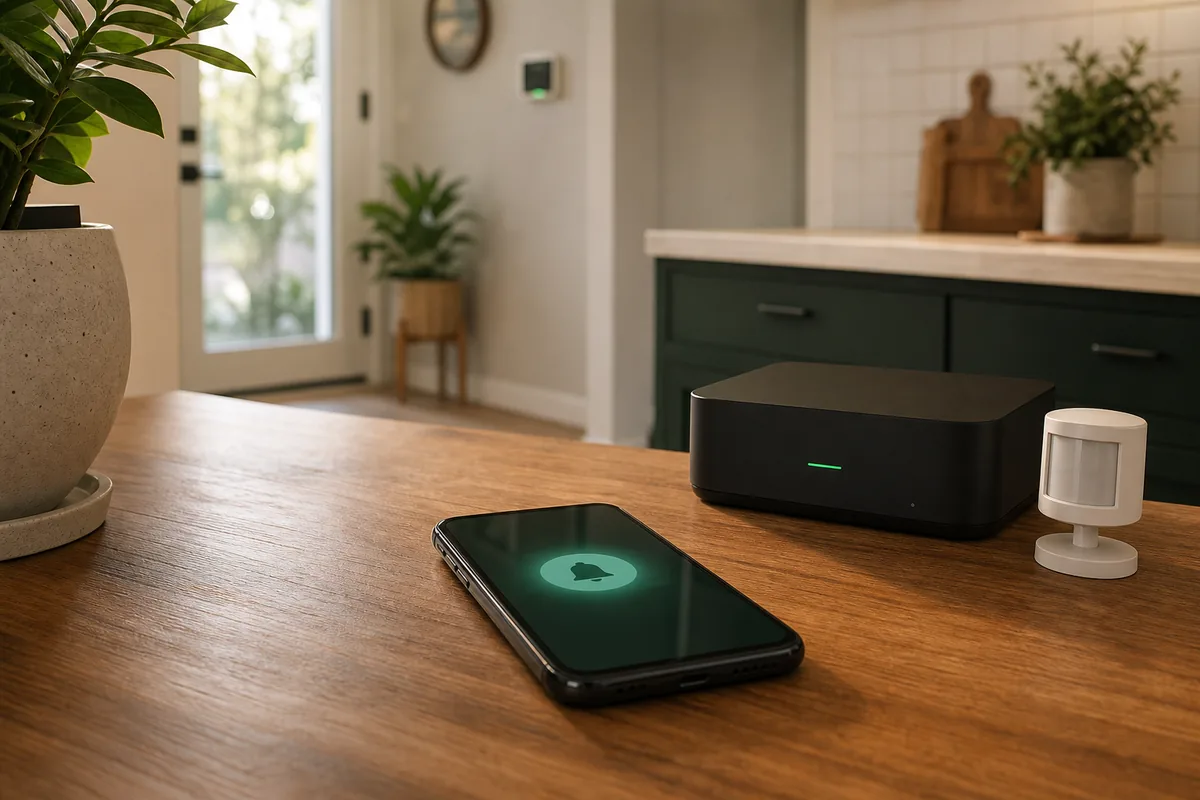
Short Answer: Find Out Where the Alert Gets Stuck
The fastest fix is to separate two problems that feel identical. Either Home Assistant did not send the notification correctly, or the phone received the message path but delayed, silenced, grouped, or hid it. Do not start by rewriting the whole automation.
Open Settings > Developer tools > Actions in Home Assistant and send a simple message to the exact phone notify entity or action, such as notify.mobile_app_pixel or the newer notify.send_message action with your phone selected. A notify entity is the named target Home Assistant uses to send a message. If the plain test does not arrive, the problem is usually Companion App setup, notification permission, push token, rate limit, or the phone's operating-system settings. If the test arrives instantly, the notification system works and the problem is probably the automation payload, action target, template, camera attachment, or trigger.
For Android delays, the common culprit is power saving while the screen is off. For iPhone delays, check Focus and Scheduled Summary first. For both platforms, remember that ordinary mobile push is a cloud-assisted delivery path, while Local Push is the local WebSocket path that only works in the right home-network conditions.
The 10-Minute Test Before You Change Anything Else
Use this order for one phone at a time.
- Send a plain test message. Go to Developer Tools > Actions. Pick your phone-specific target or
notify.send_messagewith your phone selected. Send only a short message. - Avoid
notify.notifyfor testing. Home Assistant warns that it may choose the first notify target it finds. That can make a family phone, browser target, or persistent notification look like your phone alert is broken. - Check the phone action exists. If
notify.mobile_app_...is missing after app setup, restart Home Assistant, reopen the Companion App, and check notification permission. - Check the app's notification page. On iOS, the Companion App troubleshooting docs say an empty Push ID means you should reset it. On Android, if the target still does not appear, the docs point to starting fresh with the app registration.
- Check the daily limit. The Companion App push service currently has a 500-push-per-day-per-device limit for normal push notifications, resetting at midnight UTC. Local Push and some special notification types are handled differently, but a runaway automation can still make normal testing confusing.
- Check OS permissions. iPhone: Settings > Notifications > Home Assistant. Android: Settings > Apps > Home Assistant > Notifications, then inspect the channel used by that alert.
- Only then inspect the automation. If the manual message works, check Traces, action target, message template, attachment URL, tags, grouping, channels, and whether the automation actually reached the notification action.
Plain-English rule: prove that one simple phone message works before you debug a complicated camera, garage, person, leak, or alarm notification.
What the Symptom Usually Means
| What you see | Most likely area | What to check first |
|---|---|---|
| No phone notify target exists | Companion App registration | Restart Home Assistant, reopen the app, grant notification permission, reset Push ID on iOS, or re-add the mobile app integration. |
| Manual test works, automation alert does not | Automation action or payload | Trace, exact notify target, template, attachment path, condition, and whether notify.notify sent to the wrong place. |
| Android alert appears after unlocking the phone | Android Doze or notification priority | ttl: 0, priority: high, channel importance, battery settings, and Local Push status. |
| iPhone alert arrives quietly or in a bundle | iOS notification settings | Allow Notifications, Lock Screen/Banner/Sound settings, Focus, Scheduled Summary, and interruption level. |
| Works at home but not away | Remote access or notification architecture | External URL, Home Assistant Cloud/VPN, whether the alert is normal push or Local Push, and whether attachments require phone access to Home Assistant. |
| Works sometimes, then stops after a noisy event | Rate limit or runaway automation | Daily push count, repeated triggers, notification grouping/tagging, and logs around the event. |
If Android Notifications Are Late
Android is aggressive about battery life. Google's own Doze documentation says Android can defer network and background work when a device is unplugged, stationary, and the screen is off. It also says high-priority Firebase messages are the correct tool for time-sensitive, user-visible notifications. Home Assistant's Android critical notification docs translate that into the practical Companion App payload: use priority: high and ttl: 0 for urgent alerts.
Use this for alerts where a person should know now, such as water leak, garage open, freezer temperature, security, or a door left unlocked. Do not use it for every battery percentage, washer finished, room temperature, or debug message. Too many urgent alerts makes people ignore all of them.
action: notify.mobile_app_your_android_phone
data:
  title: "Home alert"
  message: "The garage has been open for 10 minutes."
  data:
    ttl: 0
    priority: high
    channel: "Security"
    importance: high
Then check the Android notification channel. Android 8 and newer lets apps create channels such as General, Security, Motion, or Alarm. The first channel settings can stick, and users can change them later in system settings. If one type of Home Assistant alert is silent but another works, the channel is often the reason.
Finally, check battery settings. If the Home Assistant app is heavily restricted, background behavior can suffer. Local Push or the Android persistent connection can reduce delay in some setups, but it keeps an ongoing connection and can have battery tradeoffs. Use it deliberately, not as a magic setting for every phone.
If iPhone Notifications Are Late or Quiet
On iPhone, start with Apple's notification controls. Open Settings > Notifications > Home Assistant. Confirm Allow Notifications is on, then check Lock Screen, Notification Center, Banners, Sounds, and whether delivery is immediate or scheduled. Apple documents Scheduled Summary as a way to receive selected app notifications together later, which is useful for social apps and bad for leak alerts.
Next check Focus. Focus can silence or delay notifications by design. Apple lets you choose which apps are allowed during a Focus and can turn Focus on by schedule, location, or activity. If Home Assistant works during the day but not at night, Sleep Focus or Do Not Disturb may be doing exactly what it was told to do.
For important iOS alerts, Home Assistant supports interruption levels. time-sensitive can break through some Focus behavior, and critical is for the small set of alerts that should make sound even when the phone is muted or Do Not Disturb is enabled. Keep critical for smoke/CO, water leak, security, and other real household risk.
action: notify.mobile_app_your_iphone
data:
  title: "Water leak"
  message: "The laundry leak sensor is wet."
  data:
    push:
      interruption-level: time-sensitive
If the iPhone target is missing, follow the Companion App troubleshooting path: confirm notification permission, open Companion App settings, check Notifications, and reset the Push ID if it is empty. After that, force quit and reopen the app, then restart Home Assistant so the action can register cleanly.
Local Push vs Normal Push
Local Push means the Companion App keeps a direct WebSocket connection to your Home Assistant server and can receive notifications without Apple's Push Notification Service or Google's Firebase Cloud Messaging. That is the local-control path people usually want when they say "can Home Assistant notify me locally?"
It has limits. The Companion App docs say Local Push only works through the internal URL and requires the app to recognize internal SSIDs. On Android, persistent connection behavior can require a persistent notification and can affect battery life depending on settings and device. On iOS, Local Push status can be inspected in the server section of Companion App settings.
Normal push is different. The Companion App privacy and security docs say notification content is not stored on remote servers, but the architecture uses Firebase cloud messaging, and notification contents are not encrypted on Firebase. For a homeowner, that means ordinary phone push is convenient and useful, but it is not the place to put door codes, private camera descriptions, guest names, or sensitive household details.
At home, Local Push can be a strong option. Away from home, you still need a reliable remote path for opening Home Assistant, loading camera images, and acting on notifications. Home Assistant Cloud, Tailscale, WireGuard, or another secure remote-access design is better than exposing raw Home Assistant or camera ports.
When the Payload Is the Problem
If a simple test message works but the real alert does not, compare the payload. Common mistakes are not exotic:
- Wrong target:
notify.notifysent somewhere else, or the phone was renamed after migration. - Broken template: the message uses an entity or attribute that is
unknown,unavailable, or misspelled. - Image attachment problem: the phone cannot fetch the camera image because the URL only works inside the home network or needs authentication.
- Tag or group behavior: a newer notification replaces an older one, so it looks like the first alert never arrived.
- Channel mismatch: Android sends it to a quiet channel that the user silenced months ago.
- Runaway automation: repeated triggers hit rate limits or train the family to ignore Home Assistant.
For camera and doorbell alerts, first test text-only delivery. Then add one attachment. Then add action buttons. Rich notifications are useful, but each extra feature adds one more failure point.
Once plain messages arrive reliably, use the Yes/No notification-button walkthrough to test replies with a harmless practice switch. It covers reply expiry and old button presses before you connect a response to a real device.
Use Critical Alerts Sparingly
Critical notifications are a household agreement, not just a YAML setting. If every motion alert is critical, the house teaches people to silence Home Assistant. Use normal notifications for routine information and urgent notification behavior only for events that deserve interruption.
- Good urgent alerts: water leak, smoke/CO, freezer warming, garage open late at night, unlocked exterior door after everyone leaves, alarm state, sump pump power failure.
- Usually normal: laundry done, mailbox opened, robot vacuum stuck, low battery, package detected, room temperature, a dashboard reminder.
- Needs care: camera person detection and doorbell alerts. They matter, but false positives can become noise unless tuned.
Do not let a phone notification replace code-required safety devices. Smoke alarms, CO alarms, leak shutoff valves, security systems, and locks need physical controls, local alarms, and manual fallback. Home Assistant alerts are excellent as an extra layer, not as the only layer.
Tara's Take
A good Tara-style notification setup has three levels. Routine messages are quiet and useful. Important household alerts are fast and reach more than one adult. Safety alerts have a local alarm or physical backup even if the phone is dead, silenced, out of service, or left in another room.
For installed homes, we also separate channels by meaning. Security, leaks, climate, and maintenance should not all share one generic notification path. That makes the phone settings easier for a homeowner to understand and easier to hand off later.
The goal is not to make every Home Assistant alert louder. The goal is to make the right alerts reliable enough that the family trusts them.
Related Tara Reading
Notification reliability usually sits next to remote access, automation traces, presence, and safety planning.
- Why your Home Assistant automation is not firing
- How to access Home Assistant remotely without port forwarding
- Why your Home Assistant person entity is stuck at home or away
- Best water leak sensors for Home Assistant
- Best doorbell cameras for Home Assistant
- Configurator
FAQ
Why do Home Assistant notifications arrive only after I unlock my Android phone?
Android may delay normal background delivery while the phone is idle. For urgent user-visible alerts, set ttl: 0 and priority: high, then check the notification channel and app battery settings. Use this for important alerts, not every routine message.
Why is there no notify.mobile_app action for my phone?
After setting up the Companion App, restart Home Assistant. If the target still does not appear, reopen the app, confirm notification permission, check the iOS Push ID, or remove and re-add the mobile app integration for that device.
Does Home Assistant need remote access for notifications?
Normal push can work even when your phone cannot browse Home Assistant because the message travels through push infrastructure. But tapping the notification, loading images, or using Local Push depends on the phone being able to reach the right Home Assistant URL.
Should I use critical notifications for everything?
No. Reserve critical or high-priority behavior for alerts that should interrupt someone now. If every notification is urgent, the family will mute the app and the truly important alerts will get weaker.
Are notification contents private?
Do not put sensitive details in push text. The Companion App docs say notification content is not stored on remote servers, but normal push uses Firebase and the notification contents are not encrypted on Firebase. Use neutral text such as "front door alert" rather than door codes or private camera descriptions.