Short Answer: A Working Controller Can Help; a Factory Reset Changes Everything
If the device is still connected to Home Assistant or another Matter platform, you probably do not need the lost factory QR code today. Matter's multi-admin feature lets an existing controller open a temporary sharing window and create a new code for another controller. In Home Assistant, go to Settings > Matter > Devices, select the device, and choose Share device. Scan that new QR code in the other platform or enter its sharing digits.
If the accessory has been factory-reset and no controller still trusts it, the original QR code or numeric setup code is required. Home Assistant's current Matter documentation says that commissioning after a reset is not possible without one of those two forms of the code. Home Assistant does not have a supported screen that reconstructs a missing factory label from the device model or serial number.
That is why the order matters: preserve any working controller relationship, try sharing, and only reset after you have recovered or copied the factory code. Resetting first can turn a fixable controller problem into an accessory you cannot commission again.
Stop before resetting: If a ceiling light, in-wall switch, lock, shade, or plug still responds in any app, leave it commissioned while you locate the code. Do not remove mains-powered hardware just to read a label while it is energized; switch off the circuit and use a qualified electrician when wiring or safe access is uncertain.
Find Your Situation Before You Touch the Reset Button
| What is true now? | Best next step | Do you need the original code now? |
|---|---|---|
| The device still works in Home Assistant | Open its Matter page and choose Share device. Use the fresh code to add Apple Home, Google Home, Alexa, SmartThings, or another Matter controller. | No, not for this sharing step. Save the original before any future reset. |
| It works in Apple Home or Google Home, but not Home Assistant | In the Home Assistant Companion app, go to Settings > Matter > Add device, choose Yes, it's already in use, select the existing platform, and follow its sharing flow. | No, if the existing platform can open a fresh commissioning window. |
| Home Assistant was restored and the Matter device is offline | Restore and troubleshoot the Matter Server data and network path before resetting the accessory. A surviving fabric may reconnect without any code. | Usually not if the trusted controller relationship was restored intact. |
| The device was reset, but you saved the numeric setup code | Choose setup without a QR code in the Companion app and enter the digits directly. | You already have the part Home Assistant needs. |
| The device was reset and every code copy is gone | Check the physical device, covers, paperwork, vendor app, account, and support. If none can provide the code, replacement may be the only practical path. | Yes. Home Assistant cannot derive it from the model or serial number. |
The Factory Code and a Sharing Code Are Not the Same Thing
The factory Matter QR code and the printed numeric setup code are two ways to carry the device's original onboarding information. The Connectivity Standards Alliance describes both as normal Matter setup paths. Home Assistant lets you scan the QR image or enter the digits manually, so losing the square image is not a disaster if the numeric code remains readable.
A sharing code is different. The device is already commissioned—meaning it already trusts one platform—and that controller asks it to open a new commissioning window. The open-source Matter reference documentation shows that this process creates a new QR payload and manual code for the second administrator. That code is meant for the open window, not as a permanent replacement label for the next factory reset.
Thread credentials are different again. Thread is the low-power network used by some Matter accessories; its network name and encrypted credentials do not replace a device's Matter setup code. A Thread QR image, a HomeKit setup code, and a Matter setup label may look related, but they solve different jobs.
If Home Assistant Still Controls the Device
- Open the Home Assistant Companion app or Home Assistant web interface.
- Go to Settings > Matter and select Devices.
- Select the Matter accessory you want to recover or share.
- Choose Share device, then confirm Share device again.
- In the destination app, scan the new QR code or enter the displayed sharing code.
- Back in Home Assistant, open the three-dot menu beside Share device and choose Manage fabrics. A fabric is one platform's private trust relationship with the accessory. Confirm the new platform appears before removing anything.
Home Assistant's official instructions say you do not need to press a hardware pairing button for this flow. Keep the accessory powered and reachable, and complete the other platform's setup while the sharing window is open.
If Another Platform Still Controls the Device
Use the Home Assistant Companion app—not a normal browser—to start the supported already-in-use flow:
- Open Settings > Matter in the Companion app.
- Select Add device.
- Choose Yes, it's already in use.
- Select the controller that still has the accessory, such as Apple Home or Google Home.
- Follow that platform's prompt to put the accessory into pairing mode and pass the fresh code to Home Assistant.
Apple documents that paired Matter accessory information syncs through end-to-end encrypted iCloud Keychain, and Home Assistant supports bringing an already-paired Apple or Google device into its own fabric. That does not mean the original printed code will always be visible or exportable. Use the platform's supported sharing flow while it still controls the accessory.
If the Device Has Already Been Factory-Reset
Search in this order:
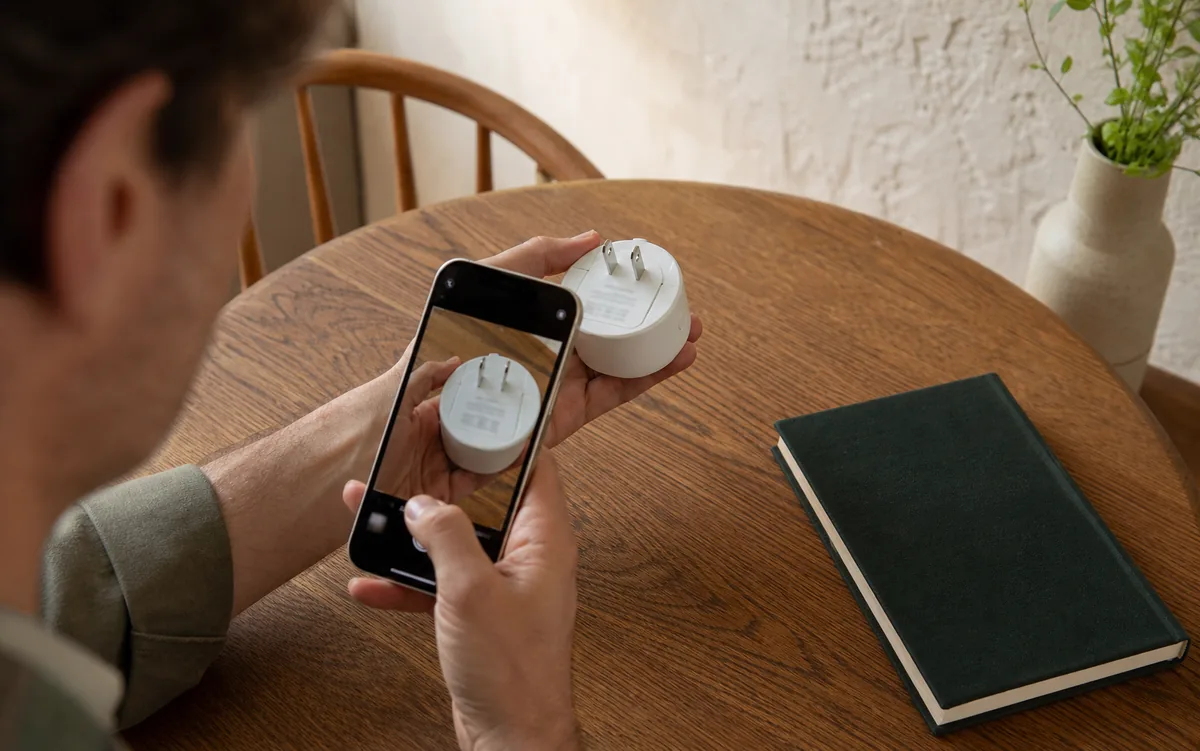
- The device itself. Check the base, battery compartment, removable trim, cable tag, or a label behind a non-electrical cover. Photograph it rather than relying on future access.
- The numeric code. It may sit beside or below the QR image. Home Assistant accepts the digits directly, so you do not need a QR generator.
- The original card, manual, or packaging. Some setup labels are supplied separately. Check the paper before recycling the box.
- The maker's app or local device page. Some manufacturers display their Matter code after a device is first set up. This varies by product, so follow the exact product manual rather than assuming every brand saves it.
- Manufacturer support. Provide the model, serial number, and proof of purchase. The maker may know where a secondary label is hidden or whether that product can display its setup information again.
Do not copy a code from another unit of the same model. Matter setup information is device-specific. The official Matter test documentation warns that reusing one QR payload across several devices makes it ambiguous which device will be commissioned. A code that looks plausible is not interchangeable.
Can a Home Assistant Backup Rescue It?
A complete Home Assistant restore that includes Matter Server data can preserve Home Assistant's controller identity, fabric credentials, and paired-device relationship. If that restore succeeds, the accessory may reconnect without any setup code. Follow Tara's Matter backup restore guide before deleting the Matter integration or resetting a batch of accessories.
But a backup and a code archive solve different failures. The backup preserves the working controller relationship; the factory code lets you commission again after that relationship or the device itself is erased. Keep both. Home Assistant's June 23, 2026 Matter Server 9 release improved migration, recovery, and stability, but it did not make the physical setup secret optional after a factory reset.
A Simple Matter Code Backup That a Household Can Actually Use
- Photograph before installation. Capture the QR label, numeric code, and enough of the accessory to identify it before it goes into a ceiling, cabinet, wall box, or furniture.
- Name the record plainly. Use a label such as Kitchen pendant—north side—Matter setup, plus brand, model, serial number, and purchase date.
- Keep a private encrypted copy. A password manager, encrypted household document vault, or encrypted attachment is better than a public photo album or shared chat.
- Keep one offline copy. Print the label or save an encrypted export with the home's recovery papers. Make sure another trusted household member knows where it is.
- Test readability. Zoom in on the photo and confirm both the image and digits are sharp before recycling the packaging or mounting the device.
A Matter setup code is not an everyday remote-control password, and commissioning normally requires the accessory to be nearby and available for setup. It is still part of establishing trust with the device, so do not post it publicly or upload it to an unknown QR-decoding website. If the QR image is stored on the same phone you use for commissioning, keep the printed digits too; manual entry avoids needing a second screen to scan.
Tara's Recommendation
Treat the setup label as part of the device, not as disposable packaging. Capture it during installation, store it with the room and device name, and include a printed or encrypted offline copy in the home's handoff packet. For multi-platform homes, record which Matter controllers currently own a fabric and which one can generate a recovery sharing code.
If a device stops responding, restore the known controller and local network path first. Then try multi-admin sharing from any platform that still works. Factory reset only after the original code is safely in hand. Tara's configurator can include device-code custody, controller ownership, local-control paths, and recovery documentation in the installed-home plan.
Related Tara Reading
- Will a Home Assistant Backup Restore Matter Devices Without Re-Pairing?
- How to Share One Matter Device Across Multiple Platforms
- Should You Pair Matter Devices to Home Assistant or Apple/Google First?
- Will Home Assistant and Matter Work Without Internet?
- How to Pair IKEA Matter-over-Thread Devices Without DIRIGERA
FAQ
Can Home Assistant show my original Matter QR code?
Home Assistant does not provide a supported way to reconstruct and display a missing factory setup label. If the accessory is still commissioned, Home Assistant can create a fresh temporary sharing code for another Matter controller.
Can I use the numeric Matter setup code if the QR code is gone?
Yes. In the Companion app's Matter setup flow, choose the option to continue without a QR code and enter the numeric commissioning code. There is no need to convert those digits into a new QR image.
Is a Matter sharing code the same as the original setup code?
No. The sharing code is created for a temporary commissioning window while the device already trusts a controller. It helps add another controller, but it is not a permanent replacement for the factory code after a reset.
Will a Home Assistant backup save a device when its QR code is lost?
A complete restore that includes Matter Server data can preserve Home Assistant's trusted relationship, so re-pairing may not be necessary. Do not assume the backup is a readable archive of every factory label; keep the setup codes separately.
What if the device was factory-reset and every copy of its code is gone?
Check the accessory, safe removable covers, manual, packaging, maker's app, and manufacturer support. If neither the original QR code nor numeric setup code can be recovered, current Home Assistant documentation says commissioning is not possible.