The simplest fully local starting point
Use Home Assistant OS, a supported local speech engine, Piper for the spoken reply, and the built-in Home Assistant conversation agent. Start from the Companion app on your phone or add Home Assistant Voice Preview Edition as a room microphone and speaker. You do not need a cloud voice subscription for this configuration.
For a Home Assistant Green or Raspberry Pi 4, start with Speech-to-Phrase if it supports your language and commands. Use Whisper when you need general transcription, such as arbitrary shopping-list items. Check the official local-voice setup before buying more hardware.
This is a home-control setup, not a promise to reproduce every Alexa or Google Assistant feature. Getting a sentence transcribed, understanding it, and controlling the intended device are separate steps.
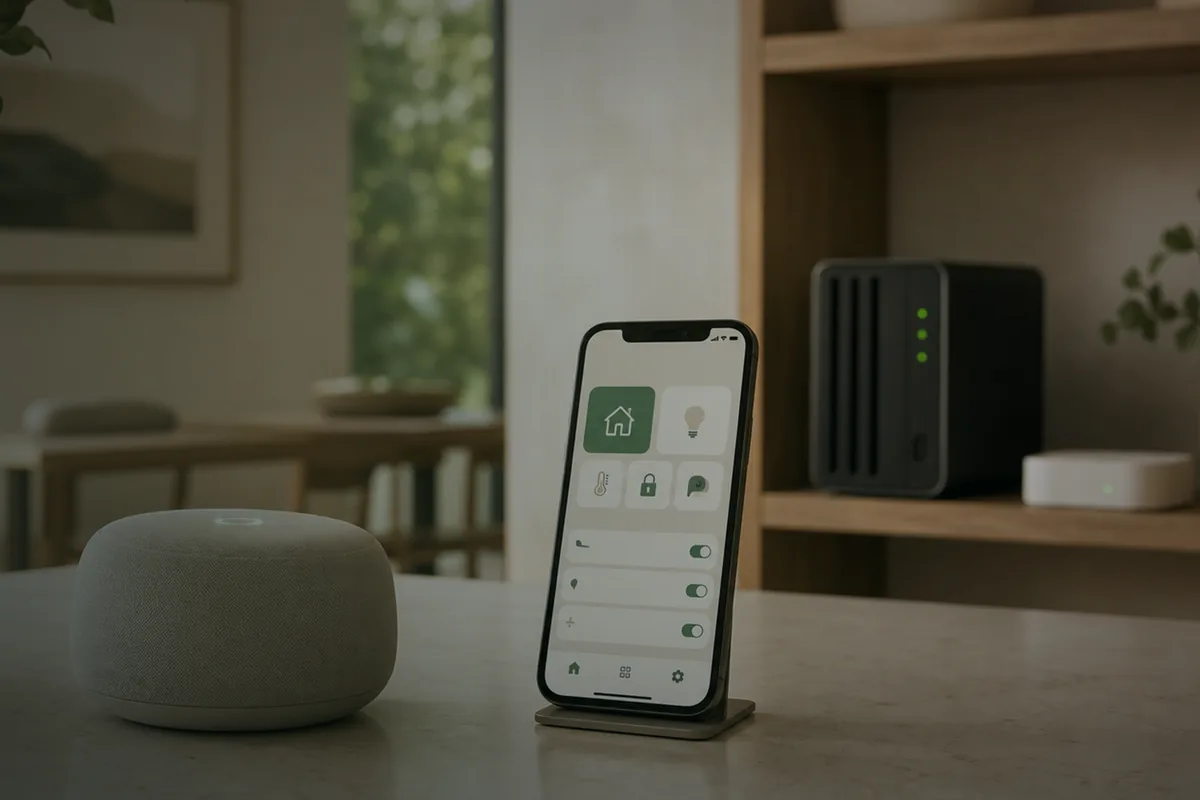
Research basis: Updated from Home Assistant, Nabu Casa, and project-maintainer documentation on September 15, 2026. The checks below are a procedure for your home, not reported Tara hardware tests or measured latency results. The cover illustrates a home-voice setup, not hardware tested for this guide.
What each part does
A pipeline is the sequence from hearing you to answering. A satellite is the microphone and speaker in a room; it is not necessarily the computer running the speech models.
The four stages
- Start listening: press the Assist microphone button or use your satellite's supported wake word.
- Speech-to-text: Speech-to-Phrase or Whisper turns the audio into words.
- Conversation agent: Home Assistant interprets a supported command and selects the device action.
- Text-to-speech: Piper generates the reply for the speaker.
Wyoming connects Home Assistant to speech services such as Piper and Whisper. It does not mean every link uses Wyoming: Voice Preview Edition connects through ESPHome, and Assist's command handling happens inside Home Assistant.
Speech-to-Phrase or Whisper?
| Your main need | Starting choice | Important limit |
|---|---|---|
| Lights and other supported home commands on modest hardware | Speech-to-Phrase | Recognizes a constrained set of phrases, not arbitrary speech. Check language and command support. |
| Dictating arbitrary list items or speaking to a separate conversation agent | Whisper | Requires more compute. Transcription alone does not supply an answer or make an agent local. |
| Speaking the reply | Piper with a voice for your language | This is text-to-speech, not a replacement for either recognition engine. |
Speech-to-Phrase builds around exposed device and area names. Free-form lists, broadcasts, and named timers are not interchangeable with its supported home commands. Its custom-sentence options can add known list values; that still is not unrestricted dictation.
For Whisper, the Voice Preview Edition guidance recommends at least Intel N100-class hardware for the Base model; some languages need larger models and substantially more compute. Do not treat that as a sub-second guarantee. Language, model, microphone, and concurrent workloads affect the result. Home Assistant Yellow uses a Raspberry Pi Compute Module, not an x86 processor; consult the hardware guide before moving speech workloads.
Choose a microphone without rebuilding everything
Voice Preview Edition: the guided hardware path
Home Assistant Voice Preview Edition provides microphones, audio processing, a speaker, and a physical microphone power switch. It still needs a Home Assistant server and configured speech services. Its normal firmware uses microWakeWord on the device; adding the server-side openWakeWord app is not a prerequisite.
Follow the device's current setup wizard and choose your local assistant. For wake-word selection, go to its device page under Settings > Devices & services > ESPHome, then use the Configuration section. See Nabu Casa's wake-word instructions.
Raspberry Pi: check the satellite software first
The old Wyoming Satellite repository was archived in January 2026 and points new installations toward Linux Voice Assistant. That replacement uses the ESPHome protocol. Its instructions include Linux, container, and Raspberry Pi paths; check the current hardware and audio requirements rather than assuming an old Pi Zero/ReSpeaker tutorial still applies.
A working older satellite need not be erased to follow this guide. Plan a separate migration with a backup. Do not assume the replacement is an already-installed official Home Assistant OS app.
ATOM Echo or an existing phone: start small
The official ATOM Echo tutorial is another route for a small voice endpoint. Check the exact device and firmware, and test pickup at the intended speaking distance before buying one for every room. An existing phone's Assist microphone inside the Home Assistant Companion app can test your pipeline first; the phone keyboard's dictation button is a different speech service.
Set up one local assistant
The steps below use Home Assistant OS. Home Assistant Container remains an option for people who manage their own speech-service containers, but it has no built-in app store. Core and Supervised installation methods lost support with Home Assistant 2025.12; do not start a new installation from those older instructions.
1. Install the speech service
Open Settings > Apps > Install app and choose Speech-to-Phrase or Whisper. Apps were formerly called add-ons; the app-store instructions explain the current naming. Use the app's configuration and documentation to choose your language and model. Start it and wait for its initial model preparation to finish while internet access is available.
2. Install Piper
Install and start Piper from the same store. Choose a voice available for your language. Finish downloading the required voice before testing offline operation. The app runs the service; the integration connects Home Assistant to that service.
3. Decide whether you need server-side wake-word detection
For Voice Preview Edition's standard on-device detection, skip the openWakeWord app. For a satellite configured to send audio to a server-side wake-word engine, install and connect the required engine according to that satellite's instructions. These are different architectures: server-side detection receives audio before the wake word is recognized, while supported on-device detection recognizes it at the endpoint.
4. Connect the speech services
In Settings > Devices & services, add the discovered Wyoming speech integrations. If a service on another host is not discovered, add Wyoming manually using that service's actual reachable address and port. Check its running configuration rather than assuming every speech app publishes a port on the host.
5. Choose the local components
Under Settings > Voice assistants > Add assistant, name it something clear, such as Local home. Select your language, Home Assistant as conversation agent, your chosen local speech-to-text service, and Piper for the reply. Match the supported languages across those components.
6. Assign the endpoint and expose one lamp
Assign that assistant to the satellite through its device settings, or select it in the Companion app's Assist interface. Under Settings > Voice assistants > Expose, expose one lamp you can already control from the dashboard. An entity is Home Assistant's individual control or reading, such as that lamp's switch. Give it an unambiguous name, such as Desk lamp.
The exposure step is required; installing a speech model does not automatically authorize every device. Keep locks, garage doors, alarms, and hazardous equipment out of an initial voice test.
A worked test: one desk lamp, four checkpoints
Use a lamp connected through an integration that supports local control. This staged test separates voice problems from device problems. Keep the physical switch available, and use the same entity name each time.
- Dashboard: turn Desk lamp on and off. If that fails, fix the device integration before changing voice settings.
- Typed Assist: select Local home and enter Turn on Desk lamp. This should operate the lamp without using a microphone. If it fails, check exposure, naming, language, and supported commands.
- Spoken Assist: say the same command through the Companion app, then through the satellite. If the phone works but the satellite fails, focus on its assigned assistant, microphone, wake word, or network connection.
- Offline repeat: once everything works, briefly disconnect only the internet uplink, leaving the router, Wi-Fi, Home Assistant, and lamp powered. Repeat the command and listen for the reply. Restore the uplink afterward. Skip this check if it would disrupt someone else's call or an essential service.
Expected result: the same lamp action and spoken reply work without internet access when the entire tested route is local. A cloud-dependent integration may still fail even though transcription works. One successful offline test demonstrates that tested route at that time, not an audit of all traffic or every device in the house.
Find the failing stage before changing hardware
No wake-word response
Try the device button or Companion app first. If those work, check microphone mute, the selected wake word, and placement away from television or speaker noise. Voice Preview Edition does not depend on an openWakeWord app log for its normal wake detection. Change one audio setting at a time; too much gain can distort the input.
Slow or incorrect transcription
Check the assistant's Debug view to see whether speech recognition is the slow stage. Try a supported Speech-to-Phrase command on modest hardware, or compare a smaller Whisper model using the same phrase and microphone. Do not upgrade the server based on total response time alone: an integration or reply download may be the slow part.
A service or satellite is missing
Separate the speech-service connection from the satellite connection: Wyoming for the backend service, ESPHome for Voice Preview Edition and Linux Voice Assistant. Check addresses, service state, and permitted local-network communication. In containers, localhost refers to that container's own network context, not automatically to a neighboring service. Do not expose speech-service ports to the public internet.
The lamp changes, but the reply is missing
Check Piper and the selected voice, then whether the satellite can reach Home Assistant's local URL to fetch the reply. A generated reply cannot play if its URL is unreachable. The official troubleshooting guide covers the Debug view, local URL, media-source configuration, and audio checks. For a reply that plays but sounds poor, compare available voices before increasing volume or changing recognition models.
Local processing is not the same as no retention
A local speech engine avoids sending speech to a cloud processor for that stage. It does not prove that the whole installation never stores or sends anything:
- Wake-word location matters. Server-side detection can receive room audio before a wake word is accepted. On-device detection changes that path; it is not the same as a physically disconnected microphone.
- Debug recording is optional but real. Home Assistant can save voice-command WAV files when configured for audio debugging. Review that setting, protect the files, and remove temporary recordings when finished. Do not promise household members that audio is never stored merely because the assistant is local.
- Check the agent and the action. A cloud conversation agent or cloud device integration changes the data path. Keep the built-in Home Assistant agent for the baseline; review an LLM integration separately before exposing devices to it.
- Keep private material out of support posts. Redact transcripts, names, internal addresses, access tokens, and recordings. Use a hardware microphone mute when you do not want that endpoint listening.
For room and device naming, follow Assist best practices. For planning a supported setup rather than assembling each component yourself, see Tara's configured Home Assistant kit and setup scope. Exact voice hardware and features still need confirmation.
Frequently asked questions
Do I need a Nabu Casa subscription?
No for the local configuration described here. You provide the hardware and local speech services. Choosing Home Assistant Cloud speech processing is a different configuration.
Can a Raspberry Pi 4 run local voice?
Yes. Start with Speech-to-Phrase for a supported language and home-control commands, plus Piper. Whisper is more demanding; test the actual model and language before deciding the response time is acceptable.
Does Speech-to-Phrase understand everything I say?
No. It recognizes supported phrases built around your exposed names. Whisper accepts general speech, but another component must still understand and act on the transcription.
Do I need to buy a satellite immediately?
No. Test the local pipeline through Assist in the Companion app first. A room device such as Voice Preview Edition adds a dedicated microphone, speaker, and wake-word interface.
Does Voice Preview Edition require openWakeWord?
No. Its standard firmware uses on-device microWakeWord. Available wake words and custom-model support depend on the endpoint and firmware; an openWakeWord model is not automatically interchangeable with a microWakeWord model.